Understanding permissions
A profile defines the permissions you grant a user once a user account is associated to it. It constitutes the access control policy in PcVue.
This topic details the permissions (also known as rights) you set in a profile, and how they affect what a logged in user can access, what actions a user can perform, including application administration, configuration and runtime operations.
Permissions related to profile and user management
You must create at least one Profile and User with the ability to manage profile and user accounts.
The properties in the Administration tab grant permissions to manage profile and user accounts.
- Profile and user management
- Create and modify users – Allow the user to create new users and modify existing users. Includes the permission to associate an existing profile to a user.
- Delete users and/or their associations – Allow the user to remove the association between a user and profile and delete users.
- Create profile associations – If the setting network-dependent profile is enabled, allow the user to associate a station list with a profile attached to a user.
- Create profiles – Allow the user to create and modify profiles. The extent to which the profile may be changed is controlled by the Access, Command and ack, Window and layer access and Recipe properties.
- Delete profiles – Allow the user to delete profiles.
- Change profile rights - Allow the user to change the configuration of profiles. The tabs of the Profile configuration dialog, to which the user has access, is configured using the following properties:
- Administration – Administration, Programs and Mimics tabs.
- Command, acknowledgment and masking – Command, Acknowledgment and Masking tabs.
- Window and layers access – Window access and Layer access tabs.
- Recipe – Recipe tab.
- Web – Web tab.
- Application Architect - Application Architect tab.
- Data analysis - Data analysis tab.
Permissions related to access to the operating system and development
Administration tab
- Help – Allow the user to display the on-line help.
- Exit – Allow the user to shut down PcVue using the keyboard function key F10.
- Desktop - Allow the user to access to the operating system.
- Development – Allow the user to display and use the development menu, toolbars, and access the operating system.
- Diagnostic tasks - Allow the user to access diagnostic tasks
- Security administration - Allow the user to access configuration elements and tasks affecting the system security. It includes certificate handling and security altering settings among others.
- Preferences – Allow the user to display the Preferences menu.
- Cryptography – Allows the user to encrypt SCADA basic programs. Requires an ad'hoc license.
The Desktop property was designed to deny user access to the operating system by disabling a number of system keyboard shortcuts (such as Alt+Tab...). However, due to security improvement in Microsoft Windows (Vista onwards), it is no longer possible to fully deny access, and this feature of PcVue is no longer effective.
It is recommended to follow the Microsoft guidelines to achieve the best possible level of control, by customizing system settings and hardening Group policies.
Application Architect tab
Access to the Application Architect.
- Generate - Allow the user to generate or to synchronize configuration.
- Instance rights - Allow the user to create, modify and delete template instances, plus the capability to manage exceptions.
- Template rights - Allow the user to create, modify and delete templates.
- Parameters rights - Allow the user to create, modify and delete parameters.
Permissions related to run time access
Administration tab
- Zoom – Allow the user to zoom in and out of the mimics.
- Timetable: standard – Allow the user to change the standard week of a Scheduler timetable using the Time table animation.
- Timetable: exceptions – Allow the user to change the exception periods of a Scheduler timetable using the Timetable animation.
- Timetable: save – Allow the user to save changes made to a Scheduler timetable using the Timetable animation.
- Modify date and time – Allow the user the change the system date and time from the Logon (F2) dialog (legacy).
- Modify their password – Allow the user the change his/her own password.
Command tab
The Command tab contains 30 properties called Level 0 to Level 29. When a variable is configured so that a user may change it, it is given a command access level from 0 to 29. To change the value of the variable at run time the user must have the corresponding command level.
The command levels are also used in the Run – program, Run – Macro and Run – Application animations.
Window tab
The Window tab controls a user's window access and printing rights.
- When each window is created, it is given an access level between 0 and 29 (default 0). To open a window a user must have the corresponding window access level.
- To be able to print a window using the Windows' print shortcut, Ctrl + P, a user must have the Printing permission enabled.
Layer tab
The Layer tab contains 16 properties called Layer 0 to Layer 15. These determine which of the mimic display layers a user is able to see.
Alarm acknowledgment tab
The Alarm acknowledge tab contains 30 properties called Level 0 to Level 29. When an alarm is defined it is given an acknowledge level from 0 to 29. To acknowledge the alarm the user must have the corresponding alarm acknowledge level.
Alarm masking tab
The Alarm masking tab contains 30 properties called Level 0 to Level 29. When an alarm is defined, it is given a masking level from 0 to 29. To mask the alarm the user must have the corresponding alarm masking level.
The option Use acknowledgement level rights as masking level rights allows you to configure the masking level rights so that they are the same as the acknowledgment level rights. This option is selected by default for backwards compatibility.
Alarm maintenance tab
The Alarm masking tab contains 30 properties called Level 0 to Level 29. When an alarm is defined, it is given a maintenance level from 0 to 29. To set an alarm to maintenance the user must have the corresponding alarm maintenance level.
The option Use acknowledgement level rights as maintenance level rights allows you to configure the maintenance level rights so that they are the same as the acknowledgment level rights. This option is selected by default for backwards compatibility.
Recipe tab
The recipe rights determine the users' ability to create, modify and save recipes created using the recipe system.
- Management – Allow the user to create recipes using the menu command Configure.Station.Recipe.
- Save – Allow the user to modify and save a recipe using the Send Recipe animation.
- Creation – Allow the user to change the number and label of an existing recipe using the Send Recipe animation, so creating a second recipe based on the first. The value of variables in the recipe may be changed. The list of variables may not be changed.
- List modification – Allow the user to change a recipe's list of variables and values using the Send Recipe animation (prior to being sent), but NOT save it.
- Value modification – Allow the user to change values for variables in a recipe using the Send Recipe animation (prior to being sent), but NOT save it.
- Real time – Allow the user to recall the real-time values of the recipe variables, using the Send Recipe animation.
- Access - Enable access to the recipe system in general. Without this selected the user has no access to the recipe system at all and all other recipe rights are meaningless.
- Delete – Allow the user to delete a recipe.
- Send – Allow the user to send a recipe at run-time using the Send Recipe animation.
Data analysis tab
Access to the Data Export facility.
- Export page rights - Allow the user to create, modify and delete of Data exports and Data export pages.
- Execute manually - Allow the user to manually initiate a Data Export.
Access to Data Export in general is license-protected.
Permissions related to the behavior when logging in and out
Advanced tab
- Enable automatic logoff - If enabled, a user may be automatically logged off after the selected period of inactivity. The period must be between 5 seconds and 10 hours.
- Enable password lifetime - If enabled, a user must change his password the next time they log in after the selected lifetime. Lifetime is the period (in days) since the password was last changed.
Mimics tab
- Initial window - Selection of a mimic and branch to define the window that opens automatically when a user logs in. The window may also be opened using the substitution #U in a Link-Open animation.
- Menu - Selection of up to ten windows to provide user dependent window opening. When using the Link-Open animation the substitution strings #M11 to #M20 are used instead of a window name. The window that is opened is the matching one in the user's profile. If a label is supplied, and the Link-Open animation is supported by a text drawing element, the label will be substituted for the text at run time.
 Show picture

Programs tab
The Programs tab allows the selection of one program that will run when a user logs on and another that runs when a user logs off. Both programs are optional. Any programs selected here must be pre-loaded using another program or in the project start-up configuration.
For each program, you can select an optional function, branch and arguments. If you do not select a function, the Main function will run.
Permissions related to access by third-party applications
The properties in the Browsing tab control which variables a user, including a third party application logged in with a user account, can see when browsing variables exposed by PcVue. In order for an application to access a variable, the user authenticated on an API or a server interface of PcVue, must have the corresponding browsing level right in its profile. Show picture.
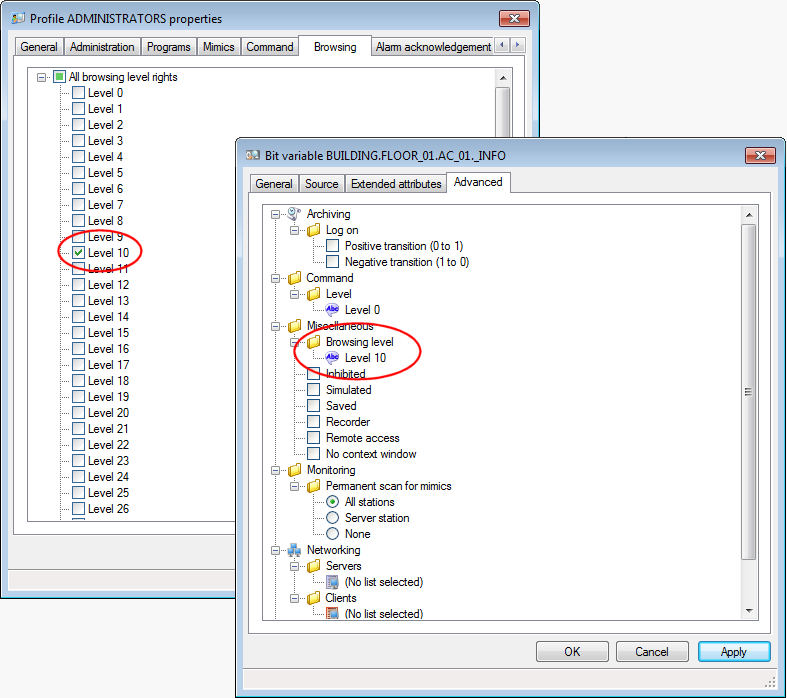
Browsing level rights are applied on the following interfaces:
- OPC DA clients browsing or accessing OPC items corresponding to variables via PcVue’s OPC server when OPC-Security is enforced.
- Mobile apps: TouchVue and SnapVue.
- Third-party applications using the Web Services Toolkit interface.
In particular, it is a way to control what variables a user can browse when using Dream Report as either an OPC client or a Web Services Toolkit client.
This feature is intended to encourage more secure practices. Interfaces used to access the variables of PcVue are typically system boundaries, which it is advisable to control.
Permissions related to access to Web Apps and Web Services
The account for a user intending to use one of the Web app is configured in the same way as any other user account. Specific privileges are defined in the Web tab of the Profile Properties dialog. They affect user access to WebVue, Mobile Apps, the Web Services Toolkit, and all services relying on the Web back end. Show picture
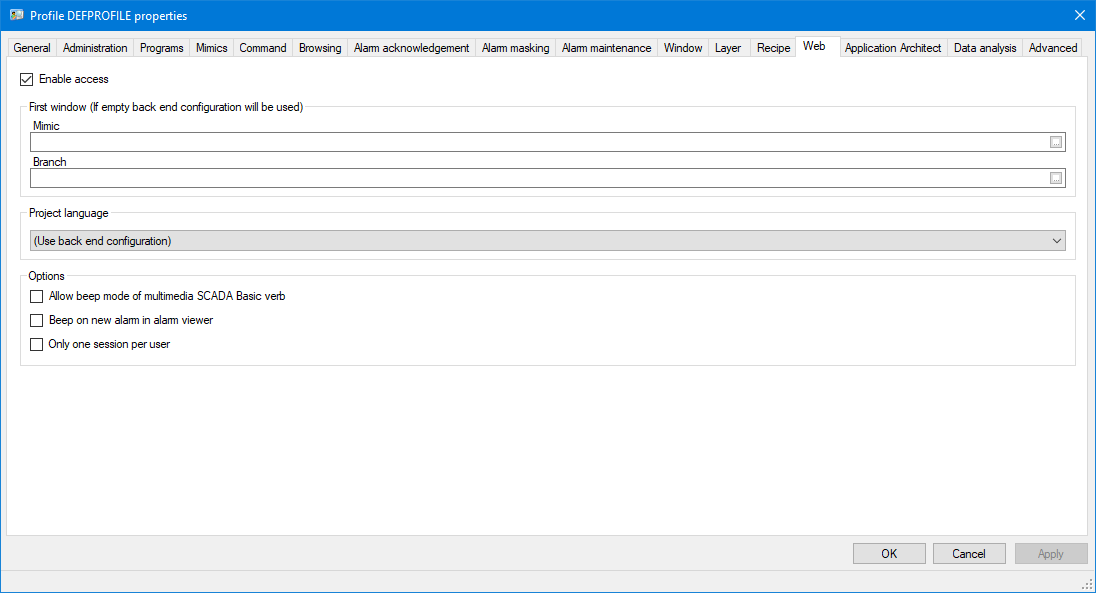
- Set the ability to login via a Web App.
- Enable access - You must tick the box so that users associated to this profile can log in via Web Apps or the Web Services Toolkit.
- Configure the first window to be opened.
- First window - Mimic - You can select the name of the mimic that is to be displayed when a user associated to this profile connects via WebVue. If you do not specify a window, then the one selected on the Web back end configuration will be used.
- First window - Branch - Specifies the branch to be used.
- Configure the languages to use.
- Project language - For bilingual projects only. Specifies the language in which the localized texts will be displayed to the user. This property affects WebVue mimics, but also any localized label in Mobile apps and Web Services Toolkit. By default, the configuration is taken from the Web back end properties.
- Set the options specific to WebVue.
- Allow beep sub-mode of MULTIMEDIA SCADA Basic verb - Enable use of the MULTIMEDIA mode of the SCADA Basic instruction WEBVUE for the WebVue Client on which the user is logged in.
- Beep on new alarm in alarm viewer - If this is ticked, WebVue will give an audible indication each time there is an alarm transition to On - Not Acknowledged in an Alarm Viewer.
- Only one session per user - If ticked, a user having this profile will be limited to one WebVue session at a time. One will not be able to login in more than one web browser instances on a given client device or from several devices at the same time.