Using the advanced security strategy
The advanced security strategy modifies the operation of the User accounts in the following way:
- User profiles are hierarchical.
- Account names must be 6 characters or longer.
- The first time a user logs in, the password must be changed.
- The first time a user logs in, all properties can be changed, except the name.
- User accounts can be de-activated.
- If a user account is deleted, a record of it remains in the user directory.
- Information about a failed login attempt is available in two system variables.
- Failed login attempts generate an event, Attempted logon failure, that can be logged.
- On reaching the maximum number of failed login attempts configured in the User accounts Settings (default 3), the user account is locked.
- All passwords used in a project, including any that have expired or were used in deleted accounts, must be unique. An internal record of past password hashes is kept to ensure this.
The status of user accounts are indicated in the Application Explorer:
| Icon | Status |

|
Normal |

|
De-activated |

|
Locked |

|
Deleted |
The advanced security strategy is enabled by default in the User accounts settings.
The behaviors described in this topic are only exhibited when the advanced security strategy is enabled.
Hierarchical profiles
When using hierarchical profiles, a profile is allocated a profile level from 0 to 9 using the General tab. The highest level profile is 0, the lowest is 9.  Show picture
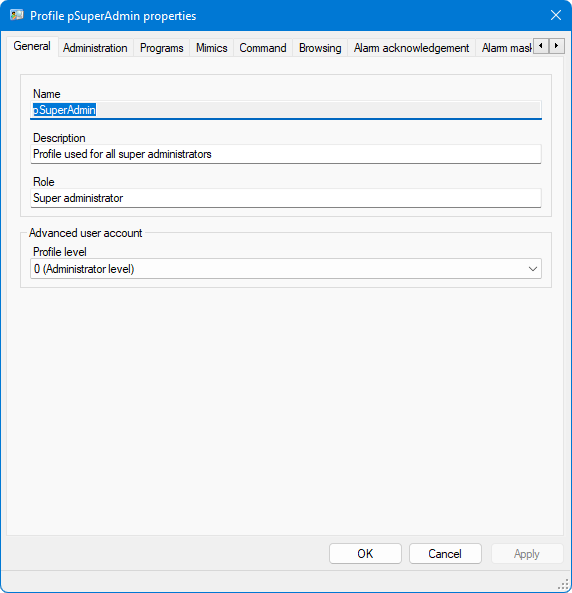
The profile level determines the extent to which any user account using the profile is able to view and modify other profiles and users.
- A user account associated to a profile of level 0 can view, create or modify profiles and users of any level (including 0).
- A user account associated to a profile of level N can only view, create or modify profiles and users of level N + 1 or greater.
In practice, to prevent the risks of privilege escalation, you will use the profile levels as follow:
- Level 0 - Super administrator profile
- Level 1 - Application Administrator profile
- Level 2 - Application Developer profile
- Level 3 to 8 - Operator profiles
- Level 9 or the lower unused level - DEFPROFILE
Logging in for the first time
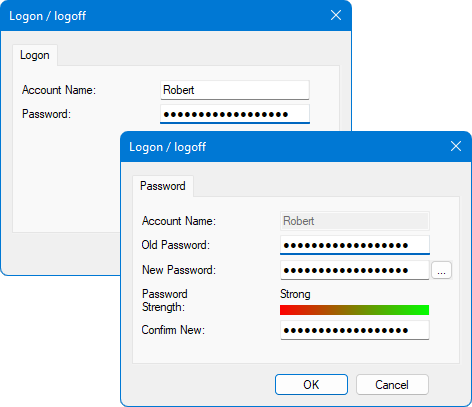
When you log in to a user account, either after it has just been created, unlocked following a failed login attempt, or reactivated after a period of deactivation, you must change the password.
- Open the Login dialog (F2) and enter the Account Name and Password. If it is a new or newly unlocked account, the password will have been allocated by the administrator. If it is an account that has been reactivated, it will be the password that was used before the account was deactivated. Click OK and the Change Password dialog will be displayed.
- Enter the current (old) password again and the new password. You must enter the new password in both the New password and Confirm new fields.
- Click OK to complete the login with the new password.
Managing failed login attempts
A failed login attempt is registered when a user attempts to login with any of the following errors:
- The user name is misspelled.
- The password is incorrect.
- The user account has been deleted.
- The user account is deactivated.
After the maximum number of failed login attempts configured in the User account settings (default 3) is reached, the user account is locked and can only be unlocked by a user with a superior profile level. Locked accounts are indicated in the Application Explorer with a padlock symbol adjacent to the user name. If you attempt to log in using a locked account a dialog will be displayed requesting an administrator to unlock it. To avoid the possibility of the system becoming completely inaccessible, a user with a profile level of 0 is never locked.
How an administrator can unlock a locked user account
The following explanation assumes the user following the procedure has administration rights.
- Display the Logon dialog (F2) and enter the locked user's name. Click the OK button. A dialog will appear informing you that the account is locked and that an administrator is required to unlock it.
- Click the Unlock button, select your name and enter your password. Click the Unlock button again. A dialog appears displaying the locked user's properties.
- Enter a new temporary password for the locked account in both the Password and Password verification fields, and provide it to the corresponding person or third-party application.
- Click OK.
- Click Cancel in the Login dialog to close it.
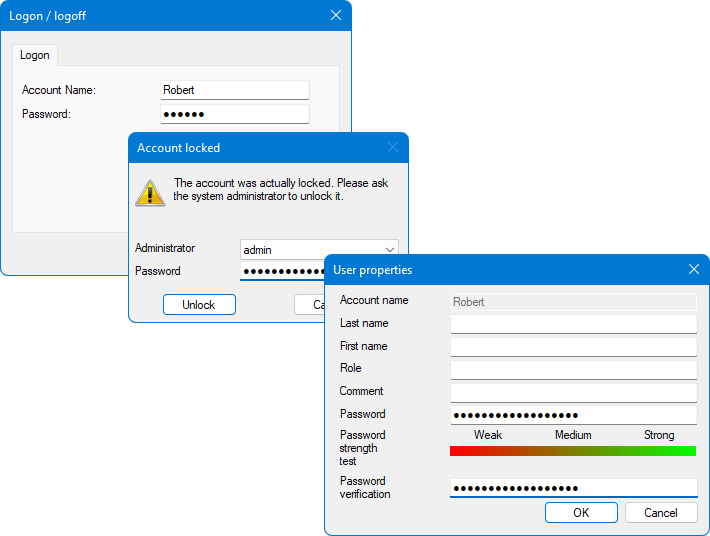
A user account that has been unlocked is treated the same as a new user account. That is, the first time the unlocked user logs in he/she will have to first enter the temporary password provided by the administrator, then enter and confirm a new password that only he/she knows.
System variables are available for tracing failed login attempts.
Deleting, deactivating and reactivating user accounts
To be able to delete, activate or deactivate accounts a user must have the right Delete users and associations, enabled on his/her profile.
To delete a user account:
- Select the Users folder in the Application Explorer configuration tree.
- Right click the account to be deleted and, from the pop-up menu, select Remove.
- In the confirmation dialog, select Yes to confirm the deletion.
Even when deleted, a record of the user account remains and it is not possible to create another user account with the same name.
To deactivate a user account:
- Select the Users folder in the Application Explorer configuration tree.
- Right click the account to be deactivated and, from the pop-up menu, select Deactivate.
Deactivating an account temporarily removes it from the list of accounts that are available. A deactivated account may be reactivated by an administrator with the appropriate rights.
To reactivate a user account:
- Select the Users folder in the Application Explorer configuration tree.
- Right click the account to be reactivated and, from the pop-up menu, select Activate.
The first time a User logs in using an account that has been reactivated the password must be changed.