Using Windows Domain user groups
A Windows domain is a group of computers running Microsoft Windows that share a central directory database. This central database, managed as part of an Active Directory Federation Services infrastructure, contains the user accounts and security information for the resources on that domain. Each person who uses a computer host within a domain receives their own unique account, or user name. This account can then be assigned access to resources within the domain.
A group is a collection of user accounts that can be managed as a single unit. Users that belong to a particular group are referred to as group members. Using groups can simplify administration by assigning a common set of permissions to many accounts at once, rather than assigning permissions to each account individually.
Using PcVue's User Accounts configuration you allocate profiles to one or more Windows user groups.
When a user logs on to PcVue, Windows authentication is called. If the user name and password are valid, the name of the user groups he/she belongs to is returned, which logs the user in and applies the permission of the profile associated to the user group (if any). If the user name and password are not valid as Windows credentials, PcVue checks if they match a valid account int the built-in directory.
If enabled in the user accounts settings, the Windows user's Full Name and Description are available as Display Name and Description properties respectively.
There are many advantages to using Windows user groups:
- Centralized management of users for multi-station applications.
- Uses the secure Windows infrastructure to manage users.
- Windows Domain administrators can add, remove or modify user accounts without changing the configuration of PcVue.
- Facilitates compliance with company policies
- Makes it easier to audit permissions
To enable the use of Windows domain user groups within PcVue you must first activate the option Enable connection to the Microsoft Windows directory in the User accounts settings.
When using Active Directory integration, Windows Domain users can use the following syntaxes in the login dialog box:
- Account name:
UserName - Down-Level Logon Name:
Domainame\UserNamewhere DomainName is the NetBIOS domain name - User Principal Name (UPN):
UserName@Domain.localwhere Domain.local is the domain name
When using the down-level logon name or user principal name, the setting Domain name is not considered.
Only Security groups can be used. Distribution groups are not suitable as part of PcVue user management.
How to test the connection to AD-DS
You can test the connection to AD-DS using the Directory connection test task to verify that PcVue can reach an AD-DS controller with the LDAP or LDPAS protocol.
- Select the User accounts node in the Application Explorer and, from the task list select Directory connection test.
- Click the LDAPS button to test the connection over TLS port 636 or the LDAP button to test the connection over TCP port 389.
- An end-to-end connection test is performed and detailed traces are provided.
- Click the Close icon when done.
How to check the existence of a Windows user
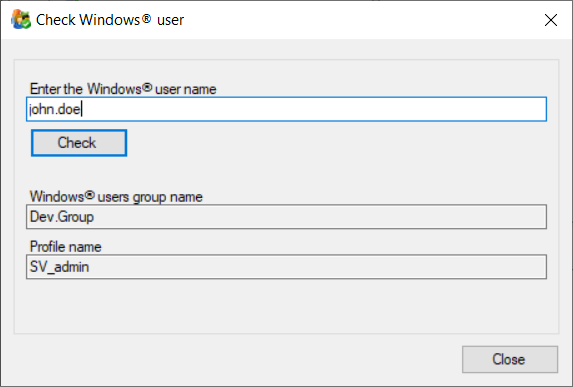
You can check the existence of a Windows user using the Check Windows users task.
- Select the User accounts node in the Application Explorer and, from the task list select Check Windows user.
- Enter the Windows user name and click the Check button. If you have entered a valid user name, the Windows user group name is displayed. If a profile has been allocated to the user group its name is also displayed.
 Show picture
How to associate a profile with a Windows domain user group
- Expand the configuration tree of the Application Explorer and select a profile.
- From the task list, select Add a Windows user group. A dialog box opens and allows you to retrieve a filtered list of Windows user groups. Enter any relevant filter and click the search button to display a list of the Windows user groups. Show picture
- Tick the user group to which the profile is to be allocated.
- If you have enabled Network dependent profile association, select the station list or all stations.
- Click the OK button to confirm the configuration.
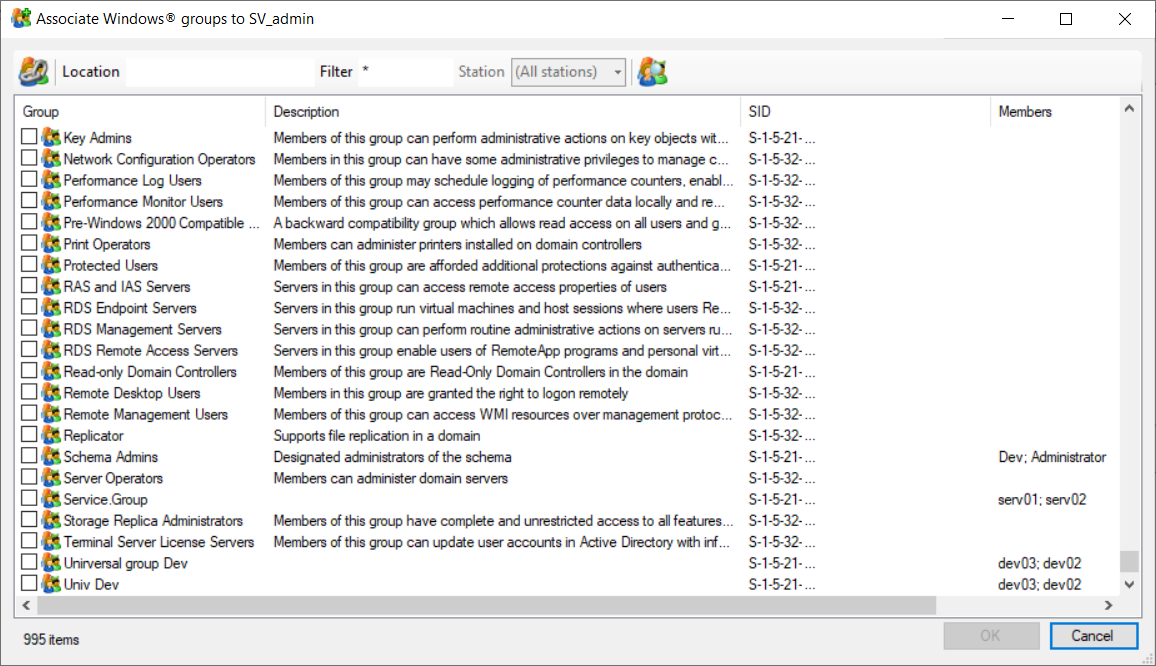
To make it easier to find the relevant groups, the Associate Windows Groups dialog provides the following filtering capabilities:
-
Clicking the first button shows or hides groups already associated to one or more profile,
-
The Location field allows filtering based on a domain name, in which case the Domain name setting is ignored for the search process. It can also be used to filter based on station names. The character '.' can be used to designate the local station.
-
The list-box Station is relevant when the setting Network-dependent profile association is enabled and allows filtering based on the station to which the selected profile applies.
You can associate the same profile with one or more Windows user groups.