Deploying PcVue as a Windows Service
By default, PcVue installation installs the components and generates the configuration required to run PcVue as a service. The main components are:
- SV Core Daemon - The service that manages PcVue, and the HDS, when running as a service.
- SV Core Management Console - A desktop application that collects together, in one easy to use tool, all the configuration elements required to run the software as a service.
Prerequisites:
-
The SV Core Management Console requires Administrator privileges.
The SV Core Management Console must not be used to change the run mode whilst PcVue is running.
Running the Component Registration Utility resets all system settings associated with PcVue processes to their installation defaults. This includes:
-
Settings associated to the SV Core Daemon, SV DbConnect and SV Core Session Host services: Startup type, Recovery mode, Service account, Service dependencies.
-
Configuration of the 3 DCOM applications associated to PcVue.
We recommend you to document these settings as part of your project documentation so that you are able to set them again each time you update the PcVue version, replace a computer or in any other situation requiring that you run the Component Registration Utility.
Using the SV Core Management Console
The Management Console is started from a shortcut in the PcVue program group in the Start menu. The following screenshot shows the Management Console in its default configuration.  Show picture
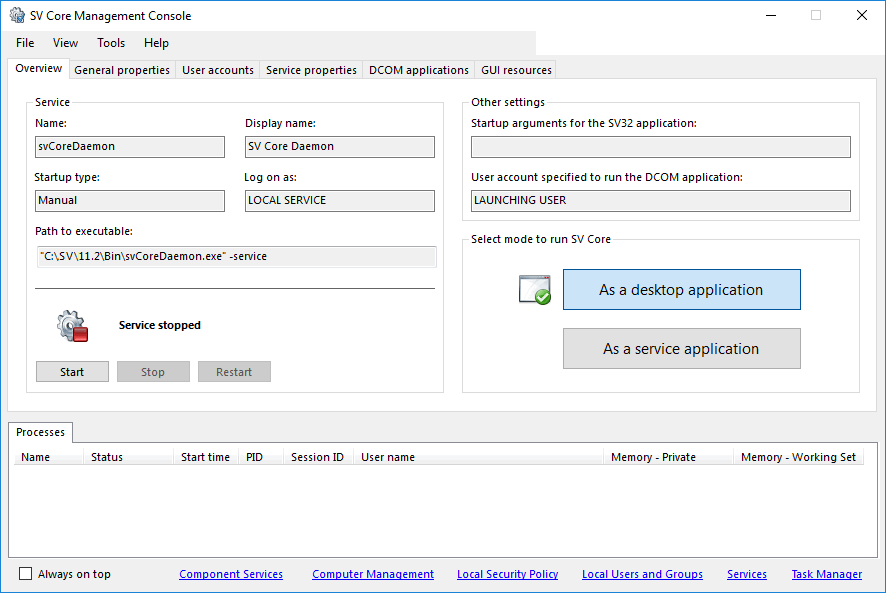
The Overview tab collects together the main configuration settings in a read only format and provides tools to start and stop the service manually. Most of the settings do not need to be changed for default operation as a service. The settings are grouped as follows.
- Service - Settings applicable to the SV Core Daemon service.
- Startup type - The startup as configured in the Service Properties tab. The default of Manual means a user has to start the service.
- Log on as - The Service Account used to run the service. Configured in the User Accounts tab.
- Start, Stop and Restart buttons - Tools for the user to manually start the service.
- Other setting
- Startup arguments for the Sv32 application - Configured in the General Properties tab. The syntax is described in the Command Line Arguments topic. Only arguments that do not require input by the user can be used.
- User account specified to run the DCOM application - The User Account used for DCOM.
- Mode to run SV core - Set to Desktop Application by default, can be changed to Service Application to run PcVue as a service.
- Processes - Information about PcVue running processes. The Session Id is 0 when running as a service and non-zero when running as a desktop application. Show picture

The SV Core Management Console also provides convenient access to several related Windows configuration tools.
General Properties tab
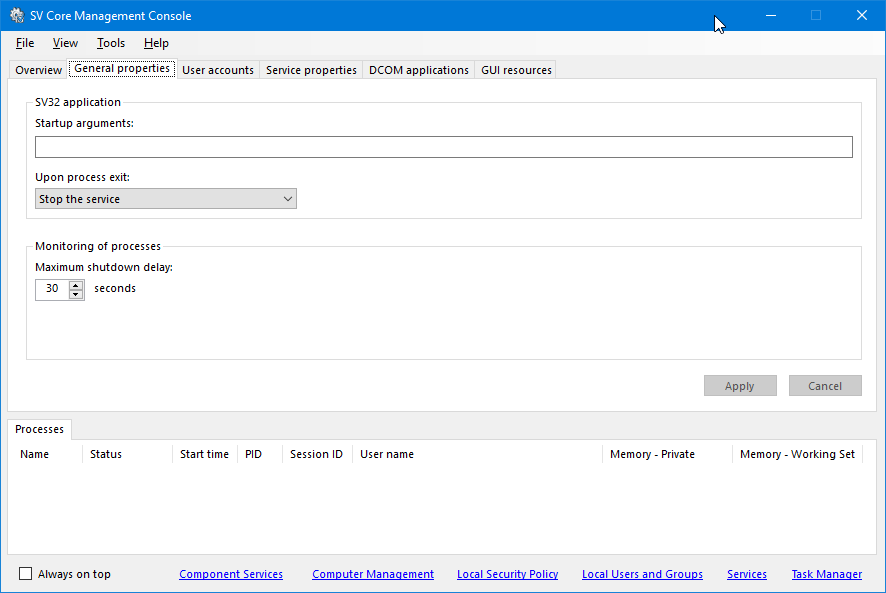
- Startup arguments - Startup arguments for PcVue core program sv32.exe. The syntax is described in the Command Line Arguments topic. Only arguments that do not require input by the user can be used.
- Upon process exit - Behavior if the sv32.exe process terminates intentionally or unexpectedly.
- Disabled (no report) - Process monitoring is disabled, and no reporting is performed.
- Report the termination - The failure will be noted in the Windows Event Log and also visible in the Log Monitor.
- Stop the service - The SV Core Daemon service will terminate gracefully. This is the default option.
- Terminate the service (hard exit) - The SV Core Daemon service will hard exit. This allows control to be handed back to the Service Control Manager and for a restart to be performed by it in preference. See the Recovery tab of the Service Control Manager.
- Maximum shutdown delay - The period that the SV Core Daemon waits while the sv32.exe and HDS.exe processes attempt to shutdown gracefully. If the processes are still running after this period the SV Core Daemon will force their shutdown.
User Accounts tab
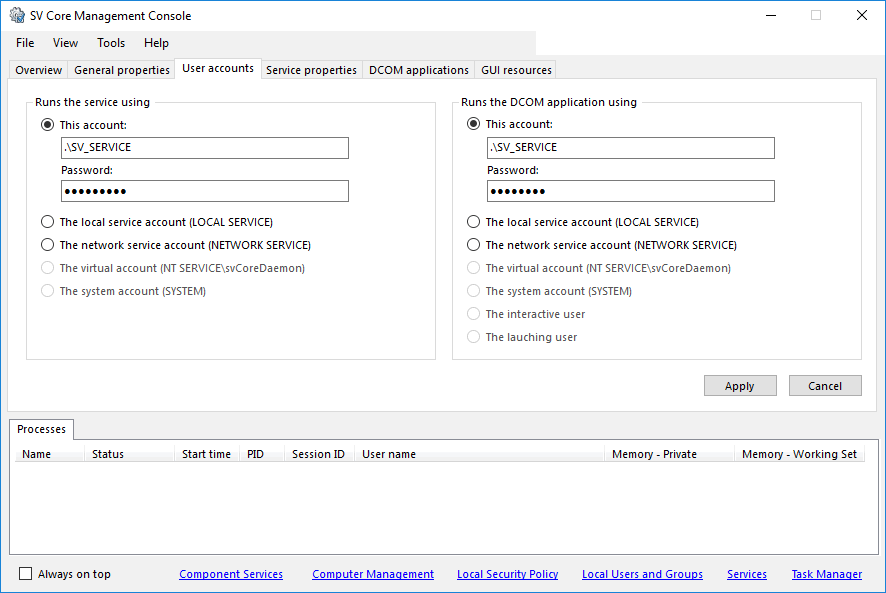
Used to select the account which is used to run PcVue SV Core Daemon service and the DCOM application - Defaults to Local Service. It is mandatory to use the same account for both.
Service Properties tab
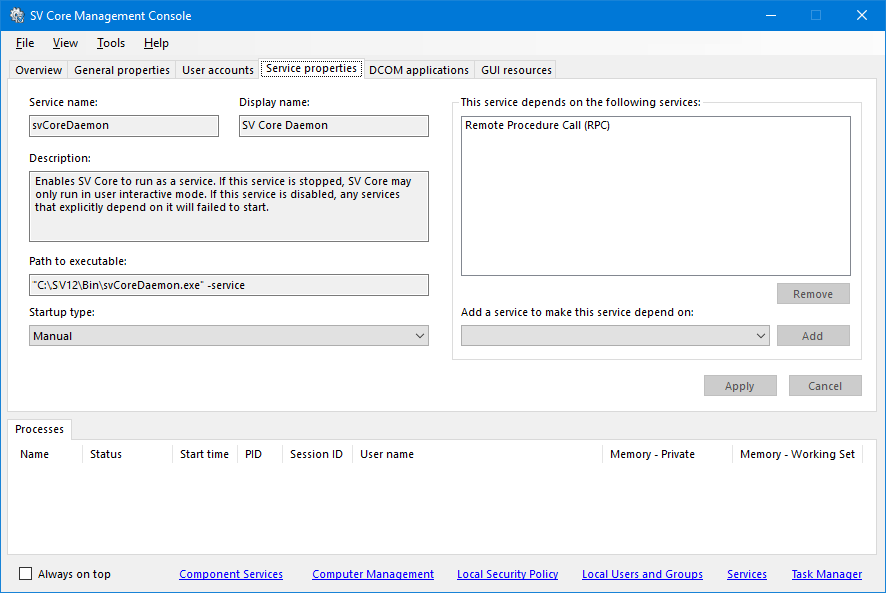
Used to configure the startup of PcVue SV Core Daemon and to select any dependent services.
The startup type can be selected from:
- Automatic - The service starts automatically during the startup of the operating system.
- Automatic (delayed startup) - The Service Control Manager starts services that are configured for delayed automatic start after all of the automatic-start services have finished starting. On some older computers, it may get necessary to delay the loading of a specific Windows service for the computer to boot properly. At other times, you may want to be sure that a particular Service has started, and is available for troubleshooting purposes, before the other Service is started. This is where the Automatic (delayed start) option can help.
- Manual - The service must be started manually.
- Disabled - The service is disabled (cannot be started). Can be used to reduce the risk of malicious use if PcVue is installed but not in use.
A dependent service is one that must already be running before PcVue SV Core Daemon can start. The installed services are displayed in a drop down list box from where they can be selected and added to the list.
In particular, you will want to configure the following dependencies to make sure they are started in due time:
- If you use a local SQL Server instance with the HDS, the SQL Server service must be included as a dependency.
- If you use Sql connections to connect to 3rd party DBMS, the SV DbConnect service should be included as a dependency.
DCOM applications tab
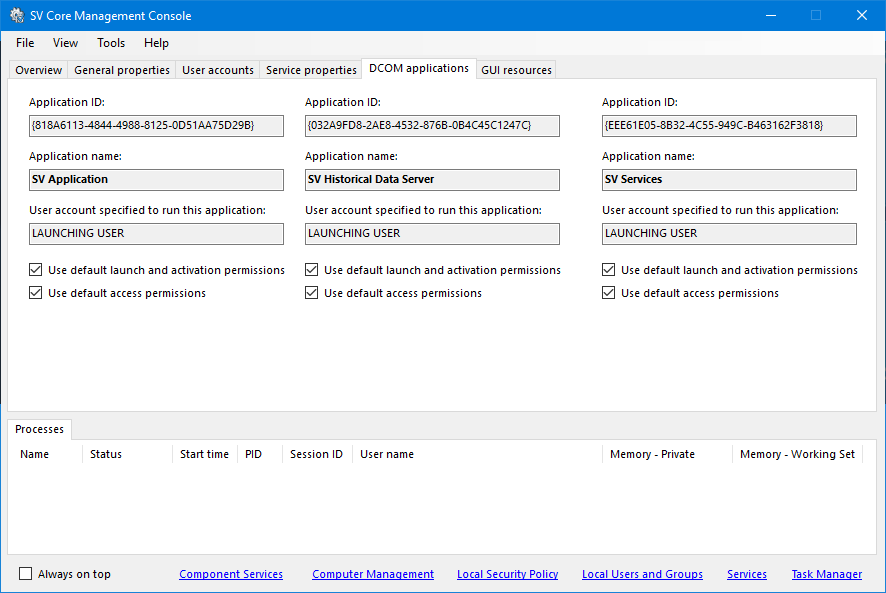
The DCOM applications tab displays current DCOM settings for the 3 COM applications included in PcVue.
DCOM settings for SV Application and SV Historical Data Server are important only if running PcVue as a desktop application. They do not apply when running it as a Windows service.
DCOM settings for SV Services are important only if running PcVue as a Windows service. They do not apply when running it as a desktop application.
DCOM settings cannot be modified directly from within the SV Core Management Console. Click on the Component Services link to access the system DCOM Config.