Web server maintenance and diagnostics
The Web Deployment Console is helpful for the initial set up of the Web Server, but it is also designed to be used at later stages.
This topic addresses how the WDC can help you as part of maintenance and diagnostics activities.
Using the WDC to backup and restore the web server configuration
The settings you select when using the WDC are persisted in a configuration file named WebDeploymentConfiguration.xml and stored in the \Etc folder. This file is not removed when updating or uninstalling the WDC.
Because keeping a backup copy of this file is important, the WDC offers an export feature that will allow you to save it to another location for later use. In addition to the WDC configuration file, this feature also exports all useful data and configuration files of web services and web applications as they are used by the elements deployed at the time of export (mainly web.config files).
You can use the Import feature to restore your web server and web sites settings at a later stage, either on the same web server or on another one. If restoring on a different server, the server name in the file is ignored.
For security reasons, the OAuth database password and encryption key are unique per deployment, meaning websites cannot be copied from one server to another. The encryption key is renewed each time you re-deploy. The Export and Import features help you re-deploy the configuration besides the fact that the encryption key may have changed in the meantime.
Using the WDC to update the web services and web applications
Because the WDC installation media includes the Deployment Packages for all web services and web applications, updating the WDC on a regular basis is important to get updated Deployment Packages that includes potential bug fixes, security hot fixes and evolutions.
Once an updated version of the WDC is installed on the web server, updating the deployed web services and web applications is achieved by opening the burger menu of the web site, and clicking Re-deploy.
If the WDC detects an issue or that at least one Deployment Package is more recent than the date of last deployment, then a warning sign is displayed on the affected web site toolbar to invite you to run diagnostics or re-deploy the web site to update it.
How to use the WDC Diagnostics
The diagnostics are ran, and the results displayed, in the Diagnostics pane. They are available at 2 levels, the Web Server and for each deployed Web Site. Whilst the diagnostics are not exhaustive they are a useful aid when fault finding.
Diagnosing the Web Server and installing missing IIS modules
To access the Diagnostics pane, click Diagnostics in the web server toolbar.  Show picture
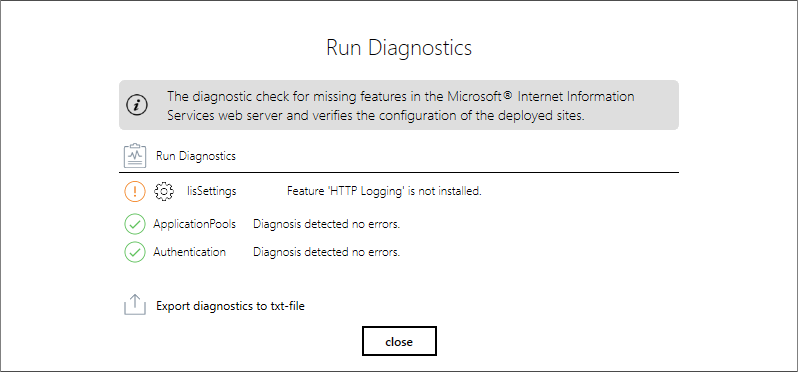
The diagnostics check that:
- All required Microsoft IIS modules are installed and properly configured,
- The Application Pool is properly configured,
- The authentication server is properly installed and configured.
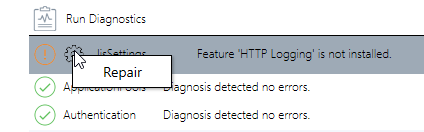
Any missing feature is listed. You can correct the situation by clicking the Gear icon adjacent to the IIS Settings entry and selecting Repair. Show picture
Diagnosing a web site
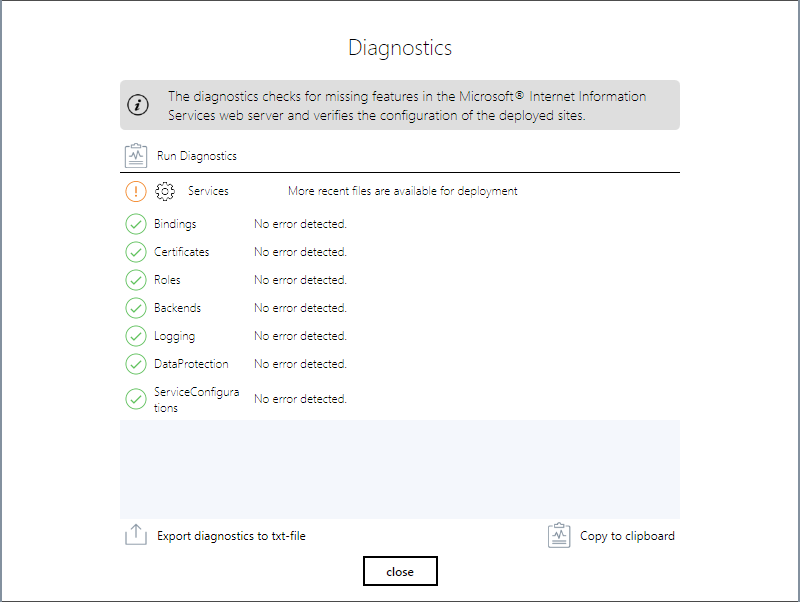
To access the Diagnostics pane, open the burger menu in the web site toolbar, and then click Diagnose site.Show picture
The diagnostics check that the web site is deployed in accordance with the way it is configured. In particular, the following items are checked:
- Bindings: At least one binding exists, with an existing certificate associated to it...,
- Certificates: Check that the certificate does not expire within 7 days,
- Binaries: Check that no newer version of the deployed services and applications is available,
- Roles and services,
- Back end endpoint configuration,
- Logging,
- Data protection,
- Services configuration.
Any discovered missing or incorrect item is listed. In general, you can correct the issues by re-deploying the web site.
Additional features
When the diagnostics pane is open, you can re-run the verification by clicking Run Diagnostics.
The diagnostics pane allow you to export the diagnostics results to a text file or to the clipboard.