Installing PcVue
Prerequisites installation
The prerequisites are components that must be installed before PcVue
When the installation is started, it first checks for the presence of the prerequisites on the computer and installs the missing ones.
The installation wizard
The PcVue installation automatically follows that of the prerequisites.
A wizard guides you through the installation process, prompting for information where necessary. The exact process will depend on the options you choose, the operating system and what software components are already installed on your computer but the main stages are as follows.
At each step, after configuring any options click the OK or Next button to proceed. Clicking the Cancel button at any time will abort the installation.
- Welcome to the InstallShield Wizard - This is the first step of the installation itself. Click Next to continue.
 Show picture
 - License agreement - Before you can continue with the installation you should read the License Agreement and select I accept... or I do not accept... as appropriate. Click Next to continue only if you accept the agreement. Show picture
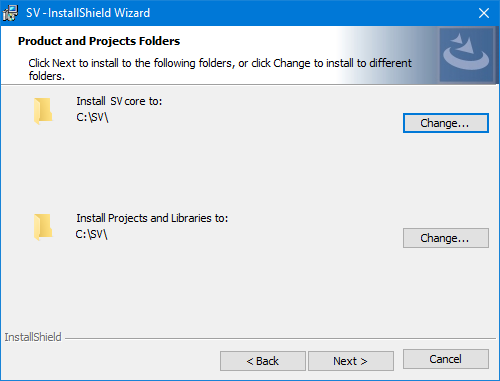
- Products
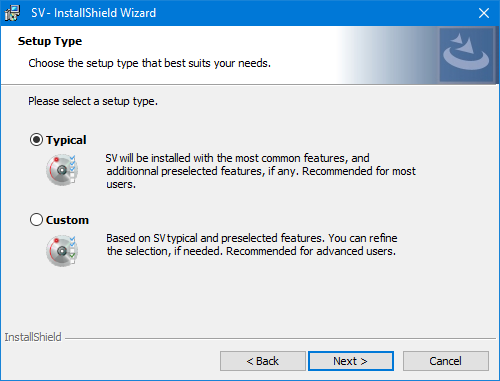
To install the software elsewhere, use the Change button to select another pathShow picture - Setup Type - Select the setup type from the following options. Show picture
- Typical - Installs the most common features and preselected options for the software, taking into account the selection made in the Features Selection Menu.
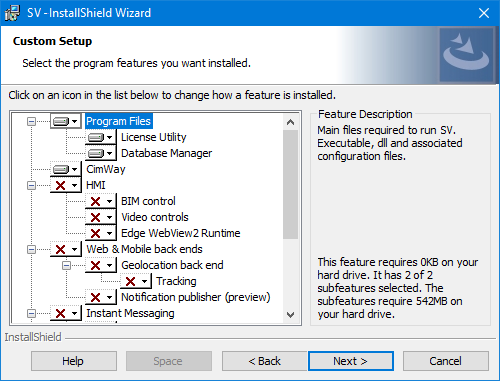
- Custom - Allows you to select exactly which components you want to install. The selection is the same as for Typical. Recommended for advanced users. Show picture
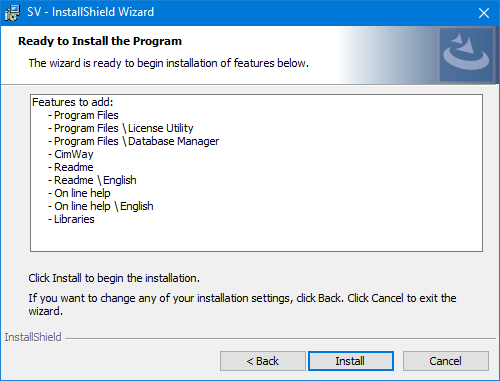
- Ready to Install the Program - Asks whether you wish to complete the installation or to review or change the options you selected.
Click Install to proceed with the installation, Back to return to the options or Cancel to abort the installation process.Show picture - Installing status: A progress bar indicates progress with installing each component, then a dialog confirms that the installation is complete. Click on Finish.


Completing the installation
Once installation is completed, you may be prompted to re-boot your computer. This re-start is sometimes necessary to register some of the files needed to run PcVue with the operating system.
Version update
If you start the installation on a computer where a previous version is already installed, the installation process will automatically update the currently installed version.
A version can be updated by installing from a Full DVD, a Standard package or a Cumulative patch.
In most cases, the installation will update the product without changing the list of installed features. If, as part of the update, you need to change this list, you are required to use the Maintenance procedure called Modify after the update.
In some cases, depending on the exact content of the update, the installation process need to uninstall the existing version before re-installing the new one. You then have the opportunity to change the list of installed features at the same time as the update.