The hardware protection key driver
The PcVue software is protected against unauthorized use by using a hardware device known as a dongle or hardware protection key. Each new license of the PcVue software is delivered with the appropriate Sentinel key. Two types of hardware protection key are available and drivers for both are installed.
- Parallel port.
- USB port.
The type of key shall be specified when ordering the license.
USB hardware protection key models
The model of key used has changed overtime. You may be supplied one of the models as illustrated below.  Show picture
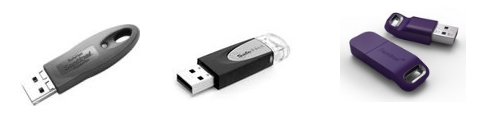
Replacing a previous version
The version of the Sentinel Protection driver is compatible with all previous versions of PcVue since 6.04.
Under some circumstances, if an older version driver, 5.41.0, is present it may cause a malfunction. If that occurs, you can solve it as follows.
- De-install any installed version of the driver.
- Re-boot the PC even if that is not requested.
- Install or re-install the version of the driver supplied on the DVD. See below for more information.
- Re-boot the PC again.
How to install the hardware protection key driver manually
The hardware protection key driver is installed automatically as part of the prerequisites when you install PcVue software.
However if necessary you can install it manually.
- From the PcVue Installation menu, select the Add-ons, Drivers and Tools menu and then select Sentinel Driver. When the wizard for the Sentinel System Driver appears, select Next.
- If a previous version of the Sentinel System Driver is already installed, a dialog will ask whether you want to upgrade it. Click on Next.
- A Welcome dialog appears. Click on Next.
- The License Agreement dialog appears. Read the license agreement, select the option 'I accept...' to continue only if you accept the agreement, then click on Next.
- The Setup Type dialog is displayed. Select Complete then click on Next.
- The Ready to Install dialog is displayed. Select Install to run the installation process.
- An Installing dialog shows a progress time-bar. When it shows the message InstallShield Wizard Completed, click on the Finish button.
Troubleshooting the hardware protection key driver
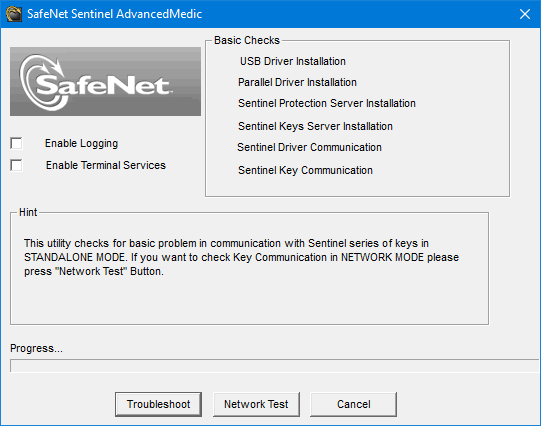
Thales (formerly SafeNet), the manufacturer of the hardware protection key used for PcVue, provides a diagnostic tool (Sentinel Advanced Medic) for use if you encounter a problem or wish to check the protection status of any computer running Windows. It provides information on the Sentinel system driver and the key limits for both and parallel port keys. The tool is provided on the PcVue distribution media in the form of a self-extracting executable.
You can run the tool in standalone mode or across a network, regardless of whether PcVue is installed on a particular PC:
- Locate the self-extracting executable, SentinelAdvancedMedic.exe, on the PcVue distribution media in the Add-ons and Tools folder, and run it. The diagnostic tool is installed and a shortcut, Sentinel Advanced Medic, created on the desktop.
- Start the tool using the desktop shortcut. Show picture
- Select Troubleshoot to run the basic checks on the local system or Network Test to run checks over a network. Each time a check fails the process halts and a message is displayed in the Hint box. You must click Acknowledge to continue.
- When the checks are complete click Done to close the diagnostic tool.
For further information, see the Thales web site.