Licensing
The PcVue software is protected against unauthorized use via a license. With the purchase of a license, you obtain the right to use it in the conditions described in the End-User License Agreement.
Each installed software requires a valid license for operating lawfully as described in this documentation. Without a valid license, PcVue can only be used in Demonstration mode, designed for discovering the product.
The content below is given for information purposes only and is subject to change without notice.
Some modes, types and options, solely or combined, may only be available under specific conditions and geographical areas.
Please contact your reseller for more information.
License and associated features
This section describes the correspondence between license protection and application features as documented in this online Help.
The PcVue license is mainly defined as follows:
- The run mode: Run time, Development or Complete.
- The number of I/O variables.
- The type of license: HMI station, SCADA station, Communication server etc.
Plus some features and options detailed hereafter.
Modes of operation
There are three modes of operation:
|
Mode |
Features |
| Run time |
Designed for use in production. This allows an unlimited runtime usage, but with no configuration capability. |
| Development | Designed for hosts used for project development and maintenance on a one-off basis. Development mode is limited to four hours run time after which features are restricted. |
|
Complete |
Designed for hosts with mixed usage, production and maintenance. This brings together Development and Runtime functioning without any limitation other than those brought about through the installation and the other license options. |
I/O variable count
This count limits the maximum number of I/O variables beyond which PcVue will not be able to start the project.
When evaluating the size in terms of the number of variables, only the I/O variables are counted, i.e. variables mapped onto data acquisition protocols, whether they are produced locally or by another station.
Some data acquisition drivers may require the use of more than one variable for the same equipment data. In such a case, the various variables are counted separately.
The type of station
The type of station defines the role a station can play in the architecture. For example, a station with a hardware protection key having a license of the Client Station type is not able to act as a data acquisition server.
These are typical combinations of features available at the time of writing:
|
Station/server |
Comments |
| HMI Station |
Designed for stand-alone stations where data acquisition, archiving and user interface are used jointly on a single station. It includes all main features, in particular data acquisition, historical data and user interface. |
| SCADA Station |
Designed for all-in-one stations in networking architectures, it consists of all PcVue and control functions including inter-station communication capability. It includes all main features, in particular data acquisition, historical data and user interface. |
| Communication Server |
Designed for the role of data acquisition server, archival or gateway in a networking architecture. |
| Client Station |
Designed for the role of operator station in a networking architecture. It has a user interface but does not allow data acquisition from field devices. |
| Network Client Station |
Designed for client stations that must run without a local hardware protection key. The license is stored in a hardware protection key that is available on the network. This type of license is used for client stations running in a Windows Remote Desktop architecture. |
| Web & Mobile Back end Server |
Designed for the role of server for Web & Mobile clients: WebVue, the WebScheduler, TouchVue, SnapVue as well as the Web Services Toolkit. |
| Engineering Station | Designed for development and maintenance stations off from production. It includes all main features, in particular data acquisition, alarms, historical data, user interface and inter-node messaging. Runtime usage is limited to 4 hours. |
Other features and options
Below is a non-exhaustive list of the other features and options that are license-protected:
- Inter-station messaging
- Communication channels for data acquisition including Modbus, S7, OPC-DA Client, OPC XML-DA Client, OPC UA Client, SNMP Manager, BACnet, LonWorks, KNX, IEC 101 Client, IEC 104 Client, IEC 61850 Client, DNP3 Client...
- Number of simultaneous WebVue clients
- Number of simultaneous Web Services Toolkit clients
- Number of simultaneous TouchVue clients
- Number of simultaneous SnapVue clients
- Database Manager and Replication
- Data Export
- SNMP Agent, OPC-DA Server, IEC 104 Server
- Dynamic Busbar Coloring
- Map Control
- Instant Messaging
- etc.
Running PcVue in demonstration mode
When you start PcVue, if it does not detect a license it gives you the option of starting it in Demonstration mode.
It runs as a license of type complete with all features available but with the following restrictions:
- The maximum number of I/O variables is limited to 25
- No inter-station messaging
- Data acquisition runs for 1 hour in any one session
- Only two WebVue clients can be connected
Hardware protection key
The PcVue software is protected against unauthorized use by using a USB device known as a dongle or hardware protection key. Each new license of the PcVue software is delivered with the appropriate Sentinel key.
USB hardware protection key models
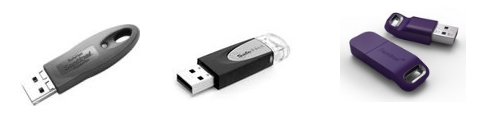
The model of key used has changed overtime. You may be supplied one of the models as illustrated below.  Show picture
Replacing a previous version of the Sentinel Protection driver
The Sentinel Protection driver is installed as part of the installation process and is compatible with all previous versions of PcVue since 6.04.
Under some circumstances, if an older version driver, 5.41.0, is present it may cause a malfunction. If that occurs, you can solve it as follows.
- De-install any installed version of the driver.
- Re-boot the PC even if that is not requested.
- Install or re-install the version of the driver supplied on the DVD. See below for more information.
- Re-boot the PC again.
How to install the hardware protection key driver manually
The hardware protection key driver is installed automatically as part of the prerequisites when you install PcVue software.
However if necessary you can install it manually.
- From the PcVue Installation menu, select the Add-ons, Drivers and Tools menu and then select Sentinel Driver. When the wizard for the Sentinel System Driver appears, select Next.
- If a previous version of the Sentinel System Driver is already installed, a dialog will ask whether you want to upgrade it. Click on Next.
- A Welcome dialog appears. Click on Next.
- The License Agreement dialog appears. Read the license agreement, select the option 'I accept...' to continue only if you accept the agreement, then click on Next.
- The Setup Type dialog is displayed. Select Complete then click on Next.
- The Ready to Install dialog is displayed. Select Install to run the installation process.
- An Installing dialog shows a progress time-bar. When it shows the message InstallShield Wizard Completed, click on the Finish button.
Licensing PcVue Using a Network Dongle
The network dongle (protection key) was originally conceived for multi-station systems where the project requirements meant all the license information had to be located in one dongle. The network dongle is physically the same as a normal dongle but contains more than one license. Each additional license is held in one of two slots along with other licenses of the same configuration.
The network dongle is plugged into a PC running an instance of PcVue known as the dongle owner. This PcVue station is responsible for distributing the licenses to other instances of PcVue as they start, and therefore must be started first.
When starting another instance of PcVue - either on another PC, a virtual machine, or in a Remote Desktop Session - PcVue is instructed by the command line, or configuration option, to retrieve its license from the network dongle. The license is acquired each time PcVue is started.
How the licensing works in a network dongle
In a standard dongle, if you were able to view its properties it might look something like this.

You can see properties representing the dongle number, the number of allowed tags, its type etc.
In a network dongle, two additional sets of properties appear. If you were able to view its properties, it might look something like this.
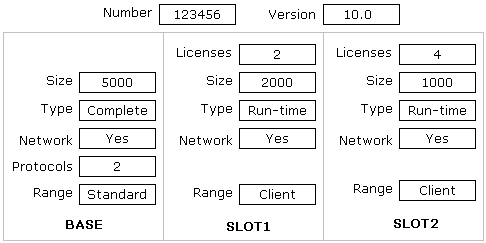
The BASE contains the license and properties for PcVue running on the PC to which the dongle is physically connected. SLOT1 and SLOT2 contain licenses that may be accessed over a network.
SLOT1 and SLOT2 contain not only license properties but also the number of licenses. In the picture above the dongle has the capability to run 7 instances of PcVue.
- 1 x 5,000 tag complete with networking (BASE)
- 2 x 2,000 tag run-time client (SLOT1)
- 4 x 1,000 tag run-time client (SLOT2)
A network dongle has only one number property and one version property hence all instances of PcVue that are licensed from the dongle will appear to have the same dongle number and must be the same version.
Using a network dongle when running PcVue on RD Session Host server
When running PcVue on a RD Session Host server it is likely that there will be several instances of PcVue running concurrently on the same server. In such an architecture, a network dongle containing multiple licenses must be used.
The network dongle will be located on another PC running another installation of PcVue, configured as a license owner, connected to the RD Session Host server via a local area network.
PcVue periodically checks for the presence of a license. If the PcVue station distributing the license is shutdown, after a period of time the other instances of PcVue will be unable to find their license and will also shutdown.
Troubleshooting the hardware protection key driver
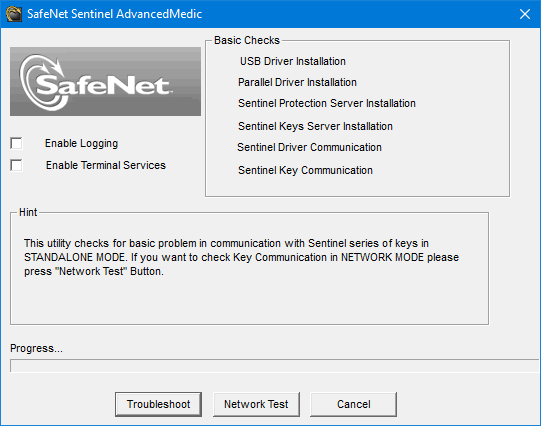
Thales (formerly SafeNet), the manufacturer of the hardware protection key used for PcVue, provides a diagnostic tool (Sentinel Advanced Medic) for use if you encounter a problem or wish to check the protection status of any computer running Windows. It provides information on the Sentinel system driver and the key limits for both and parallel port keys. The tool is provided on the PcVue distribution media in the form of a self-extracting executable.
You can run the tool in standalone mode or across a network, regardless of whether PcVue is installed on a particular PC:
- Locate the self-extracting executable, SentinelAdvancedMedic.exe, on the PcVue distribution media in the Add-ons and Tools folder, and run it. The diagnostic tool is installed and a shortcut, Sentinel Advanced Medic, created on the desktop.
- Start the tool using the desktop shortcut. Show picture
- Select Troubleshoot to run the basic checks on the local system or Network Test to run checks over a network. Each time a check fails the process halts and a message is displayed in the Hint box. You must click Acknowledge to continue.
- When the checks are complete click Done to close the diagnostic tool.
For further information, see the Thales web site.