Silent installation
Silent installation allows you to automate the installation of PcVue rather than using the installation packages interactively. Silent installation is typically performed via scripts based on PowerShell or command line files (.cmd).
This topic explains how to use the installation packages to perform silent installation, including:
- Fresh installation - The moment you install a given version of the product for the first time on a computer. The installation media must always be available.
- Update or patching of the installation - When the product is already installed and you want to update to a newer release for the same version. The installation media must always be available.
- Repair - When the product is already installed and you want to make sure no file is missing or corrupted for the installed features. The installation media is required in most cases.
- Modify - When the product is already installed and you want to add or remove features. Adding features requires the installation media, removing features does not.
- Remove - When the product is installed and you want to uninstall it. Does not require the installation media.
Please refer to the topic Before starting the installation for more information about what you should check before proceeding with installation.
The installation media comes in the following form:
- Standalone - Either as a DVD, or as a downloadable .iso package, containing the full set of installation modules including all Add-ons and tools. Can be used to perform a fresh installation or update an existing installation.
- Cumulative patch - Downloadable package designed to update an existing installation. Cannot be used for a fresh installation.
Scripts or command line used for installing PcVue must be executed with administrator privileges.
From an installation point of view, PcVue is made-up of 2 packages that can be installed together or separately, on the same computer or not:
- PcVue Core - The main components of the PcVue product, including the desktop client and configuration tools.
- The PcVue Web Deployment Tools (WDT) - The Web Deployment Console and the web application packages that the WDC will help you deploy on the web server.
Because both come with prerequisites packages, the full list of installation packages you will use to perform silent installation is the following:
- Core prerequisites - Installed once only before Core installation. Not needed if Core does not need to be installed or if the Core prerequisites have already been installed. Provided as part of a Standalone package.
- WDT prerequisites - Installed only once before Web Deployment Tools installation. Not needed if WDT does not need to be installed or if the WDT prerequisites have already been installed. Provided as part of a Standalone package.
- Core - The main package for the PcVue product. Provided as part of a Standalone package.
- WDT - The Web Deployment Tools package. Provided as part of a Standalone package.
- Patch - The package you will use to update an already installed release. It is a bundled package that will update Core or WDT or both depending on what packages are already installed. Provided as part of a Standalone package for Minor updates or as a Cumulative patch.
A product release comes either as a Major upgrade or as a Minor upgrade. A Major upgrade is not more important than a Minor one. The fact that a release is Major just indicates that from a Windows Installer prospective, some changes in the packages prevent from making a patch available (due to new files, removed files, changes in file names etc.).
A Minor upgrade is a patch, it is always available as a Cumulative patch, it may also be available as a Standalone package. If provided as a Standalone package, it is made up of the 4 packages for Core and WDT prerequisites and main packages in their respective folders, plus a patch folder that contains the patch packages.
The command line examples in this topic use the drive letter D:\ as the base folder for the installation package location.
It corresponds to mounting the DVD drive or a downloaded Standalone package .ISO file as D:\, or storing a downloaded Cumulative patch .exe file at the root of D:\.
Replace D:\ by the actual location of such files in your environment.
Installing PcVue Core and WDT prerequisite packages
Installing the prerequisites packages is the first step in any fresh installation process and cannot be performed with an installation media of type Cumulative patch.
Packages are located in the \Prerequisite folder of the installation media:
- \Prerequisite\PrqCore.exe - Core prerequisites
- \Prerequisite\PrqWdt.exe - WDT prerequisites
The following table lists the command line arguments available for these packages.
| Argument | Description |
| /quiet | Suppress the installation wizard UI. |
| /norestart | Suppress any restart. Unlike msiexec.exe, if no reboot option is specified, the installer prompts the user before restarting, even in quiet mode. |
| /repair | Repair the installed package. |
| /uninstall | Uninstall the installed package. |
| /log | Log to a specific file. |
| /noprompt | Suppress any message box (info, error) that may be open during the process. |
| silentmode=1 | Suppress installation UI for embedded packages. |
Performing a silent install requires using the arguments /quiet /norestart /noprompt silentmode=1.
Example of command line for a fresh installation of the Core prerequisites:
Start /wait D:\Prerequisite\PrqCore.exe /quiet /norestart /noprompt SilentMode=1
Example of command line for a fresh installation of the WDT prerequisites:
Start /wait D:\Prerequisite\PrqWdt.exe /quiet /norestart /noprompt SilentMode=1
You can repair and uninstall the PcVue Core and WDT prerequisites using the /repair and /uninstall command line arguments.
As they have no optional feature to add or remove, you will never modify an installation.
Example of command line to repair the Core prerequisites installation:
Start /wait D:\Prerequisite\PrqCore.exe /quiet /norestart /repair SilentMode=1
Example of command line to repair the WDT prerequisites installation:
Start /wait D:\Prerequisite\PrqWdt.exe /quiet /norestart /repair SilentMode=1
Example of command line to uninstall the Core prerequisites:
Start /wait D:\Prerequisite\PrqCore.exe /quiet /norestart /uninstall SilentMode=1
Example of command line to uninstall the WDT prerequisites:
Start /wait D:\Prerequisite\PrqWdt.exe /quiet /norestart /uninstall SilentMode=1
Installing fresh Core and WDT packages
A fresh installation can be performed using a Standalone package installation media. It cannot be performed with an installation media of type Cumulative patch.
Packages on the installation media are the following:
- \Core\Setup.exe - Core package
- \Wdt\Setup.exe - WDT package
The Core package does have a number of features you can install optionally. See below for the detailed list of features. The WDT does not have any optional feature.
The following table lists the command line arguments available for the packages.
| Argument | Description |
| /v”<msiexec.exe arguments>” | Pass command-line options and arguments to msiexec.exe. |
| /s | Suppress the installation wizard UI. |
| /clone_wait | Wait for the setup process to complete before exiting. |
| /L<LanguageId> |
Run in the language specified by its LanguageId (defaults to English if not specified). |
| /x | Uninstall the product. |
Using the /v argument, you can pass arguments to the Windows Installer command that will be run ultimately. The list of useful arguments is the following:
| Argument | Description |
| /quiet | Suppress the installation wizard UI. |
| /norestart | Never restarts the computer after the installation. If no reboot option is specified, the installer restarts the computer whenever necessary without displaying any prompt or warning to the user. It is recommended to use it to avoid an unintended restart. |
| /l*v <absolute path to log file> | Specify the path of the folder where to store log files. The folder must already exist. This parameter is optional, but highly recommended. |
| /uninstall | Uninstall the product or a patch. |
| /f<options> |
Repair the product. Among the available options, the following are often used:
|
| INSTALLDIR_OEM | Specify a custom target directory for programs. Default C:\Program Files\ARC Informatique\PcVue 17\ |
| PROJECTDIR_USR | Specify a custom target directory for application data, including projects (\Usr) and shared libraries (\Lib). Applicable to the Core package only. Default C:\ProgramData\ARC Informatique\PcVue 17\ |
| ADDFEATURE | Specify a custom list of features to install when performing a fresh installation and when modifying an already installed product. |
| REMOVE | Specify a list of features to remove when modifying an already installed product. |
Performing a silent install requires using the arguments /s /v"/quiet /norestart".
The following command line installs the Core in the default target directories with the default features:
Start /wait D:\Core\Setup.exe /clone_wait /s /v"/quiet /norestart"
The following command line installs the WDT in the default target directory with the default features:
Start /wait D:\Wdt\Setup.exe /clone_wait /s /v"/quiet /norestart"
Customizing the installation language
By default the installation language is English but it can be changed using the /L argument with the following language codes.
|
German |
1031 |
|
Spanish |
1034 |
|
French |
1036 |
|
Italian |
1040 |
|
Japanese |
1041 |
|
Latvian |
1062 |
|
Polish |
1045 |
|
Portuguese |
2070 |
|
Russian |
1049 |
|
Chinese (Simplified) |
2052 |
|
Chinese (Traditional) |
1028 |
Using a specific installation language changes the installation behavior as follows:
- The shortcuts are created in the specified language.
- The Online Help is installed in the specified language if it exists, in addition to the Online Help in English, which is always installed if the Online Help feature is selected.
- The Library, QuickStart and Demo projects are installed in the specified language if they exist.
- The default language settings for a new project are: 1st language = Installation language, 2nd language = English.
The following command line installs the Core with the default features and the installation language set to French.
Start /wait D:\Core\Setup.exe /clone_wait /L1036 /s /v"/quiet /norestart"
The following command line installs the WDT with the default features and the installation language set to Italian.
Start /wait D:\Wdt\Setup.exe /clone_wait /L1040 /s /v"/quiet /norestart"
Customizing target folders
You can customize the target folders using the arguments /l*v, INSTALLDIR_OEM and PROJECTDIR_USR respectively for the installation log files, programs and projects & libs.
The following command line installs the Core with custom target folders for the programs and the projects & libs.
Start /wait D:\Core\Setup.exe /clone_wait /s /v"/quiet /norestart INSTALLDIR_OEM=\”C:\PcVue 17\” PROJECTDIR_USR=\"C:\PcVue Projects 17\""
The following command line installs the WDT with custom target folders for the programs and the log files.
Start /wait D:\Core\Setup.exe /clone_wait /s /v"/quiet /norestart INSTALLDIR_OEM=\”C:\PcVue 17\” /l*v C:\Log\Install.log"
The folder in which the installation log files are stored must exist or the command line will fail. The other folders are created automatically if they do not exists
Customizing the feature set when installing a Core package
By default, the Core package only installs mandatory features (programs in particular) as seen when you perform a Typical installation interactively.
The full list of features you can select from to perform a custom installation is described in the following table with the corresponding mnemonics to pass on the command line. It matches the set of features available for selection when you perform a Custom installation interactively.
| Feature mnemonic | Description | Required and installed in all cases | Installed by default |
| Redist | Redistribuable files | Yes | Yes |
| Main | Main programs and data files | No | Yes |
| Main_Main | Main programs and data files | Yes | Yes |
| Main_Hdt | Host Deployment Tools | Yes | Yes |
| Main_Licutil | License utility | No | Yes |
| Main_Dmt | Database manager | No | No |
| Cimway | CimWay programs and data files | Yes | Yes |
| Hmi_BIMControl | HMI BIM control | No | No |
| Hmi_VideoControls | HMI Video controls | No | No |
| Backend | Web & Mobile back end | No | No |
| Backend_Geoloc | Geolocation back end | No | No |
| Backend_Geoloc_Tracking | Tracking | No | No |
| Backend_Push | Notification publisher (preview) | No | No |
| Msg | Instant Messaging server | No | No |
| Msg_Bot | Smart bot | No | No |
| Readme | Readme in English and in the installation language if any | No | Yes |
| Readme_en | Readme in English | No | Yes |
| Readme_fr | Readme in French | No | Yes(*) |
| Readme_zhChs | Readme in Chinese | No | Yes(*) |
| Readme_ru | Readme in Russian | No | Yes(*) |
| Readme_ja | Readme in Japanese | No | Yes(*) |
| Help | Online help in English and in the installation language if any | No | Yes |
| Help_Common | Online help sections common to all languages, including the reference help for the VBA | No | Yes |
| Help_en | Online help in English | No | Yes |
| Help_fr | Online help in French | No | Yes(*) |
| Help_es | Online help in Spanish | No | Yes(*) |
| Help_de | Online help in German | No | Yes(*) |
| Help_it | Online help in Italian | No | Yes(*) |
| Help_zhChs | Online help in Chinese | No | Yes(*) |
| Help_ru | Online help in Russian | No | Yes(*) |
| Help_ja | Online help in Japanese | No | Yes(*) |
| Lib | Libraries | No | No |
| Qstart | QuickStart project | No | No |
| Demo | Demonstration project | No | No |
| Doc | Extra documentation including the addenda | No | No |
| Sdk | SDK & API resources | No | No |
| Sdk_Import | Technical resources for the XML Generic Import Toolkit | No | No |
| Sdk_Manager | Technical resources for the SV Manager SDK | No | No |
| Sdk_Protocol | Technical resources for the CimWay driver SDK | No | No |
| Sdk_WebServices | Technical resources for the Web Services Toolkit | No | No |
(*) For the readme and online help documentation elements, the English is always included by default whatever the installation language. For the documentation elements in languages other than English, the doc in the language matching the installation language is also included by default in addition to English (if any). This principle ensures that you can always have easy access to the up-to-date documentation in English, and additionally in the language you have chosen for the installation if it exists.
Mnemonics of features and sub-features can be used as part of the ADDFEATURE argument to customize the set of features that will be installed.
Pay attention to the fact that mnemonics are case sensitive.
Example 1:
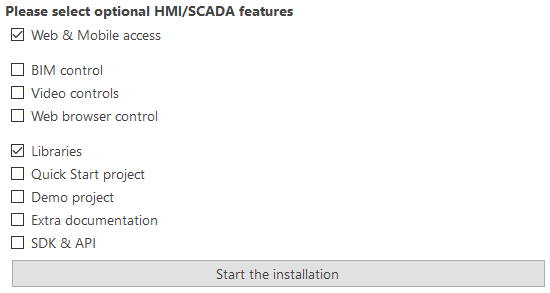
To install the mandatory programs plus the Web & Mobile back end and Libraries, you would use the following command line:
Start /wait D:\Core\Setup.exe /clone_wait /s /v"/quiet /norestart ADDFEATURE=Backend,Lib"
This corresponds to the following optional features as you would select them in the installation UI.  Show picture
Example 2:
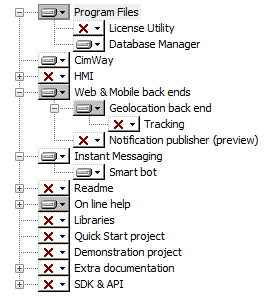
To install the mandatory programs, plus the Database Manager, the Web & Mobile back end, the Geolocation back end, the Instant Messaging server and the Smart Bot, you would use the following command line:
Start /wait D:\Core\Setup.exe /clone_wait /s /v"/quiet /norestart ADDFEATURE=Main_Dmt,Backend_Geoloc,Msg_Bot /l*v C:\Log\Install.log"
This corresponds to the following optional features as you would select them with the Custom installation UI. Show picture
Modifying the Core installation
The set of features installed for a product can by modified using a Standalone package installation media. It cannot be performed with an installation media of type Cumulative patch.
The useful command line arguments for modifications are:
- The ADDFEATURE argument to install more features
- The REMOVE argument to uninstall one or more features
The mnemonics for identifying features are the same as for customizing a Fresh installation. See How to customize the feature set for more information.
Adding features requires at least the installation media of the last installation performed. Because patch installation packages are cached on the Windows system, the installation media of any installed patch is not necessary.
Example:
If the Core package is already installed, the following command line will add the QuickStart project and the XML Generic Import toolkit resources, and it will also remove the Addenda part of the documentation.
Start /wait D:\Core\Setup.exe /clone_wait /s /v"/quiet /norestart ADDFEATURE=QStart,Sdk_Import REMOVE=Doc_Addenda"
Updating Core and WDT
Because patches are distributed as a bundle embedding the patch for both the Core and the WDT packages, there is only one command line to run to update an installed product with a patch.
For example, if you have a Cumulative patch package, you can use a command such as:
Start /wait "" "D:\15.0.3_PcVue_Patch for 15.0.0 or later.exe" /quiet /norestart
If you have a Standalone package with a \Patch folder (it is the Standalone package of a Minor update), the patch is available in the \Patch folder, and you can use a command such as:
Start /wait "" "D:\Patch\15.0.3_PcVue_Patch for 15.0.0 or later.exe" /quiet /norestart
Return codes
The main return codes are the following:
| Error code | Value | Description |
| ERROR_SUCCESS | 0 | Completed successfully |
| ERROR_SUCCESS_REBOOT_INITIATED | 1641 | The installer has initiated a restart. This message is indicative of a success |
| ERROR_SUCCESS_REBOOT_REQUIRED | 3010 | A restart is required to complete the install. This message is indicative of a success. |
Please refer to the Microsoft documentation for the full list of Windows Installer error codes: https://docs.microsoft.com/windows/win32/msi/error-codes