Making Multiple Copies of a Configuration Object Using Copy and Paste
Depending on the object that has been copied, it is possible to paste multiple copies using the Multiple Paste command. The Multiple paste command is available from the context menu only when a supported object has been copied.
How to paste multiple copies of an object
- Copy the object in the normal manner using Ctrl+C or the Copy command.
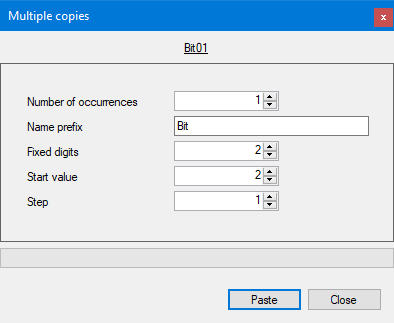
- Right click the location in the configuration tree where the object is to be pasted and, from the context menu, select Multiple paste. The Multiple Copy dialog opens.
 Show picture
 - Configure the multiple copies. The following rules are used if the name of the object to be copied ends in a number.
- The number is removed to generate the Name prefix.
- The number plus one is used as the Start value.
- The number of numeric characters digits is used as the number of Fixed digits (else set to two).
- Click Paste to generate the objects.
Objects supported by the Multiple Paste command
- Template instance
- Topology element
- All configuration objects
- Mimic
- Symbol
- Embedded template
- All configuration sub objects except those that can only be configured once.
Objects not supported by the Multiple Paste command
In general any configuration object that can only be configured once on a given parent is not supported my multiple paste. This includes the following variable sub objects.
- Expression
- Chronometer
- Counter
- Alarm masking
- Discrepancy check
- Alarm acknowledge trace
- Alarm program associated action
- Alarm window associated action
- Alarm synthesis
- Threshold