File Transfer
By file transfer, we mean the transfer of a file from a communication object to the PcVue machine. At the time of writing, file transfer is supported for the following data acquisition drivers:
- IEC 61850 - Transfer of files from an IEC 61850 device,
- DNP3 - Transfer of files from DNP3 device.
File transfer can be implemented in three ways.
- Mirroring - Automatic, periodic, transfer of files in background (without user interaction). Only supported for IEC 61850 devices.
- File transfer helper - Transfer on demand, by a user, of one or more files and / or folders using the File Transfer Helper. The user must have the rights to access the Application Explorer.
- SCADA Basic - Transfer of one or more files and / or folders by script.
File transfer settings
The Data acquisition settings dialog box contains those settings defining the default behavior of the file transfer feature
-
Backup file before download - When using file transfer, if this setting is activated, a backup copy of any file that already exists on the PcVue machine is made before downloading it again. The existing file is renamed using a .bak extension.
-
Mirroring
-
Default destination folder - Defines the default storage folder for the File transfer feature.
-
Default synchronization period - Defines the default synchronization period for the File transfer feature. Default is 10 minutes.
-
-
Type - Type of action to perform as part of the file transfer:
-
Download all - Download all files from the folder Source folder and store them in the Destination folder. Any file already present in the Destination folder is overwritten.
-
Update - Download from the folder Source folder any file not yet in the Destination folder.
-
Synchronization - Download from the folder Source folder any file already present in Destination folder but updated in the IED since the download.
-
Mirror - Download from the folder Source folder any file already present in Destination folder but updated in the IED since the download (same as Synchronization), and delete from the Destination folder any file no longer available in the Source folder (.bak files are not deleted).
The Source folder is defined as part of the Device configuration.
-
Using mirroring with the IEC 61850 driver
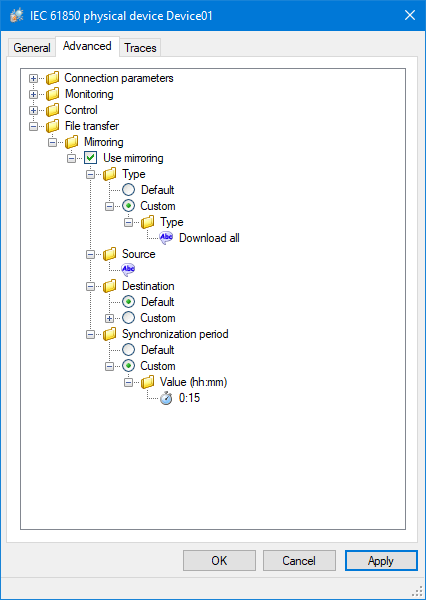
Mirroring is enabled and configured at the IEC 61850 device level using the following advanced properties.  Show picture
- File transfer
- Mirroring
- Use mirroring - Enable automatic, periodic, file transfer from the device to the PcVue machine in background.
- Type
- Default - Use the default mirroring method as configured in File transfer settings
- Custom - Use a mirroring method specific to the device.
- Source - The name of the folder to monitor on the device's filesystem. Any file in the folder will be transferred. If empty, the device root folder is monitored.
- Destination - The destination folder for the transferred files on the PcVue machine's filesystem.
- Default - Use the default folder as configured in File transfer settings.
- Custom - Use a folder specific to the device. The folder location can be a full path like "C:\\MyFiles" or a relative path like "..\\..\\MyFiles". If the folder location is empty, the Project's TP folder is used.
- Synchronization period - The period at which the transfer takes place if new files are available.
- Default - Use the default period as configured in File transfer settings.
- Custom - Use a specific period specified in minutes.
- Type
- Use mirroring - Enable automatic, periodic, file transfer from the device to the PcVue machine in background.
- Mirroring
Using the File transfer helper
The File transfer helper can be opened from the Application Explorer when a data acquisition device supporting File transfer is selected in the configuration tree. Show picture

On opening the Helper, PcVue will browse for, and display the list of available files in the device. Show picture

Individual files can be downloaded or deleted using the tools on the toolbar or by clicking the File menu and selecting the appropriate command. By default, files are downloaded to the project's TP folder but this can be changed during the download process if required.
Using File transfer in SCADA Basic
See the topic FILETRANSFER for more information about performing file transfers via a SCADA Basic script.