DNP3 Inputs and Outputs to Variable Mapping
The DNP3 Mapping dialog is used to map (link) DNP3 inputs and outputs to PcVue variables. It can be opened from the Application Explorer when a DNP3 network is selected by using the Mapping task.
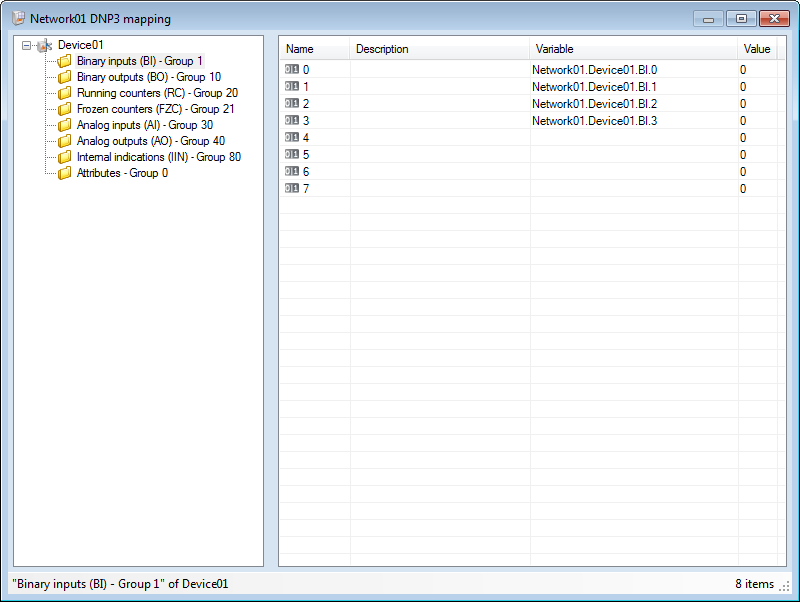
The left pane contains a tree display of the devices of the selected network. Under each device is a list of all input and output groups supported by PcVue. The right pane contains a table of all inputs or outputs for the selected device and group, together with any variables to which they are linked. An icon adjacent to each address indicates the type of variable with which it corresponds.  Show picture
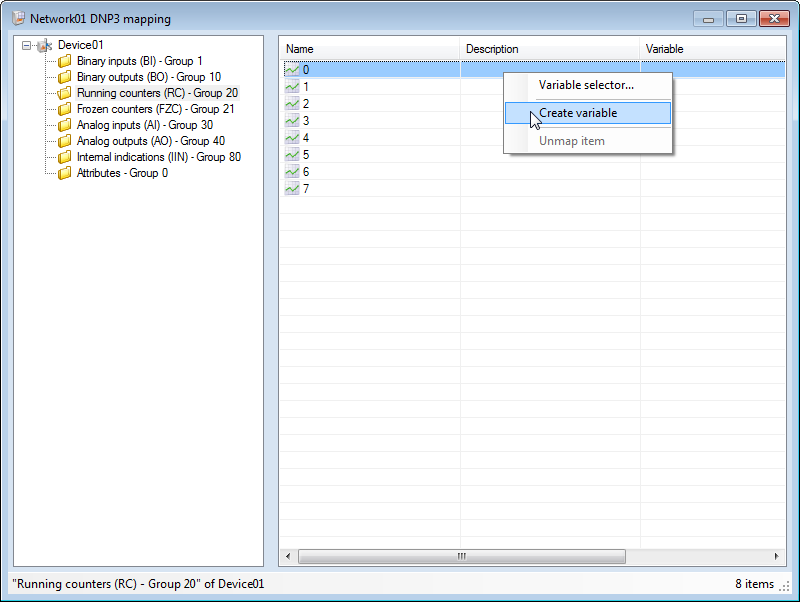
Right clicking anywhere in the right pane displays a context menu with the following commands.
- Variable selector - Opens the Variable Selector dialog.
- Create variable - See below.
- Unmap item - Un-maps (removes the link) between the selected variables and the corresponding information object.
How to map an information object to a variable
- Right click in the right pane of the DNP3 Mapping dialog and, from the pop-up menu, select the Variable Selector command. The Variable Selector dialog opens. Drag it to a convenient location so you can see both it and the DNP3 Mapping dialog. Show picture
- Click in the DNP3 Mapping dialog and select the input or output to be mapped.
- Click in the Variable Selector dialog and select the variable to be mapped. Click the Apply button and the link between the input or output and variable is made.
- Repeat steps 2 and 3 for all the variables to be mapped.

You can also open the Variable Selector by double clicking on an input or output.
How to un-map a variable
- Open the DNP3 Mapping dialog and select the variable to be un-mapped.
- Right click on the selected variables and, from the context menu, select the command Unmap item.
- A dialog will appear asking for confirmation. Click OK to confirm the operation.
How to automatically create a variable
You can automatically create a variable and simultaneously link it to an input or output using the following method.
- Right click on any un-mapped input or output and, from the context menu, select Create variable. A variable with default properties and the correct type to match the item is automatically created and linked to the item. The variable name is constructed using the following syntax <Network>.<Device>.<Type>.<Address> Show picture