How to Add an Expression Template or Expression on Variable
Expression syntax elements
An expression template or expression on variable contains one or more of the following elements:
- Variable names - For example INLET.PRESSURE. See the topic How to use Variables in Expressions.
- Operators - See the topic Expression Main Functions and Operators.
- Functions - See the topic Expression Main Functions and Operators.
- Constant boolean value - 0 and 1.
- Constant numeric value - For example 100.
- Constant string value - A string delimited by quotation marks. For example, 'Tank level'
To avoid unexpected results, the expression elements used must respect the output type. For example if you were creating an expression on a register variable, it must only contain elements that combined together generate a numerical result.
How to add an expression template or expression on variable
The process to add either an Expression Template or Expression on Variable is very similar.
- Select the Expressions folder in the Application Explorer configuration tree and, from the task list, select Add an expression template or Add an expression on a variable as appropriate. A dialog to configure a new expression will open.
- Using the General tab configure the expression general properties.
 Show picture
- Enter a name for the expression in the Name field. The name is used when referencing the expression in an animation.
- Enter a description of the expression. The description appears in the contents pane when the Expressions folder is selected. The description is optional.
- If creating an Expression on Variable.
- Enter a branch in the Branch field. The branch is prefixed to all variables used in the expression including the result. The ellipsis button adjacent to the Branch field opens the Branch Selector dialog. The branch is optional.
- Select the Result variable in which the result of the expression will be placed. The result variable does not need the control property set. The ellipsis button adjacent to the Result field displays the Variable Selector dialog
- If the project has a multi-station configuration select the Server list name. The expression will only be computed on stations that appear in that list.
- Select an optional Enabling bit to enable or disable the expression. The bit must be set to 1 to enable the expression calculation.
- Tick the Enable box. It must be ticked for the expression calculation to be enabled.
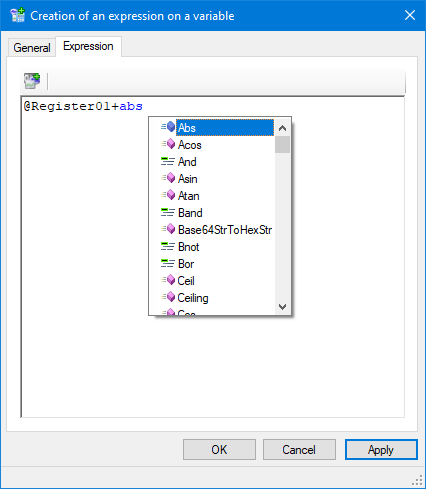
- Select the Expression tab and enter the expression. See the topic Expression functions and operators. You can select any variables, which are to be included in the expression, using the Variable Selector tool above the expression field. Show picture
- Click OK to confirm the configuration and close the dialog.

Expressions on variables and expression templates are limited to 32 000 characters and 40 variables.
An expression on variable or an expression template is evaluated each time any of the variables within it changes. This makes expressions preferable to calculating a value in a script where you would have to arrange for it to be executed on event each time any value changes.