How to Browse SQL Server Databases
The Database Manager enables you to select SQL Server databases. The databases are then displayed in its tree structure.
About authentication
User access to a database on the same PC or across a network can be controlled using Windows authentication or SQL Server authentication. The principle for networked access is that the user should be identified on both PCs using a Windows domain account, local accounts with identical passwords or a native SQL Server user account.
Use of SQL Server user accounts is less secure and is only advisable on the same PC. For use across a network, added protection measures should be installed.
Selecting a SQL Server and database
If you move a database between SQL servers, you must also re-configure any applications that use it. For details of this process, see the topic Moving a Database.
- In the Database Browser,
select a SQL Server and a database from their drop-down boxes.
 Show picture
 - Set other parameters for connection as shown in the table below.
- Click on the Add button to add it to the Database Manager list.
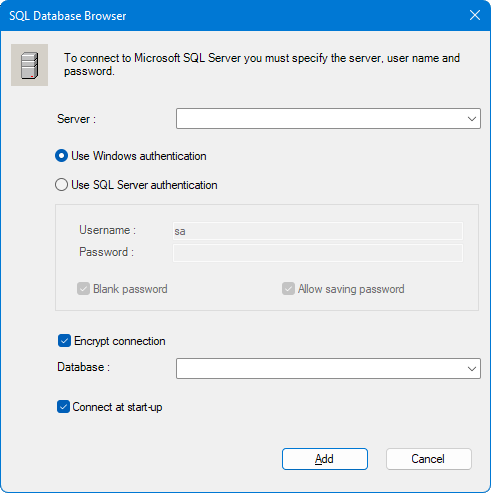
|
Field |
Action |
|
Server |
Enter the name of the server holding the data source or select one from the drop-down list. |
|
Use Windows Authentication |
To indicate that the application uses Windows Authentication for logging on to the SQL Server database. Username etc. below are grayed out for this default option. |
|
Use SQL Server Authentication |
To indicate that the application uses SQL Server Authentication for logging on to the SQL Server database. |
|
- Username |
Type the User ID for authentication when logging on to the data source (if any users are configured for the database). |
|
- Password |
Type the password for authentication when logging on to the data source (if a password is configured for the user name selected above). |
|
- Blank password |
Specify whether the Password field is to remain blank as the user enters the password. |
|
- Allow saving password |
If this flag is set, the password is saved in the Database Manager configuration file. |
| Encrypt connection | If set, confidentiality and integrity are ensured. |
|
Database |
Display a list of databases connected to the SQL Server. |
|
Connect at start-up |
If this flag is set, the Database Manager will attempt to connect to the database whenever it is started. |
The option Allow Saving Password is useful to avoid typing the password each time the Database Manager tries to connect to the database.
To take advantage of an encrypted communication channel, SQL Server must be setup to work with TLS and digital certificates.
For more information, refer to https://learn.microsoft.com/sql/database-engine/configure-windows/certificate-overview