Reporting operations
This category contains all operations related to reporting that can be used in a bot.
Generate report
Creates a report based on the selected source template file by substituting cells that contain a reference to a variable by the value of the corresponding internal bot variable. This operation has the following properties.
| Property name | Type | Description |
| Description | String | Displayed name of the operation. This property is only used in the HMI and has no effect at run-time. |
| Report type | Excel or Word |
Indicates for which app the report must be generated. |
| Source template path | String | Path to an initial report template file. This property supports usage of internal bot variables. The specified path is relative to the following directory. <projectFolder>\MsgData\Bots |
| Result file path | String |
Path to the output report file. File will be created if it does not exist. This property supports usage of internal bot variables. The specified path is relative to the following directory. |
| Overwrite file | Boolean | True to always use the Result report file path. False to generate a new file for each report. |
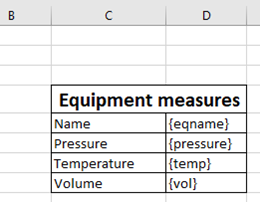
To prepare a source template file open it in Microsoft Excel or Microsoft Word, and use internal bot variables in the fields need to be filled out by the values. In this example, the internal bot variables eqname, pressure, temp and vol are used. In order to create them, use the SaveToMemory operation with the corresponding keys.  Show picture
Open worksheet
Opens a Microsoft Excel worksheet in bot agent’s memory. The worksheet can then be referenced in other operations of the Excel category using the specified Key. This operation has the following properties.
| Property name | Type | Description |
| Description | String | Displayed name of the operation. This property is only used in the HMI and has no effect at run-time. |
| Key | String | Unique reference to the report in memory. This property supports usage of internal bot variables. |
| Scope | Enum |
Accessibility scope of value in memory specified by the Key reference. The following values are available.
|
| Shared | Boolean | True to make this worksheet available for all running Smart Bots. False to make it available to the current Smart Bot only. |
| Worksheet name | String | Name of the worksheet to open. This property supports usage of internal bot variables. |
| Source template path | String |
Path to an initial report template file. This property supports usage of internal bot variables. The specified path is relative to the following directory. |
| Result file path | String |
Path to the output report file. File will be created if not exists when the first write operation is called. This property supports usage of internal bot variables. The specified path is relative to the following directory. |
| Overwrite file | Boolean |
True to always use the Result report file path. False to generate a new file for each report. |
| Prefill report | Boolean |
True to prefill the result report file by substituting the internal bot variables into cells that contain a reference to the variable. |
| Column | String |
Column name in the Excel worksheet to which the cursor will be moved. |
| Row | Integer | Row number in the Excel worksheet to which the cursor will be moved. |
Close worksheet
Closes a previously opened Microsoft Excel report and removes the corresponding Bot Agent’s memory reference. This operation has the following parameters:
| Property name | Type | Description |
| Description | String | Displayed name of the operation. This property is only used in the HMI and has no effect at run-time. |
| Key | String | Unique reference to the report in memory. This property supports usage of internal bot variables. |
Move cursor
Moves the cursor in a previously opened Microsoft Excel worksheet. Cursor is then used to write data in the worksheet using “Write to Worksheet” operation. This operation has the following parameters:
| Property name | Type | Description |
| Description | String | Displayed name of the operation. This property is only used in the HMI and has no effect at run-time. |
| Key | String | Unique reference to the report in memory. This property supports usage of internal bot variables. |
| Column | String | Column name in the Excel worksheet to which the cursor will be moved. |
| Row | Integer | Row number in the Excel worksheet to which the cursor will be moved. |
Write to worksheet
Writes the specified set of values to a previously opened Microsoft Excel worksheet. If the file does not exist, this operation creates it. The current cursor position is used to write data in the worksheet. Each consecutive value is written to the next cell of the same row. After all values are written the cursor can be moved to the next row. This operation has the following properties.
| Property name | Type | Description |
| Description | String | Displayed name of the operation. This property is only used in the HMI and has no effect at run-time. |
| Key | String | Unique reference to the report in memory. This property supports usage of internal bot variables. |
| Move to next line | Boolean | True to move the cursor position on the next line after writing all values. False to leave the cursor in the same position. |
| Values | Set |
List of values to write. Each next value is written in the next cell of the same row. Empty values at the end of the list are ignored. Value properties support usage of internal bot variables. |
A custom C# script can be used in the values list. This allows a user to easily and flexibly define a value to write to the report without creating an internal variable. Refer to the following table for examples of what kind of expressions can be used in this operation. See topic Expression scripting reference for the full description of the scripting API.
| Expression | Description |
| x => x.BotName |
Name of the current Smart Bot. |
| x => x.Chat.Description |
Displayed Title of the chat room |
| x => x.LastMessage.DeviceId |
Unique name of the device/station used to send the message |
| x => x.LastMessage.DeviceDisplayName |
Displayed name of the device/station used to send the message |
| x => x.LastMessage.ZoneId |
Sender’s location when the message was sent |
| x => x.LastMessage.Sender |
User name of the message sender |
| x => x.LastMessage.DateOffset | Local timestamp of the message |
| x => x.LastMessage.Text |
Content of the text messages or filename for attachments |
| x => System.DateTime.Now |
The current date and time |
| x => System.DateTime.Now.ToStrint(“d”) |
The current date and time formatted to the current culture. Refer to Standard date and time format strings topic from Microsoft documentation for more formatting options. |
| x => x.Variable(“@Branch .Bit01”) |
Value of the variable named Branch.Bit01. The variable name is prefixed with the current bot’s branch unless the @ symbol is used. |
Insert an image in a worksheet
Inserts the specified image in a previously opened Microsoft Excel report. If the file does not exist, this operation creates it. The current cursor position is used to write data in the worksheet. After this operation cursor can be moved to the next row. This operation has the following properties.
| Property name | Type | Description |
| Description | String | Displayed name of the operation. This property is only used in the HMI and has no effect at run-time. |
| Key | String | Unique reference to the report in memory. This property supports usage of internal bot variables. |
| Move to next line | Boolean | True to move the cursor position on the next line after inserting the image. False to leave the cursor in the same position. |
| File path | String |
Absolute or relative Uri path to the image file to be inserted. This property supports usage of internal bot variables. The specified path is relative to the following directory. |