Using the Alarm Viewer in On-line Mode
On-line mode is indicated by the following icon displayed as the mode tool. 
When the Alarm Viewer is opened a list of eligible alarms statuses are displayed in the order that they last changed. New eligible alarm transitions are displayed in the order in which they occur. As each eligible alarm transition is displayed on a new line, the same alarm can appear several times. The alarm transitions are stored in the temporary display buffer that can be navigated using the scroll bar. If the mimic is closed the contents of the temporary display is lost. Selecting an alarm automatically switches the display to list mode.
What do we mean by eligible alarms?
An eligible alarm status or alarm transition is one that passes the filter criteria configured for the Alarm Viewer. See the topic Using the Alarm Viewer filter.
How the Execution tab properties affect the operation of the viewer
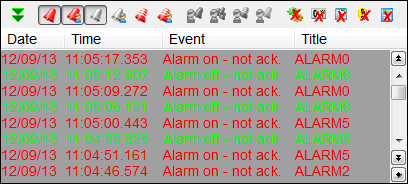
- Display new alarms at the top of the list - When the Alarm Viewer is opened eligible alarms are sorted in chronological order with the newest at the top. New alarm transitions appear at the top and the list scrolls down to accommodate them.
 Show picture
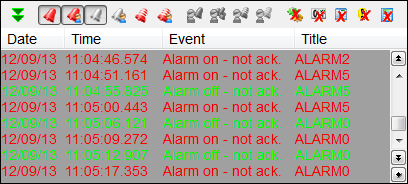
 - Display new alarms at the bottom of the list - When the Alarm Viewer is opened eligible alarms are sorted in chronological order with the newest at the bottom. New alarm transitions appear at the bottom and the list scrolls up to accommodate them. Show picture
- Move alarms to top when status changes - No effect.
- Move alarms to bottom when status changes - No effect.
- Scroll display to the oldest - On-line mode is not available if this option is selected.
The sorting of columns by clicking on the header is not available in On-line Mode.