Linking Variables to a Form Control
You can configure a Form Control so that the current selection and/or latest change of state is linked to one or more variables. The variables are selected using the Operations tab.  Show picture
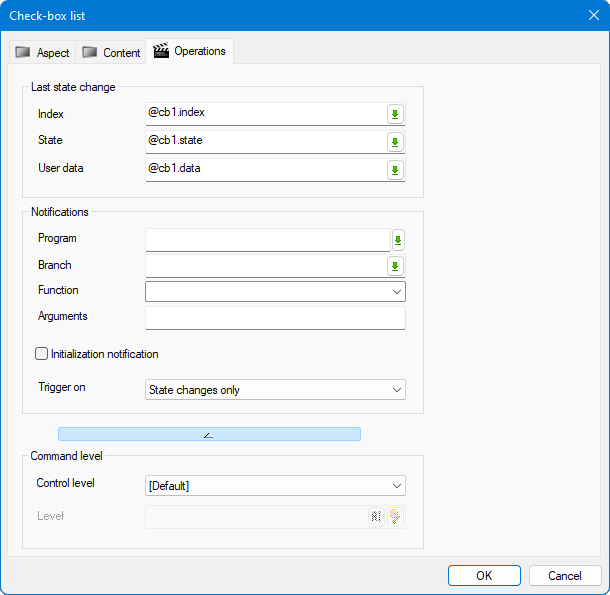
Changes in variable values operate in both directions.
- If you change the control's selection the variable value changes.
- If you change the variable's value outside of the control, the selection in the control changes to follow it (assuming that the value is within a valid range).
The variable must have the Command property set for its value to change when you change the control's selection.
The Command property must also be set if you to change the selection by using a Send register animation to change the variable value.
Option tab properties used for selecting variables
- Index - Returns the index of the most recently selected or changed item (register variable).
- State - Returns the state of the most recently changed item. Check-box list only. A register variable that can have the following possible values.
0 - The selected item is not ticked.
1 - The selected item is ticked.
-1 - The selected item is undetermined. - User Data - Returns the user data of the most recently selected or changed item (text variable).
Enforcing variables command level
Command level and related user permissions for variables you reference for operations of the control can be enforced or ignored depending on the HMI setting called Apply command level in graphic controls. You can override the global setting individually for each control instance using the Command level properties in the Operations tab. This applies to all the form control types except the Text box which does not reference any variables. The following properties apply.
-
Apply command level - Defines how variables' command level properties and the corresponding user rights levels are enforced.
-
Default - Apply the default behavior as set in the HMI settings. This is the default setting.
-
Yes - Enforce the variables' command levels and the corresponding user rights levels. Only users having the required Command level permissions are able to operate the control. The Level property must then be set.
-
No - Ignore the variables' command levels and the corresponding user rights levels. Any user having access to the mimic is able to operate the control, even if he does not have the required Command level permissions.
-
-
Level - The command level required for users to operate the control.
-
Auto - Use the command level as defined in each variable's configuration.
-
 - Enter a fixed value for the command level.
 -
 - Define the command level by the value of a selected variable. Clicking the button displays the variable browser to allow selection of the variable name.
-