The Find Tool in the Graphic Explorer
How to search
You can search through the structure of objects in the Graphical Explorer as follows:
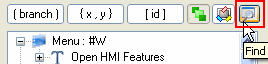
- Click on the Find
button:
 Show picture
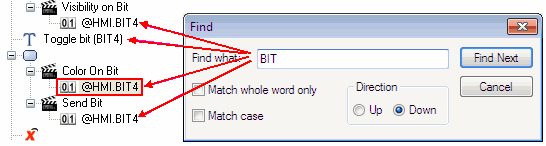
 - In the Find dialog, type in the text to be matched with object names.
- Set any required options (Match whole word only, Match case, Up/down). Click on the Find button.
- Click on the Find
Next button to select the next matching object in a folder (mimic etc.),
if any. Show picture
- Click on the Cancel button to close the dialog.
Criteria
The text that is used for matching depends on the kind
of object: Show table
You do not select the kind of object or property
that is to be matched. Rather the search explores the hierarchy of objects
until it finds a match or exhausts the tree in the chosen direction. A
search string can be matched against the names of various kinds of object,
as in this example: Show picture
