The Properties List
The Properties List can be displayed either from the main menu using the Display.Properties List command, or by right clicking a drawing object and selecting Properties List from the context menu. By drawing object, we mean drawing element, graphic control, viewer, ActiveX Control or window.
The Properties List dialog displays a list of the properties, events and methods, available to VBA, for the selected drawing object. In addition, it has the capability of linking some drawing object properties directly to variables.  Show picture
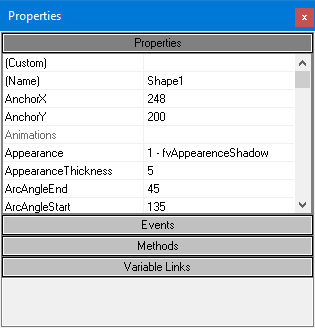
Properties tab
The Properties tab displays the names of all drawing object properties exposed to VBA. Nearly all the properties have a corresponding property in the drawing element's configuration dialog. Although not recommended, the properties can be directly changed by clicking into field that represents the value.
A few properties, mainly related to the behavior when scripted with VBA, are not available in the drawing object configuration dialog and can only be changed here.
- Name - The reference name (unique Id) of the drawing element as used in VBA
- DisplayControlZone - Enable or disable a highlight if the drawing element has a send type animation.
- DisplayMouseInput - Enable and disable a highlight when the mouse hovers over.
- EnableEvents - Enable VBA events.
- Visibility - Display or hide the drawing element at run-time.
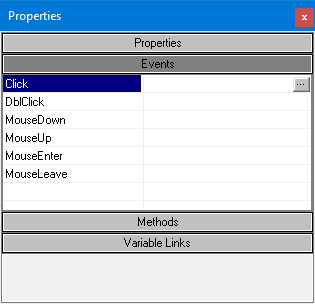
Events tab
The Events tab displays the list of events that the drawing object can trigger. Event's callback can be scripted by clicking on the eclipses button adjacent to the event which opens the VBA editor with a pre-configured empty sub. Show picture
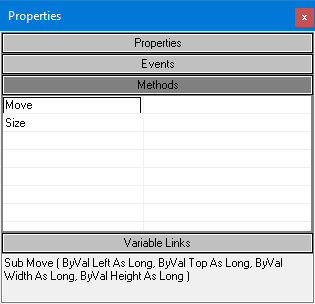
Methods tab
The Methods tab displays the available methods for the drawing object. Clicking the name of a method displays its syntax. Show picture
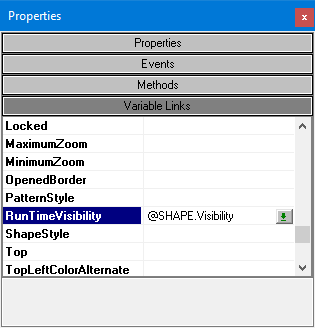
Variable links tab
Some properties of a drawing object can be linked directly to a variable. The value of the variable is then reflected directly by the property and vice-versa, the variable value is updated when the property value changes. You can use Show picture