Context Mimic Example - Alarm Management
The following mimic may be used to acknowledge, mask and unmask any alarm displayed in one of three alarm animations supporting the Context mimic feature.
- Create a mimic named CTXALARM. The Popup Behavior attribute must be enabled. The width and height should be approximately 100 and 120 respectively. The other attributes are at the discretion of the developer.
- In Draw mode add three text strings - Acknowledge, Mask and Un-mask. Give each of the text strings the Button attribute.
- Apply Run Macro animation (SCADA Basic) to each of the text strings. The following instructions should be used.
|
|
For the Acknowledge button |
ALARM("ACK", "#V"); |
|
|
For the Mask button |
ALARM("MASK", "#V"); |
|
|
For the Unmask button |
ALARM("UNMASK", "#V"); |
Note the use of the substitution string #V in the field where an alarm variable name would normally be entered.
- Save the mimic.
- From the Preferences
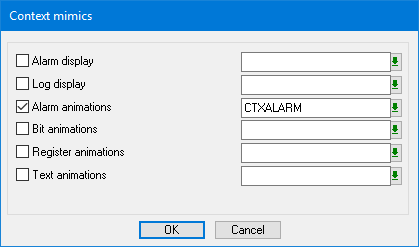
sub-menu on the Configure menu, select the Context Mimics to open the Context Windows dialog.
 Show picture
- Select the Alarm Animations tick box.
- Enter the name of the mimic just created in the corresponding drop-down list box.
- Confirm the configuration by selecting the OK command button.
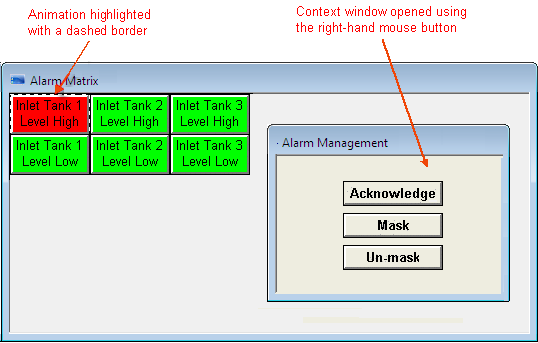
- Click the mouse button on any of the supported animations to display the mimic CTXALARM. By default, the right mouse button is used.
- The corresponding alarm may be acknowledged, masked or unmasked from the mimic.
- The mimic will be closed automatically as soon as focus is lost.