HMI General Options

- Colors Palette
- Display All Colors - Shows both the non-indexed and indexed colors.
- Display Indexed Colors Only - Disables display of the non-indexed colors in the palette.
- Display Base Colors Only - Disables display of the indexed colors in the palette.
- Mimics Open Mode
- Design Mode - Mimics are opened in design mode.
- Run Mode - Mimics are open in run-time mode. This is the default selection.
- Menus commands access
- Disable Reference set execution mode - Disable the reference set run time operation mode. The corresponding tools on the Mode tool bar are greyed out.
- Disable Test Set execution mode - Disable the test set run time operation mode. The corresponding tools on the Mode tool bar are greyed out.
- Automatic User Logoff - Activates the automatic logoff of users after a period of inactivity. If enabled, the Warning time-out (in seconds) can be defined. The automatic logoff, including the maximum time of inactivity can be tuned on a per-profile basis. For more information, see the topic Using automatic logoff in the Application Explorer book.
- Design tools
- Polyline & Bézier curve selection - Choose the way in which selection of polylines and Bézier curves are selected in design mode.
- Runtime tools
- Polyline and Bézier curve selection - Choose the way in which control zones based on polylines and Bézier curves are selected in run mode.
- Mouse commands (2D) (See the topic IntelliMouse support.)
- Mimic zoom - Default: Ctrl + wheel.
- Mimic hand tool panning - Default: Shift + middle button down.
- Mimic automatic panning - Default: Ctrl + middle button down.
- Mimic and Workspace scroll - Default vertical: Wheel, Default horizontal: Shift + wheel.
- Workspace automatic panning - Default: Shift + middle button click.
- Mouse inputs - Configuration of the HMI's response to the mouse over and button clicks.
- Display control zone - Display a button style highlight whenever the mouse is over any drawing element that has a control zone animation.
- Open context mimics on - Select which button click(s) and key combination(s) that a context mimic opens on.
- Support legacy behavior for alarm & log viewers - Enable the legacy behavior of the alarm and log viewers in which a context mimic is opened by either right or left mouse button clicks.
- Process associated actions on - Select which button click(s) and key combination(s) that cause an associated action to be processed by the alarm viewer.
- Process command animations on - Select which button click(s) and key combination(s) that cause a command animation to be processed.
The Mouse Input key options are cumulative. For example, if you select With Shift key down and With Ctrl key down then both the Shift and Ctrl keys must be pressed as well as the mouse button before the mouse input is processed.
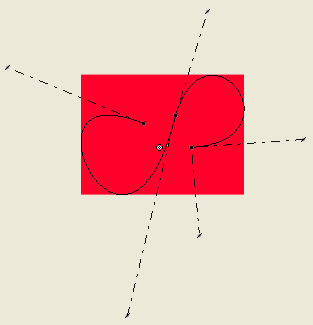
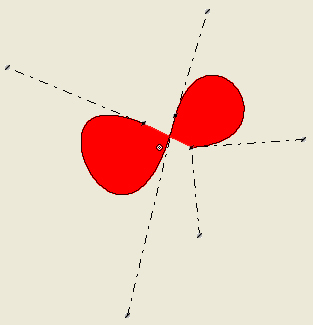
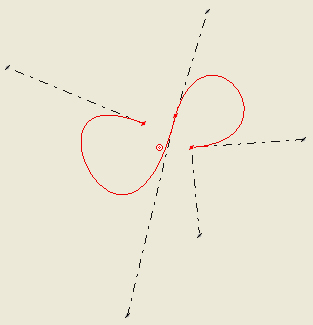
Examples of Bézier curve selection
The red areas and the red line in the pictures below indicate where you can click to select a drawing element. They are not marked in the graphic editor.
- Bounding rectangle area.
 Show picture
 - Shape area. Show picture
- Edges. Show picture
The Bézier curve's bounding rectangle does not include the deformation handles.