Workspace overview
The workspace is the name given to the area that the PcVue desktop application occupies on the screen of your PC. The workspace contains all
the tools necessary to develop PcVue applications and is the container
for the windows that form the User Interface at run-time. Within the workspace,
you will find the following features:  Show picture
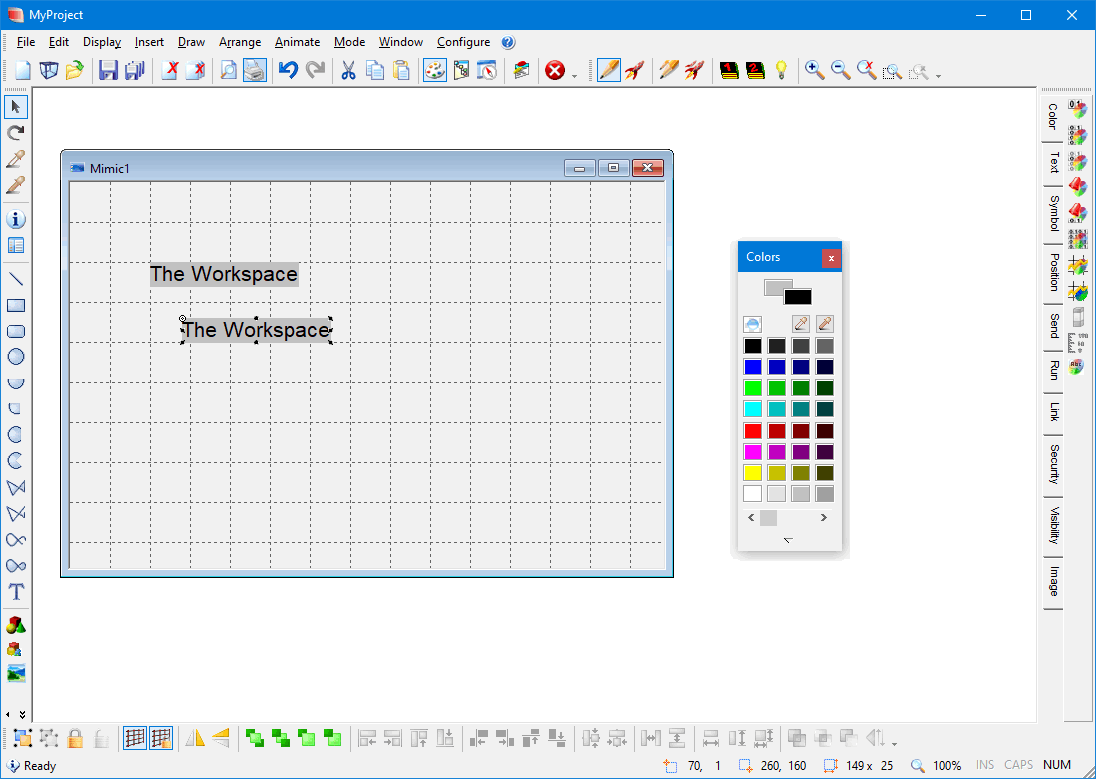
The menu bar
The menu bar provides access to the main development tools. The menu bar can be dragged with the mouse and docked to any outside edge of the workspace, or it can be left floating anywhere on the screen. The menu bar may be opened and closed from a pop-up menu displayed by clicking with the right mouse button anywhere within the workspace background. A tick indicates that the menu bar is visible.
The toolbars
The toolbars give you quick access to the most commonly used tools for window development and run-time operation. As with the menu bar, the toolbars may be floating or docked. You can select which toolbars are open from a pop-up menu displayed by right-clicking anywhere on the menu bar. A tick indicates that a toolbar is open.
The color palette
The color palette is used to define and select colors for drawing and animation. It may be opened and closed using the Display.Color Palette command.
The properties list
The properties list displays a VBA style list of properties, methods and events for windows, native drawing elements and ActiveX controls. It may be opened and closed using the Display.Properties List command.
The scroll bars
The scroll bars are used to pan around a mimic window when it is larger than the Workspace.
The status bar
The status bar is located at the bottom of the workspace, above any toolbars you may have docked there. It provides information on the current state of the workspace including the current cursor position and zoom level of the active window.
Changing the workspace properties
The workspace appearance and behavior is changed using the Display.Workspace Properties command. The following properties may be changed.
- The size of the workspace and its location on the screen.
- The workspace color.
- The appearance of the title bar and its contents.
- The tools that are available from the title bar.