A graphic symbol designed with PcVue can embed VBA code to extend its behavior. This topic explains how to turn a graphic symbol into a VBA project so that you can add generic VBA code to it and how the VBA code will be executed for each instance of the symbol you have added in mimics.
To allow the development of code on a symbol, right-click on the symbol to display the pop-up menu and select Symbol project in VBA.
A new SymbolProject appears in the VBA editor and any code you add in this VBA project will automatically be executed for any instance of the symbol. The symbol is automatically saved each time you edit the code.
 Show picture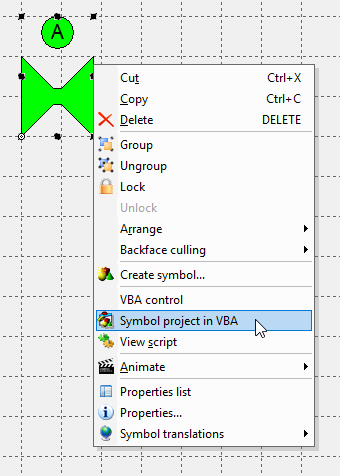
Using drawing elements within a symbol as VBA controls
To use a drawing element within a symbol as a VBA control you must select VBA control for it before it is grouped and saved within a symbol (unless you use Dim WithEvents as explained below). It is then be visible as a control within the symbol and appears in the left combo box of the code window for that symbol.
Any code attached to the drawing element before it becomes part of a symbol becomes a function of the mimic project, it does not become part of the symbol.
Example of how to create a symbol containing a VBA control
- Draw a rectangle 'Shape1' and select VBA control using the right-click pop-up.
- Draw a rectangle 'Shape2'.
- Group 'Shape1' and 'Shape2'.
- Right-click on the group and select Create symbol.
- Give the symbol a name and save it.
- Right click on the newly created symbol and select Symbol project in VBA.
- Display the VBA editor (Alt+F11), the symbol appears in its own SymbolProject project.
If you modify a Symbol by ungrouping it, you will lose any code attached to drawing elements within the symbol.
To avoid this, first duplicate the symbol in any open mimic to keep at least one instance of the symbol in a mimic. The VBA project automatically reattaches the code to the modified symbol.
Understanding how symbol events are fired
By default, the EnableEvents property of the symbol itself is set to false and the symbol callback scripts on events are not executed. However, any drawing elements within the symbol that are VBA controls are able to respond to events (assuming that their EnableEvents property is set to True).
If you set the EnableEvent property of the symbol to true then the symbol itself will respond to events, but any VBA control within it will not. You will still be able to change the properties of any VBA control within the symbol by code.
The Symbol object has two special events, BeforeEvent and AfterEvent. These are fired even if the EnableEvents property of the symbol is false.
- The BeforeEvent event occurs before each event is fired from any drawing element in the symbol with the EnableEvents property set to true.
- The AfterEvent event occurs after each event is fired from any drawing element in the symbol with the EnableEvents property set to true.
Using BeforeEvent with the Dim WithEvents statement allows you to code events on a drawing element within a symbol without first selecting it as VBA control.
This is best illustrated with an example. Within a symbol, Shape1 exists and has the EnableEvents property set to true but has not been selected as a VBA control.
'------ The following line must be placed in General Declarations
Dim WithEvents objGraphic as Graphic
'------ Assign the object when using the BeforeEvent Event
Private Function Symbol_BeforeEvent () As Boolean
Set objGraphic = Graphics("Shape1")
End Function
'------ Code to execute when Shape1 is clicked
Private Sub objShape_Click
MsgBox "Click"
End Sub