


Topic
[KB1263]Optimizing Error Management in PcVue’s Event viewer and Trace.log Files

Introduction to Trace.log and Event viewer
- The Event viewer in PcVue is limited to displaying a few hundred lines of errors. You can call it by pressing F7 on the keyboard.
- The Trace.log file can grow up to 10MB, making it difficult to handle with standard text editors.
- Sorting through many minor errors to find important problems can be difficult.
Importance of Minimizing Errors
- Large Trace.log files can slow down system performance and make error analysis too complex.
- Reducing minor errors can help in identifying and resolving more serious issues efficiently.
- Unnecessary errors can create noise, making it harder to focus on critical problems.
Steps to Minimize Errors
- Regular Monitoring and Maintenance: Implement continuous monitoring of system variables and adjust archiving parameters accordingly.
- Resolve Minor Errors: Addressing minor errors can sometimes resolve more serious issues, improving overall system health.
- Limit HDS Traces: Configure tracing parameters to limit continuous insertions, especially for files. Disable non-essential Audit traces.
- Navigate to the HDS icon in the Windows bar.
- Open “General parameters…” in the “Debug” menu.
- Validate with only essential options ticked (e.g., Error, Warning).
- More information on HDS here.
Best Practices
- Regularly review and clean up the Event viewer and Trace.log files.
- Configure the scripts to only log significant changes or errors.
- Schedule regular maintenance tasks to prevent the accumulation of errors.
Meaning of error code
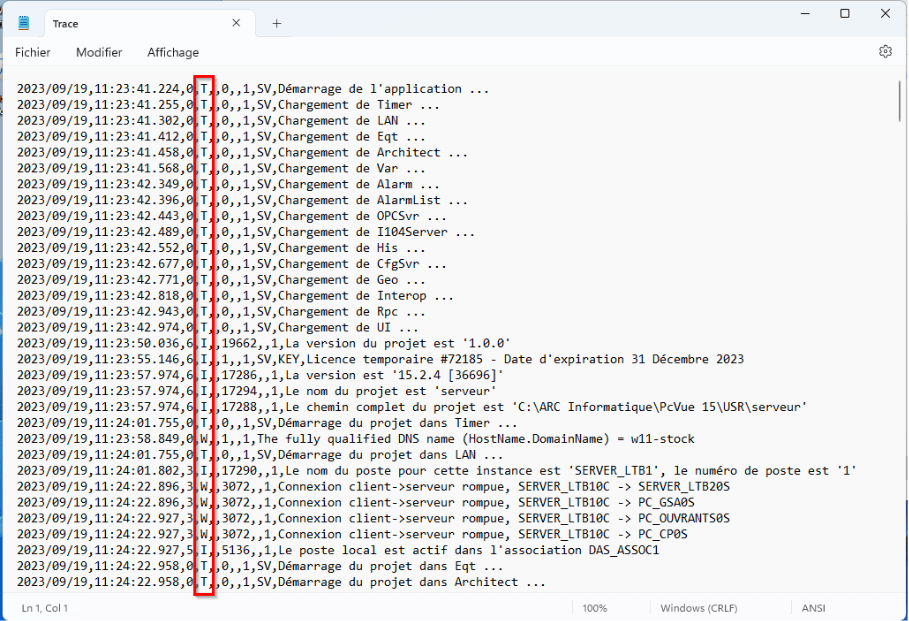
I Infomation
Generally useful information to log (service start/stop, project loading, user logon, license number, …). Info that are important in the lifecycle of the application/project, but that are usually not useful under normal circumstances.
E Error
Any error that is fatal to the project, but not to the application (communication loss with equipment, license expiration, …). These errors will force user (administrator, or direct user) intervention.
W Warning
Anything that can potentially cause application and/or project oddities, but for which they can automatically recover (such as switching from a primary to passive server, retrying an operation, incorrect setting, …).
D Debug
Information that is diagnostically helpful to people more than just developers (integrators, IT, sysadmins, etc.).
T Trace
Only for “tracing” the code and to track specific details in one part of a function. They should be activated on demand and per component, as they can be very verbose.
A Application
Error generated by the project. (Configuration error)
F Fatal
Any error that is forcing a shutdown of the application to prevent data loss (or further data loss), or due to application instability (null pointer, …).
How to fix errors
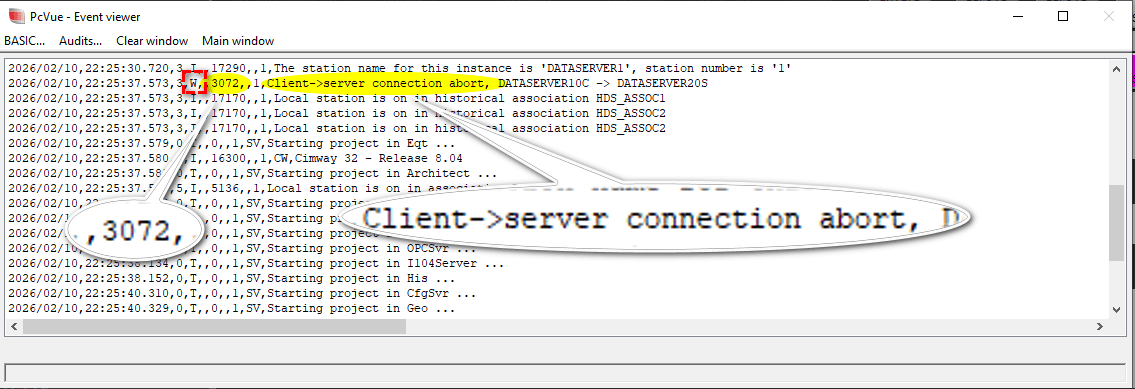
Search for a Warning or an Error you want to fix, W or E in the event viewer or Trace.log file.
Then do a research in our knowledge base of either the message (connection abort) or the code for this message (3072).
The advantage of searching for the message code is that it does not change depending on the display language of PcVue.
Created on: 10 Feb 2026