Project configuration for RDS
Settings Related to Running PcVue in a RD Session Host Session
These settings are found in the Servers Settings dialog. Show picture
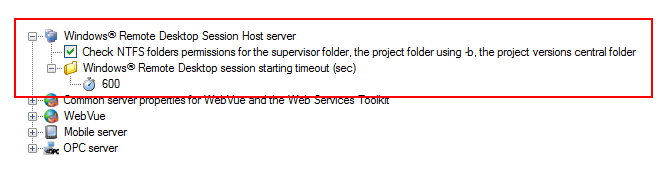
- Check NTFS folders permissions for PcVue folder, the application data folder and the project versions central folder - Check the folder permissions on startup of PcVue. If the folders do not have the correct permissions, a message is displayed and the startup aborted.
- Windows Remote Desktop session starting timeout (sec) - This property is the delay that is applied to starting PcVue in a Windows Terminal Session when, at startup, another session is found to be starting up. A pop-up message informs the user of the time remaining. If the property Use a different working folder for each remote desktop session has been selected the timeout is not used.
RD Session Host Session Related Properties in Station Configuration
The following properties in the station configuration that are specific to using PcVue in a Windows RD Session Host session. Show picture
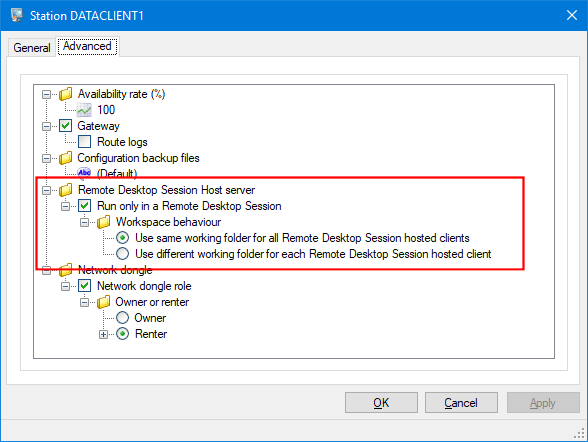
- Run only in Remote Desktop session - If ticked then PcVue will only run this station in a Remote Desktop Session. When starting, if PcVue identifies it is not in a Remote Desktop Session and that this option is selected, it will display an error message and exit.
- Use the same working folder for all Remote Desktop sessions - The same working (project) folder is used for all Remote Desktop sessions. This is the same behavior as with versions prior to 10.0 SP1.
- Use a different working folder for each Remote Desktop session - A different working folder is used for each Remote Desktop session. See the topic Project Path When Using a RD Session Host Server for more information.
These modifications were introduced to resolve issues related to sharing the same project between several instances of PcVue. The use of Use a different working folder for each Remote Desktop Session is highly recommended for all new projects.
Allocating Port Numbers When Running in a RD Session Host Session
Networked stations that are to run in a Remote Desktop session environment must have unique port numbers in the network configuration. It is recommended that the port number is based on the simple calculation of 1981 (the default port number) + the station number. Show picture
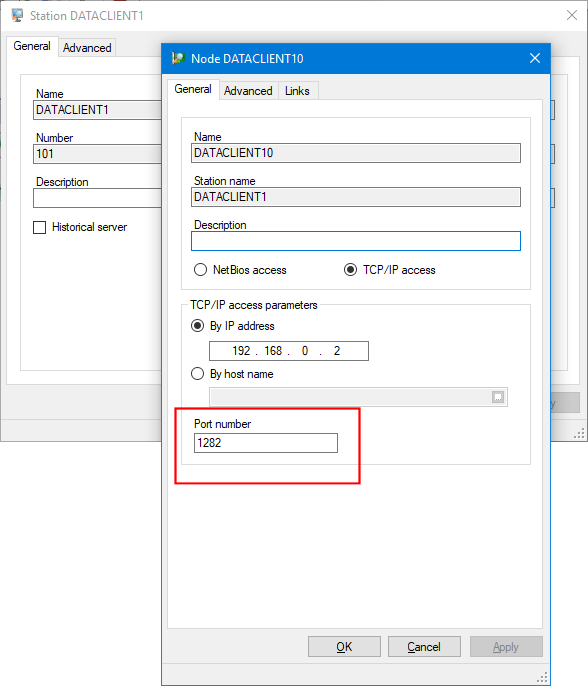
We recommend using the networking wizard to configure your RDS architecture. For more information, see the section Communication.Networked applications.Using the Network Wizard to configure the network architecture.With remote desktop session host server in the Application Explorer book.
Optimizing the Project Size
To help keep the project size to a minimum you can configure the number of backup copies kept of the project configuration files. Project configuration files are those in the C folder. Backup copies are kept in the CTEMP folder.
By default, the number of backup copies is nine and is configured in the Miscellaneous section of the Project Settings dialog. However, you can configure this per station using the Configuration backup files property in the advanced tab of the Station dialog. Show picture
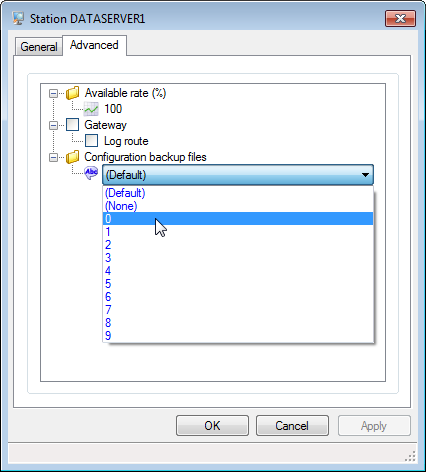
- Default means that the setting from the Project Settings dialog is used.
- 0 to 9 specifies the number of backup copies for a particular station.
Project Path When Using a RD Session Host Server
If the property Use a different working folder for each Remote Desktop session has been selected in a station's configuration then a different working folder is used for each station name. By working folder, we mean both the project folder and the library folder.
If the property Use same working folder for all Remote Desktop sessions is chosen, the project and libraries on the host PC are shared by each PcVue station running in a Remote Desktop session of the PC.
Reminder about the project path for applications not running in a RD Session Host session
The project path, which for the sake of this explanation we will call <HostProjectPath> is called \usr and is located in the application data folder selected at installation time or set using the Host Deployment Console or the svcmd CLI. Default
Project path, local library folders, and the custom project library folder
The project path that we will call <SessionFullProjectPath> is calculated as follows.
<AppDataFolder>\usr\WTS\<ProjectName>_<StationName>
The local library comprising of the folders, B, P, S, W and WT, is located under the <SessionFullProjectPath>.
The custom project library folder, LIB, is also located under the <SessionFullProjectPath>.
The common library folder and custom common library folder
The common library, comprising of the folders BMP, PRG, SYM, WIN and WTP normally found under the application folder, is relocated to:
<AppDataFolder>\WTS_LIBS\<ProjectName>_<StationName>
Example: Command line = –wts AP, WTSClientList
If we assume that the application data folder is set to C:\AppDataFolder and the name of the station within the list WTSClientList, is WTSClient1.
- The path for the project, local library folders and custom project library folder is:
C:\AppDataFolder\usr\WTS\AP_WTSClient1 - The path for the common library folders and custom common library folder is:
C:\AppDataFolder\WTS_LIBS\AP_WTSClient1
If the version in the project folder is not the reference version, or the folder is empty, then the reference version of the project is copied from the central location.
If the version in the libraries folder is not the reference version, or the folder is empty, then the reference version of the libraries is copied from the central location.
If the name of the station has changed, a new project and new libraries are created with a new path. The old project and libraries are not deleted.
If the station is deleted the project and libraries are not deleted.
Managing Persistent Variables When Running PcVue in a RD Session Host Session
Internal variables are configured as persistent using the Saved property in the variable's properties dialog. If the variables configured as such are not assigned to a Server Station list (no producer list), the value is saved when a project is stopped and restored on re-start. The values are saved in the following files.
- VariableSaved.dat for variables other than alarms
- AlarmSaved.dat for bit variables configured as alarms
The files are normally located in the project's PER folder although, for backwards compatibility, this can be changed to the C folder by un-ticking the property Write the persistent files in the Per directory in the project's compatibility settings.
Behavior when running in a Remote Desktop session and using the Use the same working folder for all Remote Desktop sessions property
The location of the files is modified and depends on the behavior properties in the Variables Settings dialog. Show picture
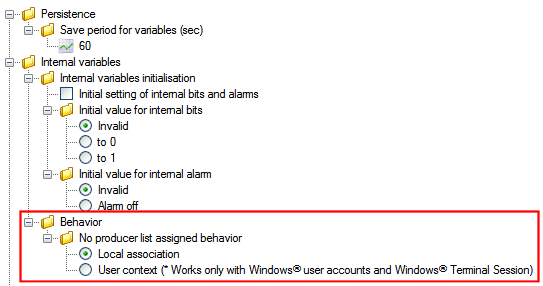
- Local association - The saved variables files are found in the folder:
<AppDataFolder>\usr\<ProjectName>\PER\WTS\<StationName> - User context - The saved variables files are found in the folder:
<AppDataFolder>\usr\<ProjectName>\PER\WTS\<UserName>
Behavior when running in a Remote Desktop session and using the Use a different working folder for each Remote Desktop sessions property
- Local association - The saved variables files are found in the folder:
<AppDataFolder>\usr\WTS\<ProjectName>_<StationName>\PER - User context - The saved variables files are found in the folder:
<AppDataFolder>\usr\<ProjectName>\PER\WTS\<UserName>
This folder is not suffixed or prefixed by <StationName> because the value of these variables is dependent on the user name rather than the station name. A user is only allowed to log on at one station at any one time on the same project.
Issues Related to Sharing the Same Project
If you use the recommended method of configuring PcVue stations (Use a different working folder for each Remote Desktop session) then many of the following points are not applicable.
If you are running more than one instance of PcVue on the same PC, sharing the same project, you must take into account the following limitations caused by the possibility of more than one process trying to access project files at the same time.
Development mode
It is recommended that you do not allow PcVue to be operated in development mode when running in a Remote Desktop session. The best way to prevent this is ensure that the license used by PcVue, when run from a Remote Desktop session, is run-time only.
Archive Units
In general, it is not recommended that instances of PcVue running in a Remote Desktop session archive data directly because you could have several sessions running contiguously each trying to access the same archive files. Instead, it is recommended that you use Client-Server archiving where any PcVue running from a Remote Desktop session behaves as an archive client and PcVue running from the local session behaves as the archive server.
File access from SCADA Basic or VBA
If you are running SCADA Basic or VBA programs that have file access you must take into consideration that more than one instance of a program may attempt to access the files at the same time.
Dynamic configuration using SCADA Basic
It is recommended that you do not use the features of SCADA Basic that allow dynamic configuration (for example Temporary_DB). If these features are essential to your project, please contact Technical Support before you use them.
Persistence of internal variables
The Saved property causes PcVue to remember the value of internal variables either periodically or when PcVue is shut down.
- To save a separate value for each of the variables on each station, enable the option Variables.Internal variables.Behavior.Usr context in Application Explorer.Variables.
For details, see the Help topic on Application Explorer.Variable Settings.Settings.
Known limitations when running PcVue in a RDS Session Host session
Printing When Running PcVue in a RD Session Host Session
There are two main mechanisms for printing within PcVue.
- Graphical. You can print the contents of a window or the entire screen on the Windows' default printer. This mechanism is used when producing screen dumps from SCADA Basic, using the built-in program Hardcopy, when printing a report and when printing from the Print command on the file menu.
- Text only. You can print information in text format on any printer configured in the operating system, either locally or over a network. This mechanism is used when printing events through the Log Filters, Alarm and Log Viewers and when using the SCADA Basic instruction LPRINT.
The mechanisms for graphical printing on PcVue that print to the Window's default printer operate normally. Output appears on the printer configured as the default for the RD Session Host session.
Report printing does not work, as it does not use the default printer.
The mechanisms for text printing only works if the printer configuration within PcVue is set to print to a file. Show picture.
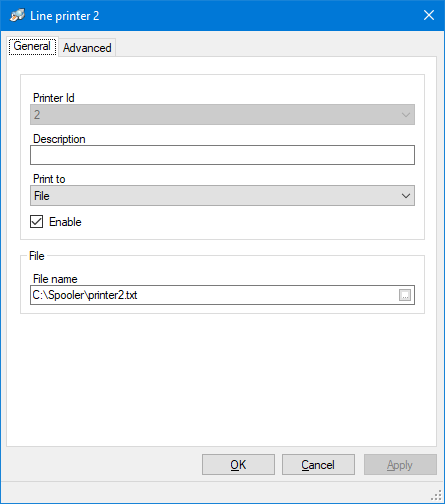
In this case, for each event that is eligible for printing, there will be one line in the file for each PcVue session running the same project.