Host Deployment Console
The Host Deployment Console helps you manage application configuration, projects, protection, keys, station configuration, and related secure keys. It is installed locally as part of the PcVue installation, a shortcut is on your desktop and in the programs menu to launch it.
You will use it to:
- Check system-wide settings designed to protect a host
- Check the list of projects and their protection
- Protect a project based on a secure key, including secure key generation and renewal
- Deploy a project on a host and define system-wide settings
- Remove protection of a project
- Prepare an unprotected copy of a project
- Migrate a project, including migrating the user directory.
If what you are looking for is a command line interface so you can play with your preferred terminal, use the svcmd and ProjectUtility CLI instead.
Refer to the topics Protecting and deploying a project, How to manage project and library versions, and Project and library migration to see the Host Deployment Console in action. These topics give step by step instructions to protect a project, deploy a protected project on a host, set up the Central Project Management, or perform a project migration using the Host Deployment Console or the svcmd and ProjectUtility CLI.
- The Host Deployment Console performs security-sensitive commands and requires Administrative privileges.
- Close PcVue before executing a command.
- All commands are logged.
Overview and project list views
When you launch the Host Deployment Console, you land on the Overview.  Show picture
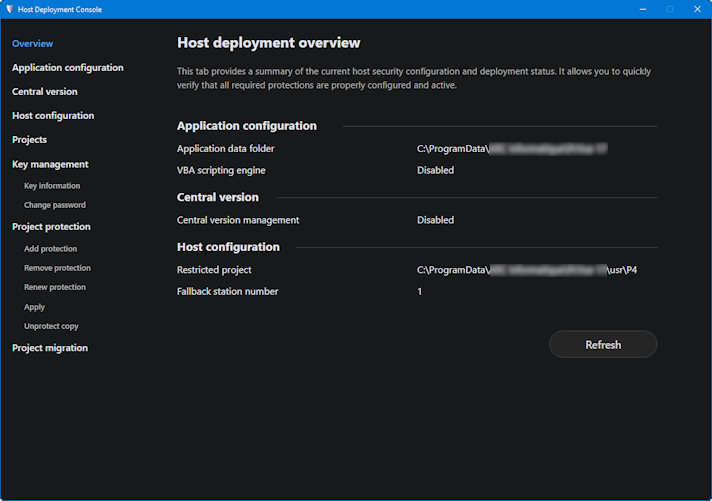
It displays information about the current application and host configuration:
- Application configuration
- The Application data folder - Default C:\ProgramData\ARC Informatique\PcVue 17\
- Application features and their status - Enabled or disabled
- Central project management setup
- Enabled or not
- Configured Central folder
- Configured Export folder
- The possibility to update a project version when in OPE or REF state.
- Host configuration setup
- Restriction of the host to running only a specific project
- Fallback station number
If in doubt, all views offer the possibility to click the Refresh button at any time to update the HDC screen and display information you know is current.
In addition to the Overview, the Project list view displays the list of projects on the host. Show picture
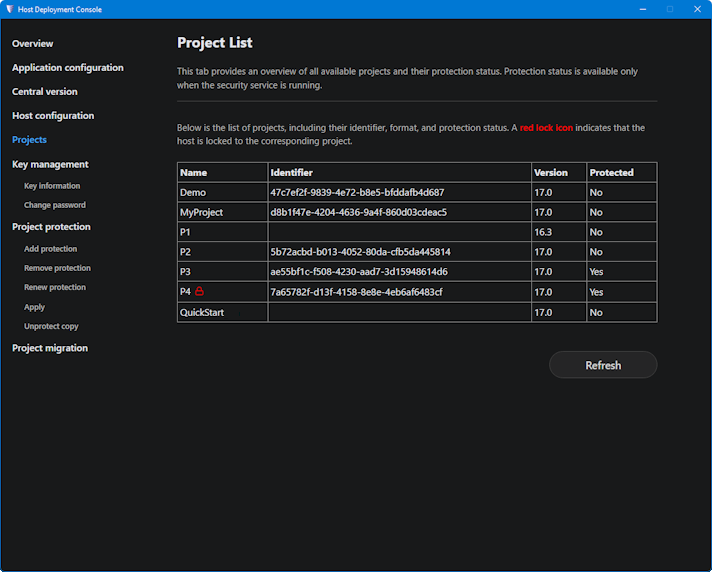
For each project, the following information are displayed:
- Name - The name of the project. A lock beside the name indicates that the host is restricted to running this project only.
- Identifier - The unique Id of the project.
- Version - The format version of the project, indicates the version of the product used most recently to run the project.
- Protected - Whether the project is protected or unprotected.
In the screenshot above, we see the following projects and information:
- Demo - Looks like it is the demonstration project provided with version 17. It is not protected.
- MyProject - A typical test project, it is not protected because it eventually does not contain any sensitive information and will be thrown away soon without thinking.
- P1 - A project last run with version 16.3, not yet migrated, does not have an Id, and is not protected. Cannot be run with a more recent version without performing a migration first.
- P2 - A project last run with version 17.0. It has a project Id but is not protected. If sensitive information is to be added to it, it must be protected first.
- P3 - A project last run with version 17.0. It has a project Id and is protected with a custom encryption key. Its sensitive information cannot be copied and used in another project without knowledge of its key file and passphrase.
- P4 - Like P3 in terms of information and protection metadata. In addition, the lock indicates that the host is restricted to running P4 only.
- QuickStart - Looks like it is the quick start project provided with version 17. It is not protected and does not even have an Id.
The service SV Core Security must be running so the Host Deployment Console can retrieve protection information.
If the service is not running, the column Protected is not displayed, preventing you from checking proper protection of the projects on the host.
A project should have an associated Id. A project without an Id denotes a project that was last used with a product version earlier than version 17.
A project cannot be protected if it does not have an Id.
The QuickStart project is an exception. Because it is used as a template to create a project, its Id is voluntarily left blank to ensure a project you create based on it will not come with a duplicate Id.
Application configuration view
The Application configuration view allows you to change the Application data folder. It also allows you to enable and disable features that are installed but not enabled by default, including the VBA. Show picture
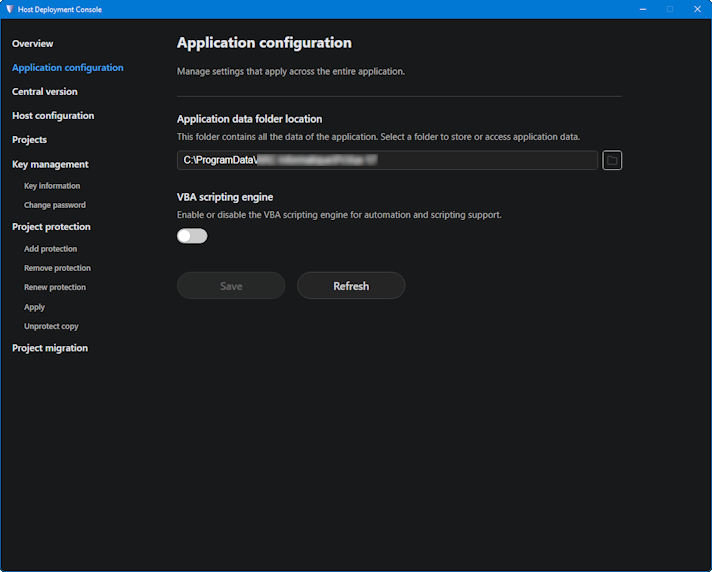
The Application data folder is the base folder where projects, common libraries and shared libraries are stored.
Changing it also affects the default folder of database files for archiving, the location of memory dumps and the location of log files for the default target (local files).
The Application data folder must be on a local storage device. It must not be a network resource.
The sv32.exe -b switch was used in the past to set a custom application data folder at startup. It came as a handy way to have several application data folders to store libraries and projects by theme. For example, if you are a system integrator, customer projects in a folder, test projects in another one and mock-up projects in a third one.
Because changing the application data folder does have security implications, it must be subjected to the current user being granted administrative privileges. And because the use of a switch for sv32.exe cannot be subject to administrative privileges enforcement, starting with version 17, the -b is ignored. Instead, you can use the Host Deployment Console or the svcmd app command before launching PcVue if you wish to switch from one application data folder to another one.
Central version view
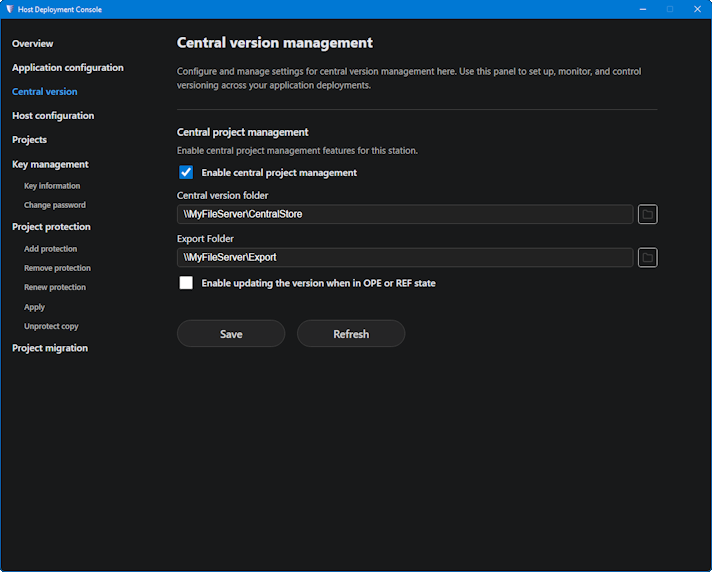
The Central version view allows you to set up and change configuration of the central project management. Show picture
Host configuration view
The Host configuration view allows you to manage the computer host configuration and protection. Show picture
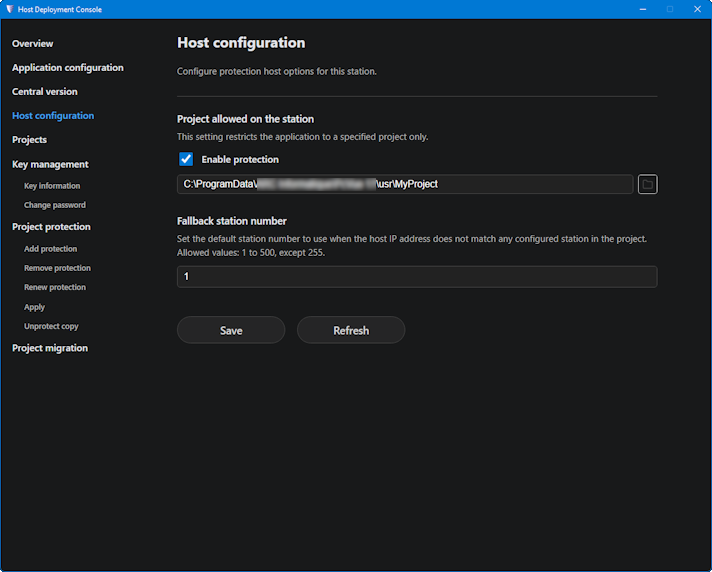
When you enable host protection, the host is restricted to running only the specified project.
When a host is protected, the sv32.exe -station_number switch is ignored.
The fallback station number is used on the host if the station number cannot be resolved based on the IP addresses or on host names associated with stations in project configuration.
Key management views
The Key management views allow you to manage cryptographic keys used to protect a project. Show picture
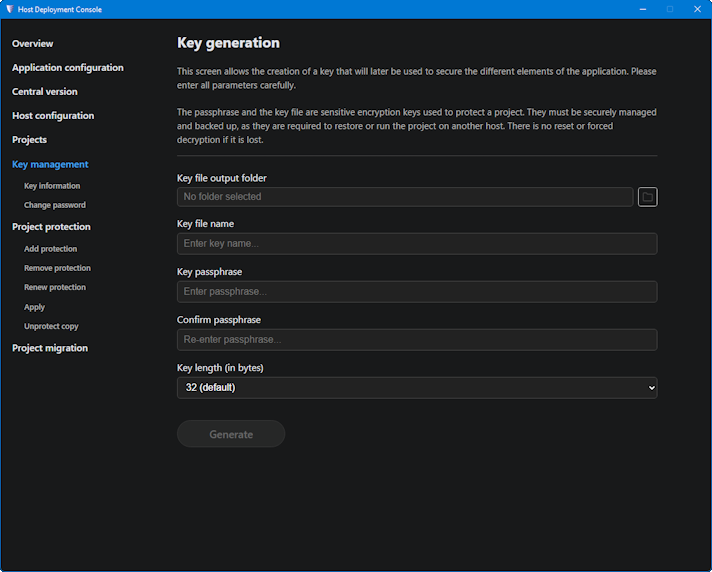
Key management is made up of 3 views:
- Key generation view - In this view, you can generate a new key file by specifying the output folder, the key file name, the passphrase you want to associate to the key file, and finally the key length.
- Key information view - In this view, you can retrieve the key Id by specifying the key file name and its passphrase.
- Change passphrase view - In this view, you can renew the passphrase associated with a key file by specifying the key file, the current passphrase, and the new passphrase.
The KEYFILE and the associated <PASSPHRASE> may not be critical if you generate a secure key for protecting a project that will never contain any sensitive information. It may be the case if you create a project for a quick and dirty test for example.
The KEYFILE and the <PASSPHRASE> are sensitive information if they are generated with the goal of protecting a project that is or will be used as part of a system requiring protection against security threats. They are encryption keys that must be managed according to the policies in place in the system where they are used.
In particular, they must be backed up and accessible in case a host restoration must be performed. Failing to keep a safe and secure backup copy of the KEYFILE and associated <PASSPHRASE> means you will not be able to run the project it is associated to as part of a host computer replacement, or if you need to add a new PcVue host.
The <KEYFILE> associated to a project is a root key. Renewing it requires providing the previous key. No reset or enforced decryption exist.
Project protection views
The Project protection views allow you to manage protection applied to a project. Show picture
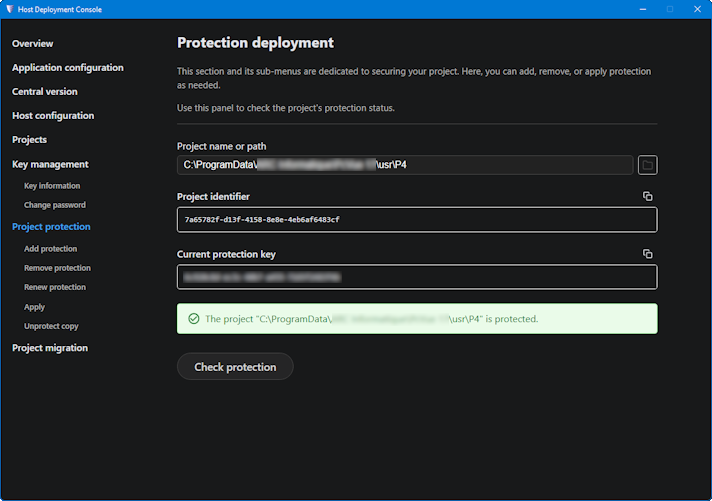
Projects protection metadata are stored in the file \config\Secrets.dat. This file is encrypted based on host-specific elements, it cannot be used on a host other than the one where it was created. You must consider this file as opaque, read and modify it only with the Host Deployment Console or the svcmd CLI provided with PcVue. A backup copy of this file is not enough for host restoration. Key files and their associated passphrases are necessary for proper host restoration.
To facilitate the renewal of keys, the protection metadata includes the current key, and also the previous key if the key was renewed at least once in the past.
Project protection is made up of 6 views:
- Project protection view - In this view, you can select a project and check its protection metadata.
- Add protection view - In this view, you can add project protection metadata to the host computer. In practice, it adds the key value stored in the specified key file to the host project protection metadata. Once executed, PcVue can cipher or decipher data for the specified project on the host computer where the command is run. Optionally, you can apply cryptographic protection to the project immediately if need be. It can be useful if you are on an engineering host, in the process of protecting an unprotected project. If you are deploying a project on a host in production, the project is supposed to already be protected, and you only need to add the protection metadata to the host.
- Remove protection view - In this view, you can remove protection metadata from the host computer for a given project. In practice, it removes the key value stored in the specified key file from the host project protection metadata. Once executed, PcVue can no longer cipher or decipher data for the specified project on the host computer where the command is run. Optionally, the project cryptographic protection can be removed.
When you remove a key, it remains part of the protection metadata as previous key, so that an apply can be performed on the corresponding project, deciphering the project with the previous key and then ciphering it with the new key. - Renew protection view - In this view, you can re-new protection metadata on the host computer for a given project by using a new key. In practice, it imports the key value stored in the new key file so it can be used by PcVue to cipher and decipher data for the specified project on the host computer where the command is run. It also removes the key value stored in the old key file. This old key can no longer be used by PcVue to cipher and decipher data for the project. Optionally, you can apply cryptographic protection based on the new key to the project immediately if need be. If a key already exists for the project, the current key is shifted to previous key, and the new one is added as the current key.
- Apply protection view - In this view, you can apply cryptographic protection to a project stored on the host computer.
- Unprotect copy view - In this view, you can remove cryptographic protection from a copy of a project.
The service SV Core Security service must be running to perform cryptographic operations.
Make sure the service is started or such operations will fail to execute.
The fact that the SV Core Security service is running must be monitored at all times on all PcVue hosts.
The unprotect copy is a critical operation, it deserves a more detailed explanation:
The project folder must be a copy stored in a working folder that is not a well-known PcVue directory.
As a result, the project copy is no longer protected by encryption based on a custom secure key. It is ciphered with the same default key as a newly created project. It can be loaded, used, and configuration data can be deciphered on any computer where PcVue is installed.
The unprotected copy has the same project identifier and comprises the same data as the project you copied originally, in particular the user directory and other potentially sensitive data. What this command does is like removing the project protection, without the key rotation. So not only it does not affect the original project stored in the \usr folder, but it also leaves the original project protection metadata untouched on the host. The original project can still run on the host where this command is used.
To prevent protection removal for a project that may be actively used, an error is returned if the project copy folder is in the well-known \usr directory of the application data folder.
A copy must be performed manually prior to unprotecting it.
This command is designed to allow sharing a non-sensitive part of a project with a third-party, a technical support team for example, with whom you do not want to share sensitive data, and in particular not the key file and not the passphrase.
The steps are typically the following:
- Create a copy of the project folder of interest (stored in the application data folder), into a working folder. The copy can already be selective, for example, in most cases, you do not want to copy the \TH folder if that is where you store proprietary archives.
- Remove any sensitive or unnecessary data from the project copy. As a minimum, the user directory shall be sanitized.
- Run this command on the project copy.
- Zip the folder and transmit it to the third-party.
The files and data making up the copy of the project are no longer protected by PcVue built-in encryption mechanisms. If sensitive data are present in the copy, they must be protected by alternative external mechanisms to make sure they cannot be compromised.
Project migration view
The Project migration view allows you to migrate a project so it can be used with the current product version. Show picture
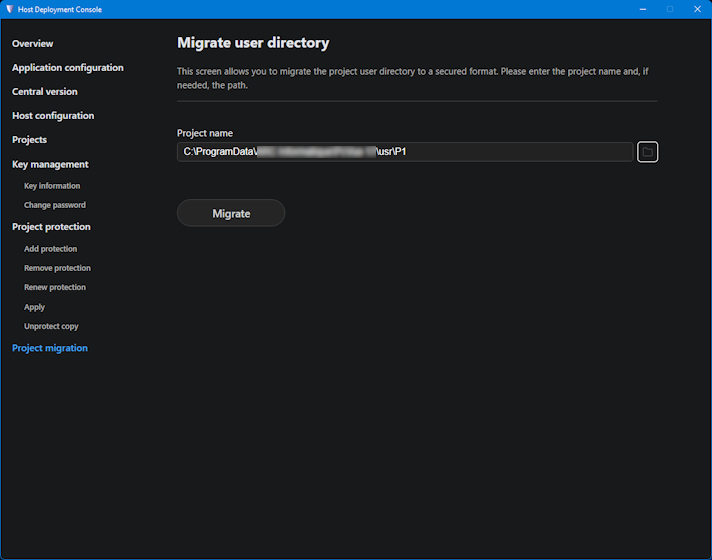
The command processes a folder corresponding to a project stored in the Application data folder and migrates it so it can be run with the version of PcVue that is installed. It reads configuration files (inputs) and creates the new configuration files (outputs).