Starting PcVue for the first time and creating a project
This topic guides you through starting PcVue for the first time, either to open an existing project or create a new one.
How to start PcVue
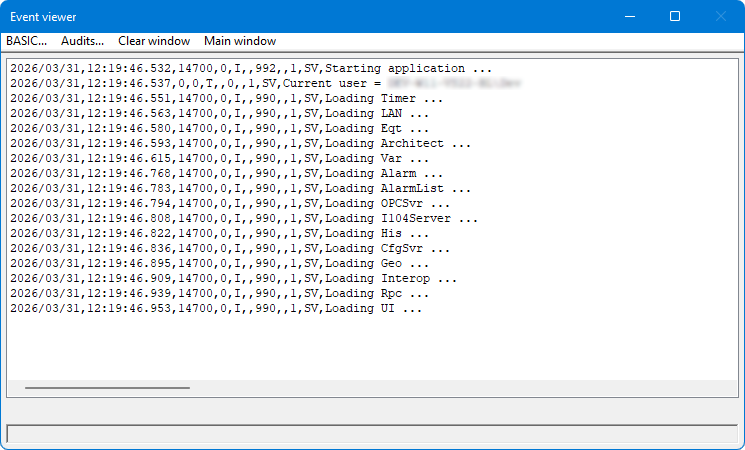
- After installation, you start PcVue by clicking on its icon in the Start menu or on the desktop. The Event Viewer appears, it displays status and error messages while the various components are being loaded.
 Show picture
Once PcVue is running, the Event Viewer is hidden by the main window. It can be moved in front of the main window at any time (providing the Event Viewer is not minimized) using function key F7.
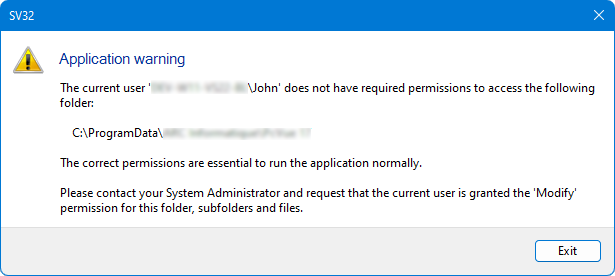
The first time you run PcVue, the Event Viewer opens in English. This start-up default language can be changed by modifying the Languages settings. - As part of the startup, PcVue checks the permissions on files and folders and may raise a warning indicating that the current user does not have the required permissions on the Application data folder (default C:\ProgramData\ARC Informatique\PcVue 17\). Show picture
In this case, click Exit, and make sure permissions are set properly before starting again. See Identity management and ACL for more information about permissions on files and folders.
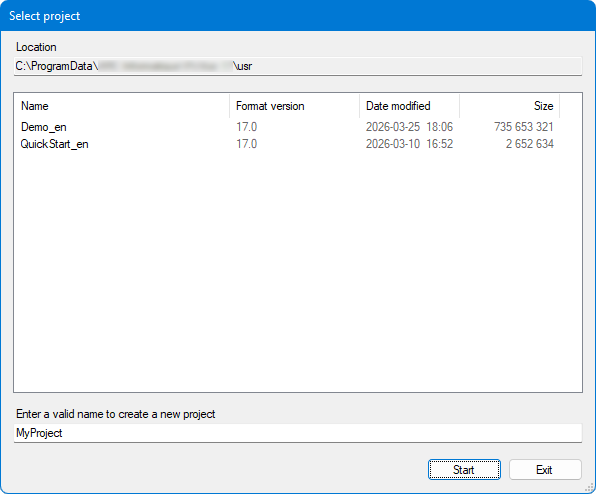
- If permissions are ok, the Select project dialog box is displayed. Show picture
- If what you want is to start an existing project, for example the demo application, select it and click Start.
- The Event Viewer displays some more messages about configuration loading and runtime operation preparation including connections to field devices if any.
If the project selection dialog is not displayed at startup, make sure the -s command line argument is in place on the shortcut you are using. Shortcuts created as part of the installation do have the -s switch.
If the -p command line argument is used, the project specified on the command line is started directly, without displaying the project selection dialog.
For each project, the Select project dialog displays the format version of the project. It is an indication of the version that was last used to run the project.
- If you select a project created with a more recent version than that you are using, a warning is displayed indicating that the project may fail to start. See Feature stability for more information.
- If you are about to select a project created with an earlier version of PcVue, see Project and library migration for more information about migrating to a new version.
How to create a new project
As part of the startup, you can create a new project as follows.
- In the Select project dialog, type in a new project name, and select OK.
- Before a new project is created, you are asked to confirm the action. Select OK.
- PcVue startup continues and loads the newly created project.
When reaching this step, the files and folders structure of the project is created. At that stage, the project does not contain any sensitive data yet and is known to be unprotected. Some files are already encrypted, but with a default cryptographic key we recommend you replace. The next step is to protect the project before you add any piece of sensitive data in its configuration. See Protecting and deploying a project for more information.
Projects are created in the PcVue application data folder, by default
The complete path for the project must not exceed 255 characters.
What if no license can be found
If you try to start the software without a hardware protection key, a dialog will ask you to insert one. Show picture
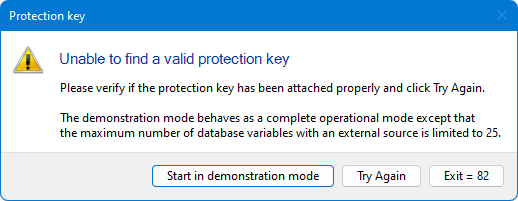
- To run PcVue in trial mode, select Start in demonstration mode.
- To run the mode appropriate to the hardware protection key, insert the key and select Try again.
- To cancel startup, select Exit.