Configuring the Back end and Web server
Configuring the Web server and the Back end must be completed before deploying any site or app. The WDC is designed to configure a web server on the local computer.
How to configure the Web server
Configuration of the Web server is the first step of deploying any of the web services or apps. The WDC can help configure the local installation of IIS and hence there will only ever be one web server displayed.
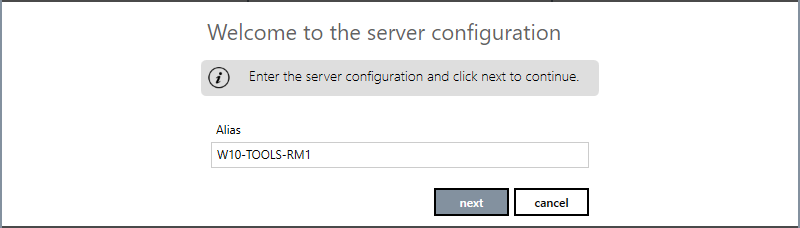
- Open the WDC and select Web Servers. Select Deploy a new server. The Web Server configuration view opens.
 Show picture
 - Enter the server alias. By default, the alias is the same as the hostname.
- Click next to save the configuration and deploy the server. You are then given the option to deploy a website. If you choose yes, the site deployment wizard opens. See the topic Deploying a new site with the wizard for the next step. If you choose no, the view closes and the new web server configuration is displayed in the WDC.
How to configure the Back end
The back end configuration defines the connection between the IIS web server and the PcVue Web & Mobile back ends. If you change the back end configuration after you have deployed a site, you must use the back ends view in the site tile to re-deploy it.
The following explanation is for configuring a local back end that is the simplest case where the web server is on the same computer as the PcVue Web & Mobile back end.
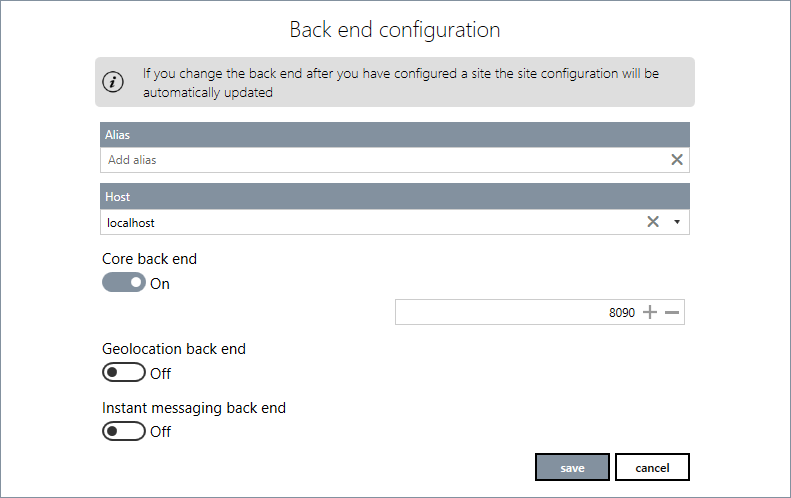
- Open the WDC and select Back ends. Select Create new back end endpoint. The back end configuration view opens. Show picture
- Enter the Alias for the back end. This is the name by which it will be known.
- Select the network identity of the Host using the drop down list box. You can choose from Localhost, 127.0.0.1, the computer's hostname or IP address. In Windows, the hostname is normally the same as the computer name.
- Enable the back ends as required and confirm the port settings. The port settings must match those configured for the back end items in the PcVue project. For information about which back end is required for which feature see the Web & Mobile Back Ends book in the Application Explorer help.
- Click Save to confirm the configuration.
Configuration of a remote Back end
One of the common requirements, often for security purposes, is to have the Web Server on a different computer and sub-net to that of PcVue. This sub-net is often referred to as a DMZ (demilitarized zone) and its purpose is to segregate the organization's private Industrial network from the office network or the Internet. To accomplish this, you install the WDC on the computer that is to be the web server and use the WDC to configure the back end so that it points to the computer on which the PcVue station due to play the role of Web back end resides.
Install the WDC on the computer that is to be the Web server using the PcVue installation media. Once the WDC is installed, use it to check that the IIS web server is installed and correctly configured. See the topic Installing the IIS Web server.
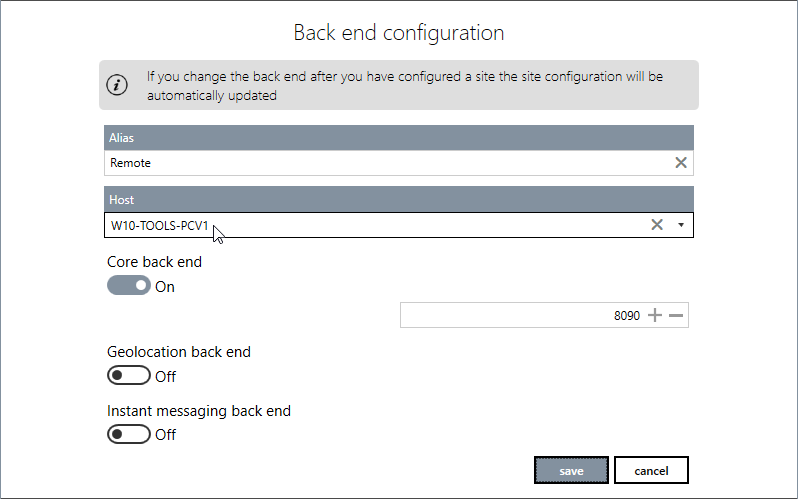
You must then configure the back end so that it points to the computer on which the PcVue Web back end is installed. To do this you manually enter the hostname or IP address of the computer on which PcVue is installed. Show picture
If you intend to deploy WebVue, please note that a TCP port must be open so that the PcVue web back end can connect back to the web server for notifying data changes. This callback port is the next available port, so if you have configured port 8090 as the incoming port (for the connection web server to web back end), then the port for the connection from the web back end to the web server is likely to be 8091.
If this second port is not open, users will be able to log in, but the loading of the first mimic will fail.