The installation menus
The PcVue installation process proposes the following menus.
Select the installation language
Displayed automatically when the media is inserted or by running Setup.exe.  Show picture
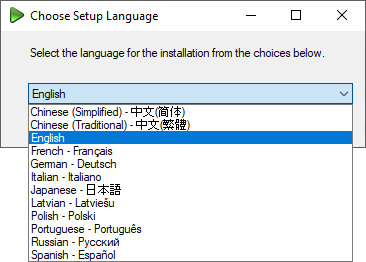
In addition to being used during the installation, the language you select is also used once PcVue is installed:
-
As the startup language of the software, that is, the language for any message or dialog box displayed before the project is loaded.
-
Upon project creation, as the first project language and first display language. The second project and second display language default to English. Once PcVue is running, you will be able to change the language settings as part of the project settings.
Once PcVue is running, you will be able to change the language settings as part of the project settings.
The toolbar

From left to right:
- Click to come back to the Main menu.
- Click to come back to the Previous menu.
- Click to display the Add-ons, Drivers and Tools menu that proposes complementary products from our partners. See below.
- Click to browse media contents with the Windows Explorer.
- Click to access the PcVue web site using the default web browser.
- Click to access the PcVue web based tutorials using the default web browser.
- Click to open the Readme file.
- Click to open the Installation help.
- Click to exit the setup.
Main menu
- HMI / SCADA - Will install components required to deploy PcVue on a host of type Standalone station, Client station, Data acquisition server, Historical data server, Remote Desktop server, or Gateway server.
- Geolocation Monitoring station - Will install components required to deploy a Geolocation Monitoring station.
- Web & Mobile Back End - Will install components required to deploy a Web & Mobile Back end server.
- Studio Engineering - Will install components required to deploy a Studio engineering station.
- Web Deployment Tools - Will install PcVue web deployment tools and packages. If you deploy a web architecture, these tools must be installed on the computer that hosts your IIS web server.
The HMI / SCADA menu
- Web & Mobile access - Install Web back end role. Add components required to support the interface between PcVue and the IIS Web server when you need to deploy one of following Web or Mobile app: WebVue, the WebScheduler, TouchVue or the Web Services Toolkit. If you deploy a Web architecture, at least one of the PcVue machines must have this role, in order to interface with the IIS Web server.
- BIM control - Add the components that are required to use the BIM control.
- Video controls - Add the components required to use the ONVIF and the Video controls.
- Libraries - Add reusable libraries of images, symbols, mimics & mimic templates.
- Quick Start project - Add the Quick Start Project, a pre-configured project that you can use to create your own project in a few clicks.
- Demo project - Add the Demo project, a sample project allowing you to explore the main features of PcVue.
- Extra documentation - Add supplementary documentation, in addition to the online help:
- Addenda: Documentation items not available in the online help, in particular descriptions of the main configuration file formats.
- SDK & API - Add SDK and API documentation, code components and samples:
- XML Generic Import Toolkit,
- SV Manager Toolkit,
- CimWay driver Toolkit,
- Web Services Toolkit.
Geolocation Monitoring Station, Web & Mobile Back End and Studio Engineering menus
As for the HMI / SCADA menu with the following additions.
- Web & Mobile access - Install the Web back end role. Add components required to support the interface between PcVue and the IIS Web server when you need to deploy one of following Web or Mobile app: WebVue, the WebScheduler, TouchVue or the Web Services Toolkit. If you deploy a Web architecture, at least one of the PcVue machines must have this role, in order to interface with the IIS Web server.
- Geolocation back end - Add components required to support geolocation-based services and apps.
- Geolocation back end with tracking - Add components required to support geolocation-based and tracking-based services and apps.
- Instant Messaging - Add components required to run the Instant Messaging server.
Select the components you need to install, and click Start the installation to launch the installation wizard. See the chapter Installing PcVue for more information.
Web Deployment Tools
Installs the Web Deployment Console, click to launch the installation wizard. See the chapter Installing the Web Deployment Tools for more information.
The Add-ons, drivers and tools menu
The exact list of Add-ons, drivers and tools may vary, but usually includes the following:
- License Utility(*) - Install the standalone License utility package that can be used independently of PcVue.
- Sentinel Driver(*) - Install the hardware protection key drivers.
- OPC-UA Gateway - OPC-UA client & server gateway.
(*) Also installed as part of the main installation process.
Some of these components are chargeable options. They can be installed but, unless they are enabled by the appropriate license, they will not run or they will run in demonstration mode with limited functionality.