


Topic
[KB1262]Displaying Non-Latin Characters in PcVue: Windows Server Configuration Guide

Applies to:
PcVue 12 onwards
Summary:
This article explains how to configure Windows Server to correctly display Non-Latin characters (e.g., Chinese) in PcVue projects, especially when using bilingual projects involving East-Asian languages.
Details:
Prerequisites
- Images are from Windows Server 2019
- PcVue installed
- Administrative access to the server
Step-by-Step Configuration
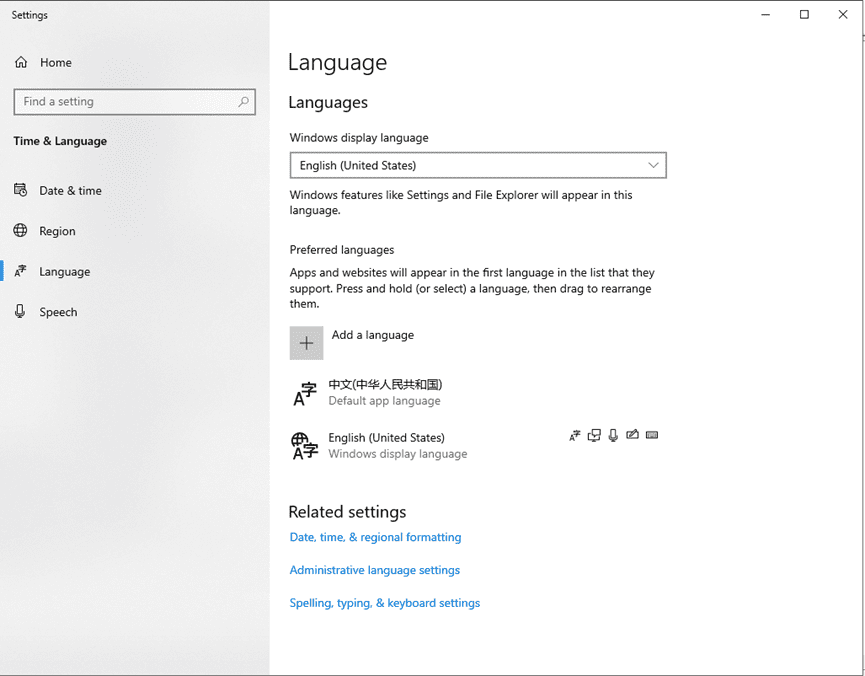
1. Add and Set the Default App Language
- Open Settings > Time & Language > Language.
- Under Preferred languages, click Add a language and select the desired No-Latin language (e.g., Chinese (Simplified, China)).
- Set the newly added language as the default app language by dragging it to the top of the list.
Example: Chinese set as the default app language in Windows Server 2019.
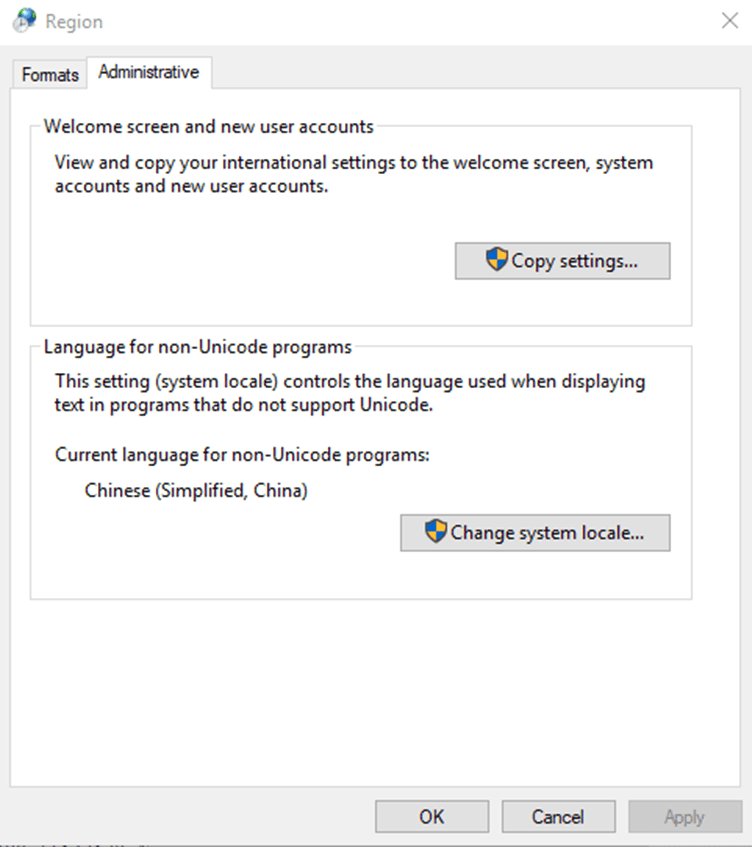
2. Change Region Settings for Non-Unicode Programs
- Open Settings > Time & Language > Region.
- Go to the Administrative tab.
- Under Language for non-Unicode programs, click Change system locale….
- Select the appropriate language (e.g., Chinese (Simplified, China)) and confirm with OK.
Example: System locale set to Chinese (Simplified, China).
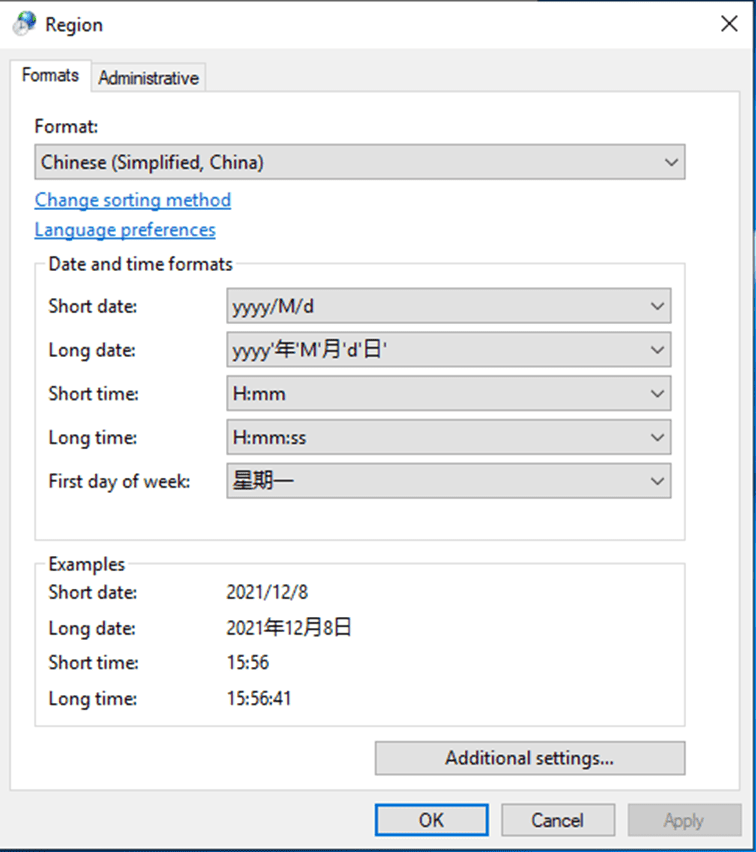
3. Update Region Format Settings
- In the Region settings, go to the Formats tab.
- Set the Format to match the No-Latin language (e.g., Chinese (Simplified, China)).
- Ensure date, time, and number formats are consistent with the selected language.
Example: Region format set to Chinese (Simplified, China).
Important Notes
- Restart Required: After applying these changes, restart the server for the settings to take full effect.
- PcVue Controls: If the region format is not updated, Non-Latin characters may not display correctly in PcVue controls (e.g., event viewer, combobox).
Created on: 20 Jan 2026