








Topic
[KB1270]Hardening a PcVue Remote Desktop Services Environment

1. Force PcVue as the User Shell (RDS Lockdown)
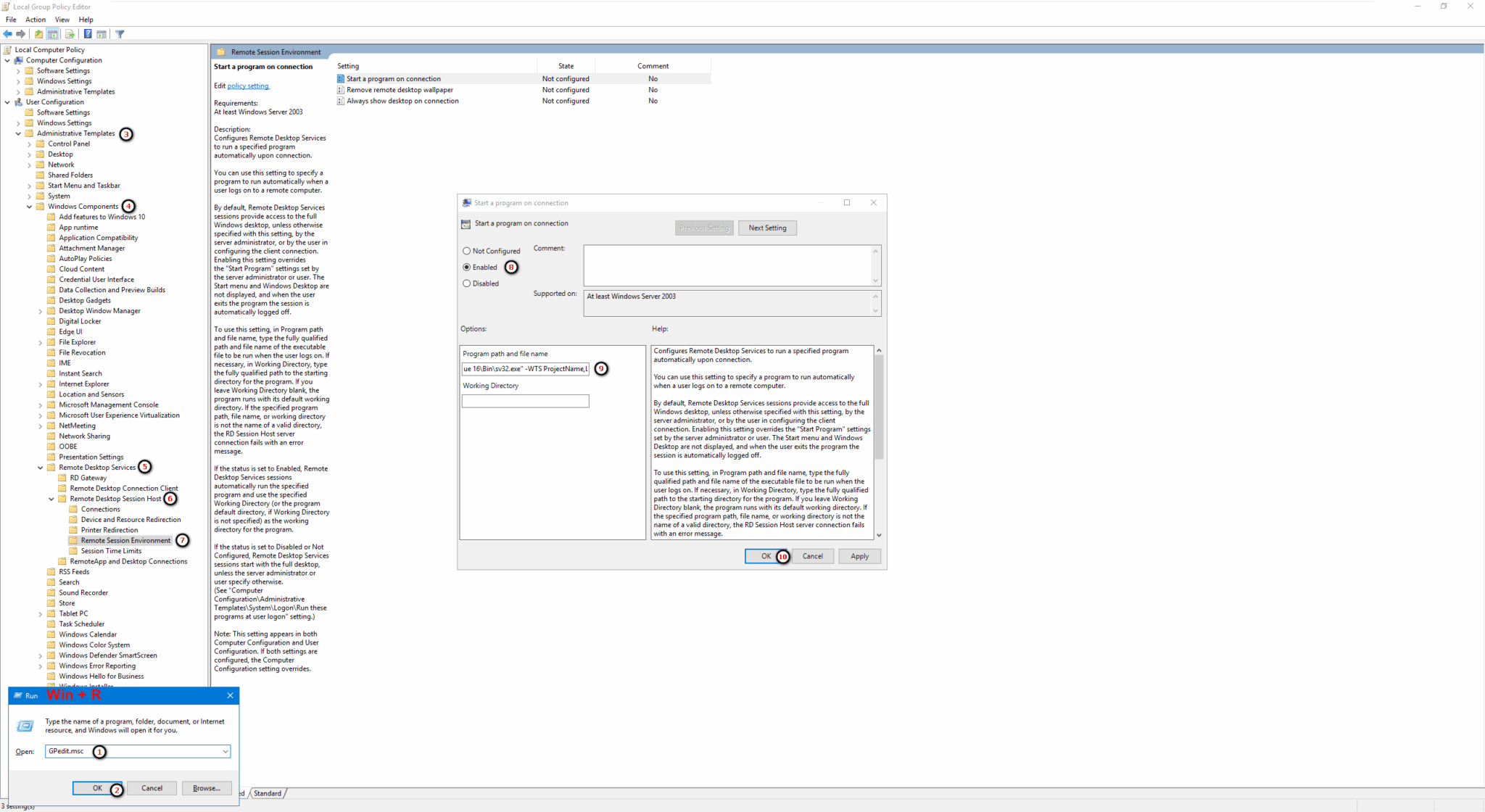
To restrict users to PcVue only, the Windows shell is replaced via Group Policy.
Configuration (GPedit.msc):
User Configuration → Administrative Templates → Windows Components → Remote Desktop Services → Remote Session Environment
Enable “Start a program on connection”
Set program path to PcVue executable
Result:
PcVue launches automatically at session start
Users are locked into the PcVue application
No access to Windows desktop or standard shell
Closing PcVue automatically terminates the RDS session
2. Handling User Session Lock / Disconnection Without Logout
In RDS environments, users may unintentionally leave sessions active without properly logging off (e.g. closing the RDP window or locking the remote session). This can result in unused sessions and locked resources.
Solution:
A controlled automatic disconnection mechanism is implemented at the PcVue profile level.
Configuration:
Activate automatic logoff in the user profile
Add a logoff program that will exit PcVue (Scada Basic Instruction SYSTEM mode EXIT)
Result:
PcVue is properly closed upon user automatic logoff
RDS session is terminated automatically upon PcVue stop
Both RDS session and PcVue license/token are released
No orphaned or locked sessions remain
3. Additional Optimizations
3.1 First RDP connection after server/workstation startup
Important:
When connecting for the first time to a machine in the architecture after a reboot (via RDP or any RDP-based tool like Bastion), the user may be blocked.
Cause:
PcVue may start with an incorrect target due to applied policies, leading to an unusable session.
Recommendation:
Configure AutoLogin on the machine
Ensure PcVue starts automatically at system startup
Then connect via RDP once the session is already initialized
This guarantees that PcVue is launched in the correct context before user interaction.
3.2 Providing desktop access to specific users
In RDS environments, if you need to allow specific users to access the Windows desktop in addition to PcVue:
Configuration:
Define a logon script at the PcVue profile level to launch explorer.exe (Scada Basic Instruction APPLICATION mode LOAD)
3.3 Excluding users from GPO application
If you need to exclude specific users from the application of a GPO (policy), Active Directory (AD) is required.
Configuration:
Manage exclusions through Group Policy Management (GPM / GPO) by: Modifying Security Filtering or using Delegation (Deny “Apply Group Policy”) or adapting OU/User scoping.
This ensures that the policy is not applied to selected users while maintaining centralized and controlled management.
Created on: 05 Jun 2026