


more quick actions
minimize quick actions







Applies to:
PcVue started by a Windows scheduled task.
Summary:
If PcVue closes after approximately one hour, check whether a Windows scheduled task is used to start it.
A task configured to stop after one hour may also stop PcVue.
Details:
Cause
A scheduled task can be used to delay the start of PcVue, for example to give the computer time to reach a stable state. If the task’s settings limit its execution time to one hour, Windows may stop the task and close PcVue. A forced-stop setting may also be enabled.
Check the scheduled task
- Open Windows Task Scheduler.
- In Task Scheduler Library, locate the task that starts PcVue. Check its Actions tab if necessary.
- Open the task’s Properties and select the Settings tab.
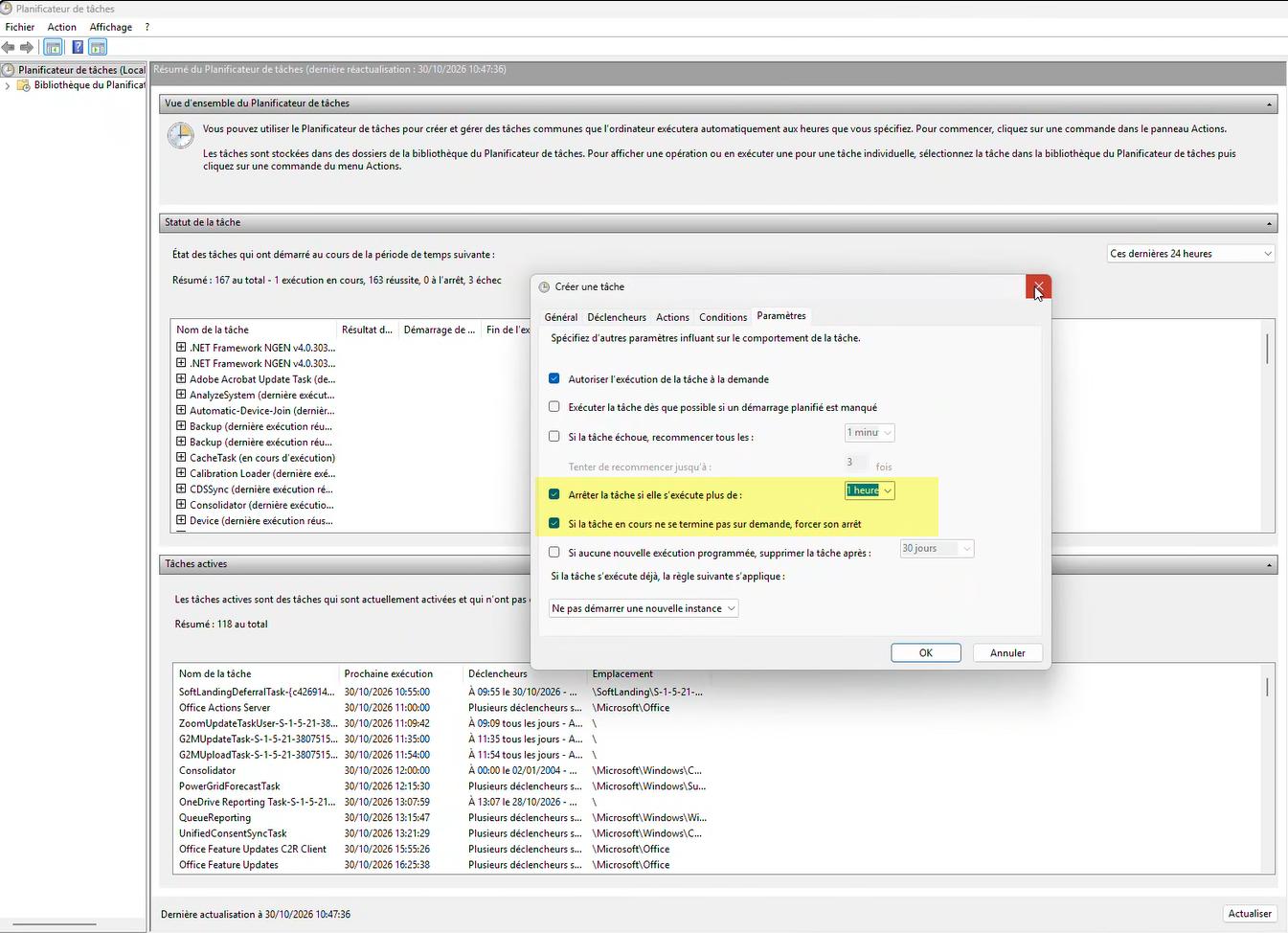
- Check whether Stop the task if it runs longer than is selected and set to 1 hour, and whether If the running task does not end when requested, force it to stop is selected.
Resolution
- In the task’s Settings tab, clear Stop the task if it runs longer than.
- Also clear If the running task does not end when requested, force it to stop, if it is enabled and available.
- Click OK to save the task.
- Start PcVue using the scheduled task and confirm that it remains open beyond the previous one-hour limit.
Keep the existing startup delay if it is needed; changing these settings does not require removing it. If PcVue still closes, investigate other possible causes.
Created on: 11 Nov 2026