Adding a Physical Device to an IEC 61850 Network
An IEC 61850 device object in PcVue configuration represents, and provides access to, an IEC 61850 physical device. Within each physical device, may be one or more logical devices.
On the network, an IEC 61850 device is identified by its IP Address. In PcVue, it is known by the Name that you give it during the configuration.
A device can be configured manually, or based on information available in an SCL file referenced on the IEC 61850 network.
Adding a device
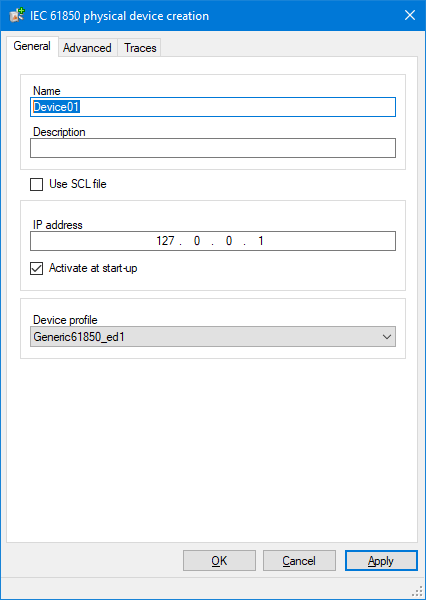
- Select an IEC 61850 network in the Application Explorer. From the task pane, select Add an IEC 61850 device to open the Device dialog.
 Show picture
 - In the Name field, enter a name for the IEC 61850 device. This is the name by which it will be known in PcVue.
- Enter the optional descriptive text in the Description field (optional).
- In the IP address field, enter the device's unique IP address.
- Select Activate at start-up if the device is to automatically start.
- Select the Device Profile. PcVue is provided with a number of device profiles. Further profiles can be added by editing the device profile catalog. See the topic IEC 61850 device profile catalog.
- Click on OK to confirm the configuration and close the dialog or Apply to do the same but leave the dialog open.
Adding a device using an SCL file
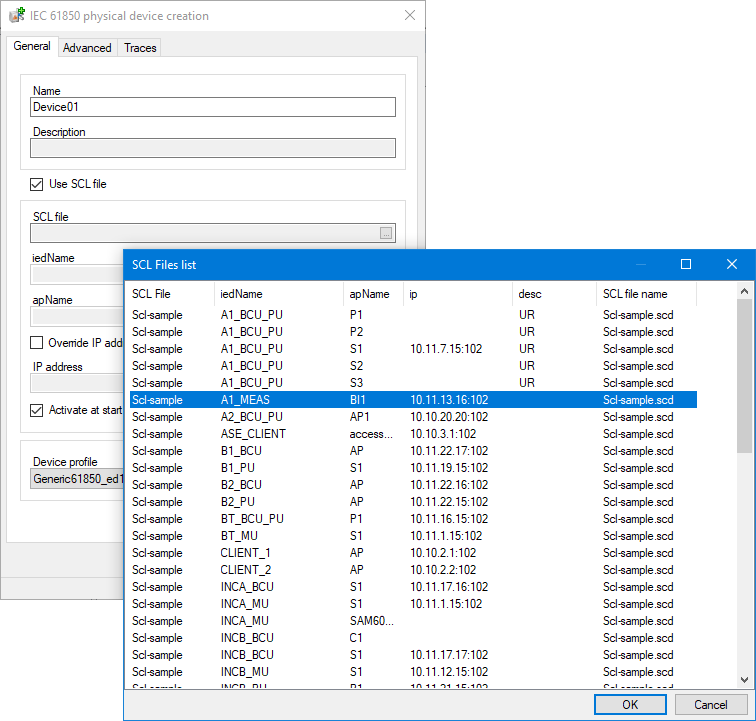
If you have added one or more SCL files to the Network configuration, you can select the device configuration as an alternative to configuring the device properties manually.
- Follow steps 1 to 3 as above.
- Select Use SCL file. You can then select the IED from the SCL File List, using the ellipses button adjacent to the SCL file property. Show picture
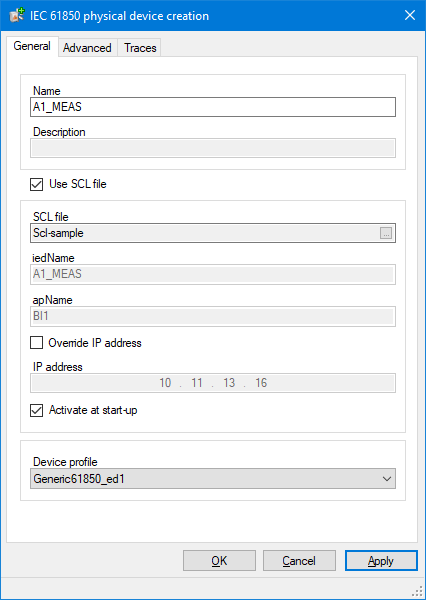
- The information from the SCL file auto-completes the device configuration: iedName, apName and IP address. Show picture
- You cannot change properties of a device configured in this way other than using Override IP address to change that supplied by the SCL file. Click OK to confirm the configuration.
The Advanced tab
See the topic IEC 61850 device - advanced properties.
The Traces tab
The Traces tab is used to enable debugging traces in the event of any problems with the device. Only use this if advised to do so by your support agency.