Attaching and Detaching a Database (SQL Server)
The Attach and Detach functions can only be used with a local SQL Server.
You can use these functions to assist with administering databases. For instance, you may want to move a database to a different disk drive when the disk containing the database file has run out of space and you prefer to expand the existing file on another drive (rather than add a new file to the database).
The Attach and Detach functions require exclusive access to the database, so any other applications must be disconnected from the database.
Attach and Detach only apply to a local SQL Server, i.e. on the same PC or on the same network as the station.
Detaching a database removes the database from the SQL Server but leaves the data and transaction log files of the database intact on the disk drive. These files can then be used in the attach procedure when creating another database either on the same or a different SQL Server.
Detaching a database from the SQL Server
You cannot detach a database that appears in the Database Manager's tree.
- In the left pane, click on the Microsoft SQL Server Databases icon.
- From the Action menu, select the Detach command to display a dialog with a Server tab.
- Select the SQL Server
using the drop down list box and click the Connect button. A new tab titled
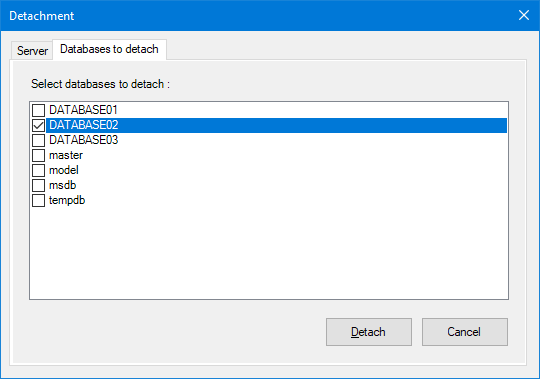
Databases to Detach shows a list of databases that are currently attached
to the SQL Server.
 Show picture
 - Tick the databases that you wish to detach and click the Detach button.
- A confirmation dialog is displayed. Click Yes to complete detachment of the database.
Attaching a database to the SQL Server
- In the left pane, click on the Microsoft SQL Server Databases icon.
- From the Action menu, select the Attach command to display a dialog with a Server tab.
- Select the SQL Server
using the drop-down list box and click the Connect button. A new tab titled
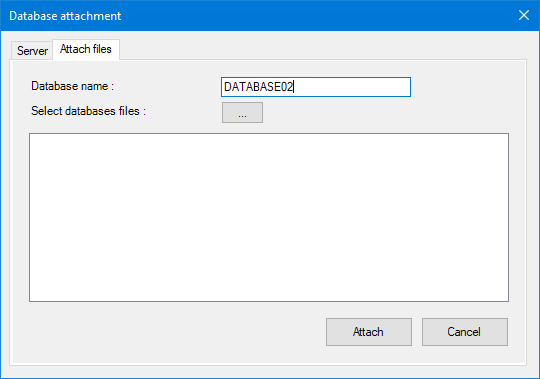
Attachment Files is displayed. Show picture
- In the Database Name field, enter the name by which the database will be known to the SQL server. It is conventional (but not essential) for the database name to be same as the files that it contains.
- Click the Browse button to display the Open dialog.
- Select the physical
database files that are required for the database Show picture
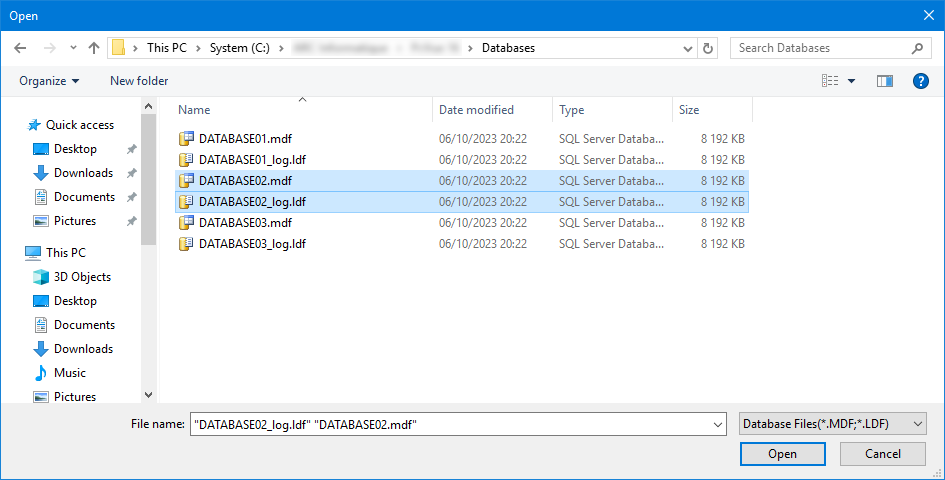
You can select more than one file at a time by clicking while holding down the Ctrl button.
These two files are always required: <Database Name>.mdf and <Database Name>_log.ldf.
- When you have selected the database files, click on Open.
- Confirm the attachment action by clicking the Attach button.
- When asked whether you want the database to be added to the Database Manager's tree, select Yes or No as appropriate.
Authentication
See the topic How to Browse SQL Server Databases on how to comply with authentication by Windows or by SQL Server.