Configuring the Memory Usage of the SQL Server
If you have issues with memory usage on your PC, you may be advised by your support center to change the memory settings for the SQL server.
How to connect to the SQL Server
Before you can change the memory settings, you must first connect to the SQL server.
- In the left pane of the Database Manager, select the node Microsoft SQL Server Databases.
- From the Action menu,
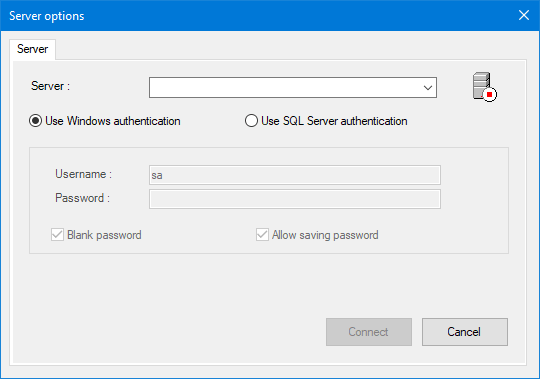
select Configure Server to display the Server Options dialog.
 Show picture
 - Using the Server combo box to select the server.
- Select the authentication type. For more details on the available options, see the topic How to browse SQL Server databases.
- Click Connect to connect to the SQL Server. This may take a few seconds.
How to change the memory settings
- Select the Server
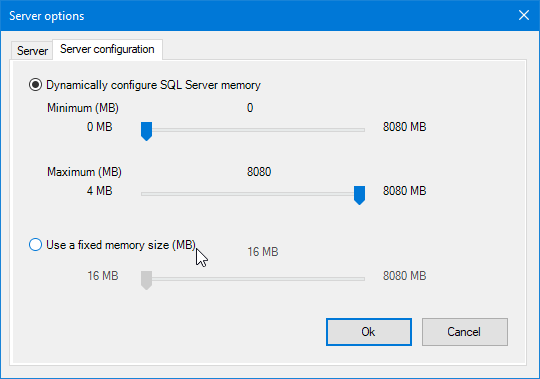
Configuration tab. Show picture
- Use the slider controls to change the memory settings as advised by your support center.
- The sliders are moved to show the changed settings. Click OK to confirm the settings followed by Cancel to close the dialog.
Dynamic and fixed memory settings
- When you are using dynamic memory for SQL Server, the minimum and maximum server memory settings are individually configurable.
- The default setting for the maximum memory usage is the amount of RAM physically available to the PC.
- When you are using fixed memory for SQL Server, the minimum and maximum sizes of server memory have the same value.