Using an ActiveX Control in a Mimic
You can paste any of the authorized ActiveX controls into a mimic. When you paste a control into a mimic, it is automatically given a name by which it is then referenced. You can view and change the name using the Properties List.
The control becomes active as soon as the mimic is switched to Run mode. In general, though, for an ActiveX control to do something useful you will also have to write some software using the scripting language. For example, if you insert a command button you will need to tell the HMI what to do when the button is clicked.
Once a control has been pasted into a mimic you can move it or size it, in the same way as you would do with a native HMI drawing element.
How to Paste an ActiveX Control into a Window
- Open the mimic and switch it to Design mode.
- From the menu, select the command Insert.ActiveX Control. A dialog is displayed listing the authorized ActiveX controls.
- Select the control you require and confirm your choice by clicking the OK button.
 Show picture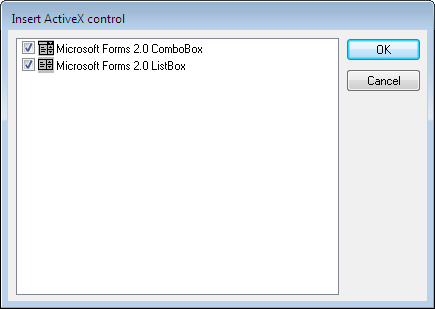
You can specify more properties to control the graphical element visibility. From the Aspect tab, behind the down arrow at the bottom of the Properties dialog box:
-
Specify zoom visibility bounds so that the graphic control is only visible for predefined zoom levels.
-
Specify layers so that the graphic control is only visible if one of the selected layers is displayed.
These are even more useful when combined with user permissions and decluttering templates.