Using the Log Viewer Context Menu
The Log Viewer context menu is available if the property Use context menu has been enabled in the Log Viewer's configuration. It is opened by right clicking anywhere in the display area. The available tools depend on the configuration of the log viewer (Menu tab) and if one or more log events are selected. Commands available in the context menu correspond to those available in the toolbar, and have the same behavior.
The following screen shot shows all available tools.  Show picture
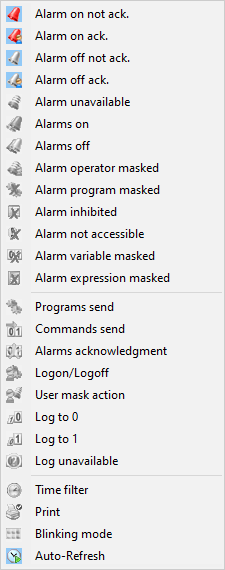
The tools are divided in 3 sections:
- Filtering - The 1st section comprises buttons to change the log display filter for alarm transitions. Any change in the filter applies to the log viewer as a whole.
- Filtering - The 2nd section comprises button to change the log display filter for user actions and bit variable transitions: Commands, Acknowledgment, masking, log to 0, log to 1...
- Commands - The 3rd section comprises general command buttons: To change the time filter, print selected log events, change the blinking mode and activate/de-activate the auto-refresh.
Interaction with other Log Viewer actions
There is one other form of action from the Log Viewer triggered by clicking with the mouse. How this behaves will depend on how Mouse inputs have been configured in the HMI General Options.
- Context mimic - If the context mimic action is configured for a right mouse click, and the context menu is enabled, on a right mouse click the name of the context mimic appears in the context menu above the other tools.
The context mimic and the context menu are two entirely separate features other than the interaction mentioned noted above.