Configuring the Soft Keypads
The soft numeric and alphanumeric keypads allow the user to enter numeric values and text strings at run time using a displayed keypad and the pointing device (mouse or touch screen).
There are two versions of the soft keypads available, the current one  Show picture, and for compatibility with older systems the previous one Show picture.
You select which version to use in the HMI Settings.
Show picture, and for compatibility with older systems the previous one Show picture.
You select which version to use in the HMI Settings.
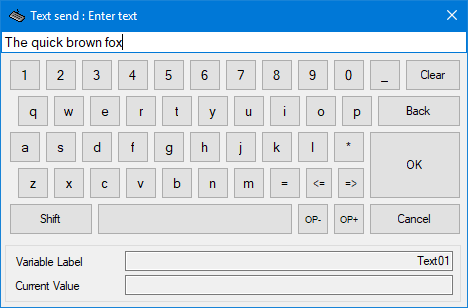
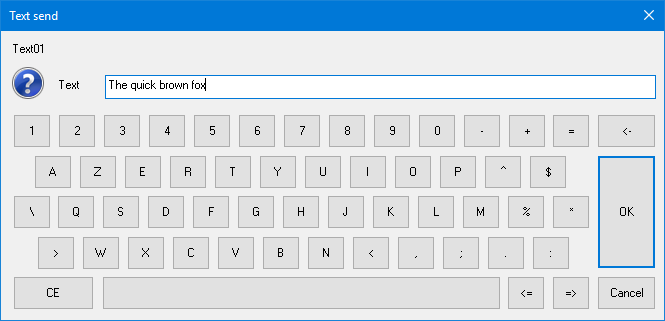
The soft keypads are displayed under the following conditions.
- From a Send Register animation when the option keypad is selected.
- From a Send Text animation when the option keypad is selected.
- From the Security animation when the option Use virtual keyboard for login and security is selected.
- From the Login dialog when the option Use virtual keyboard for login and security is selected.
- From the Trend viewer trace toolbox to change min and max when the option Use soft keypad for min and max in the Trend Viewer trace toolbox is selected.
- From the Log Viewer to modify the comment when the option Use soft keypad when modifying the comment in the log viewer is selected.
The look and feel of the soft keypads is configured from
a dialog displayed from the menu using the Configure
Preferences.Soft Keypad command. Show picture
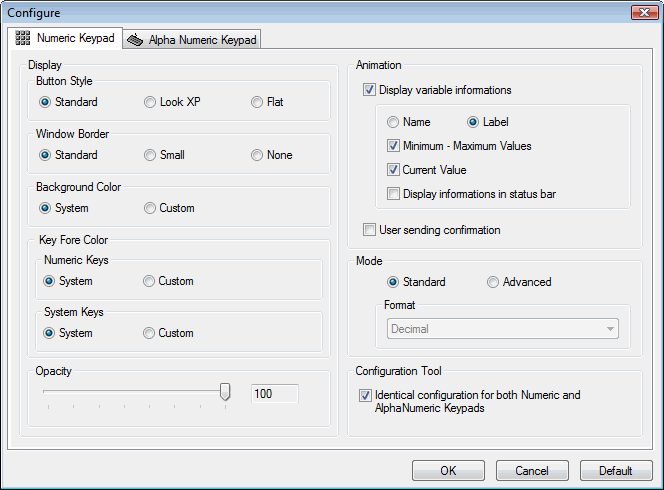
The dialog contains two tabs, one for the configuration of the numeric keypad, the other for the alphanumeric keypad. Many of the properties are common to both keypads. It is recommended that you select the option, Identical configuration for both numeric and alphanumeric keypads, which will ensure the two keypads have a similar appearance.
How to configure the keypad display
- Select the button
style from one of the following.
Standard - Displays standard Windows (pre XP) style buttons.
XP Look - Display XP style buttons.
Flat - Displays buttons without a 3D effect. - Select the border style. If you select None, the keypad will be displayed without a border and title bar and you will be unable to move it within the screen.
- Select the color
for the background and the keys.
System - Uses the standard Windows colors.
Custom - Allows you to select a color using the color picker. - Select the Opacity.
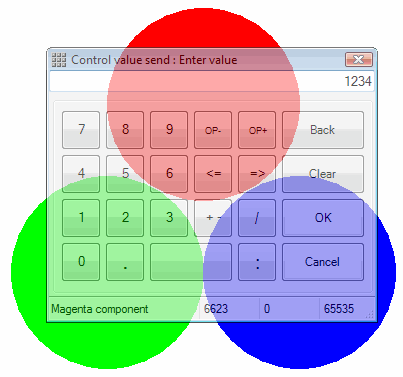
The opacity determines the visibility of any display beneath the keypad.
With the default of 100% the keypad is solid. The minimum opacity setting
is 30%. Show picture
Displaying information about the variable in the keypad dialog
If required you can provide the User with further information about the variable used in the animation by ticking the option Display variable information. The following further options then become available.
- Select Name to display the variable's name or Label to display its description.
- Tick the option Minimum - maximum value to display the variable's range (Numeric keypad only)
- Tick the option Current value to display the variable's current value.
Displaying a dialog to confirm the value
Selecting the option User send confirmation will display a dialog in which the user is allowed to confirm or cancel the new value for the variable.
Selecting the display mode for the numeric keypad
Using the mode options, you can choose different styles of keypad that allows the User to enter a number in decimal, hexadecimal or binary.
- To allow the User to enter a number in decimal format select the Standard mode.
- To allow the user to enter the number in hexadecimal or binary format select Advanced mode and then choose the appropriate option from the drop down list box. The All option allows the user to select the format when displaying the numeric keypad at run time.
Selecting the display mode for the alphanumeric keypad
The display mode options for the alphanumeric keypad allow the selection of a keyboard layout relevant to the language in use.
- Standard - Allows the selection of a QWERTY or AZERTY keyboard, or Automatic where the keyboard layout is selected from QWERTY or AZERTY whichever is closest to the project language.
- Advanced - Allows
the selection of a keyboard in a specific language (see below), or Automatic where the keyboard layout is selected from one of the following whichever is closest to the project language.
- English (US)
- French
- Spanish
- German
- Italian
- Russian
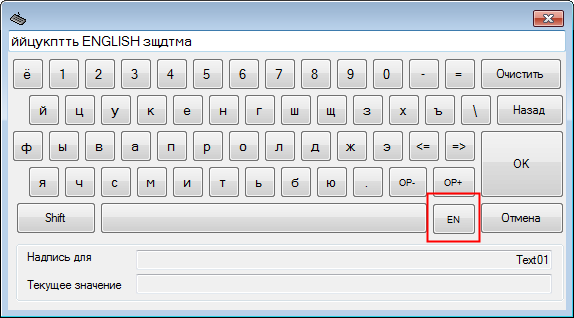
If you choose to display the alphanumeric keypad in any language other than English, an extra key is provided to select an English keyboard. This is to allow the user to enter a mix latin and non-latin characters. For example, you may want to enter the name of an instrument or an identifier using latin characters in the middle of a Russian phrase. Show picture
See also the topic Soft keypad management.