


Topic
[KB1239]Get SOFREL LogUP data in PcVue using REST API and LX CONNECT platform

This exchange with the LX CONNECT platform is possible thanks to PcVue’s REST Provider.
Note that the use of the Provider is subject to an option on the license.
Download and install the latest version of the Provider proposed in this article.
Follow the instructions given in the article on how to install ADO.Net Providers to install this Provider.
The steps are as follows:
- Declare a connection in PcVue,
Go to General -> Data connections -> Add SQL connection
Select the data source “Built-in providers”,
Then select the data provider “. NET Framework Data Provider for REST”:
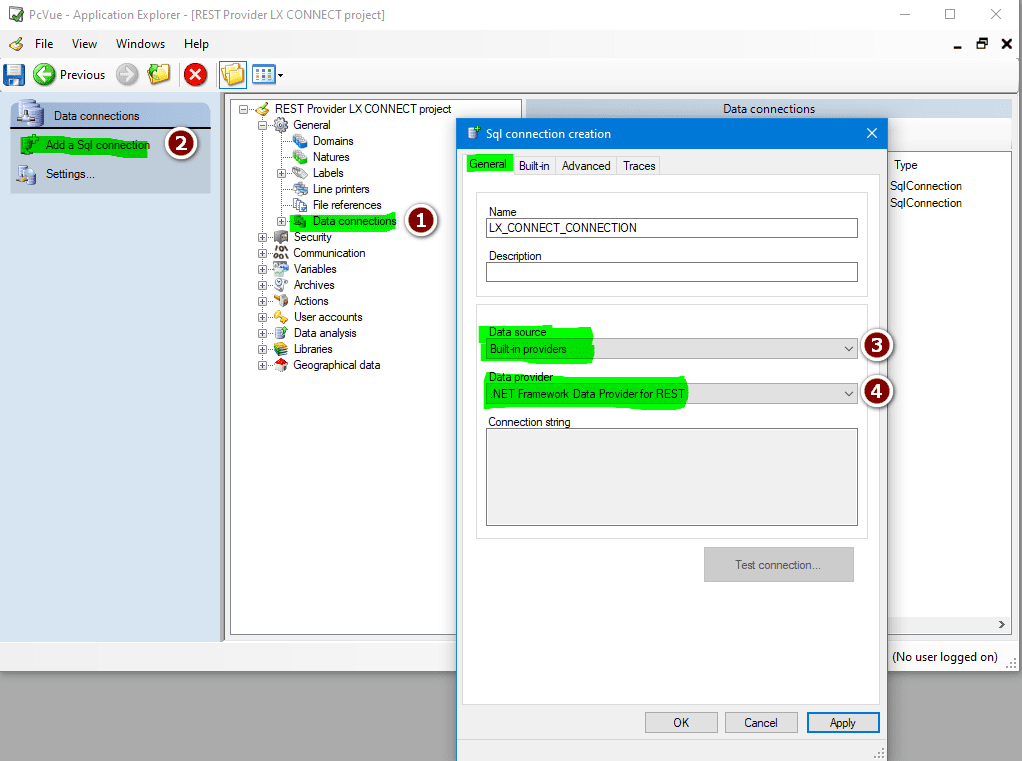
Finally, go to the second tab (Built-in) to configure the connection as below:
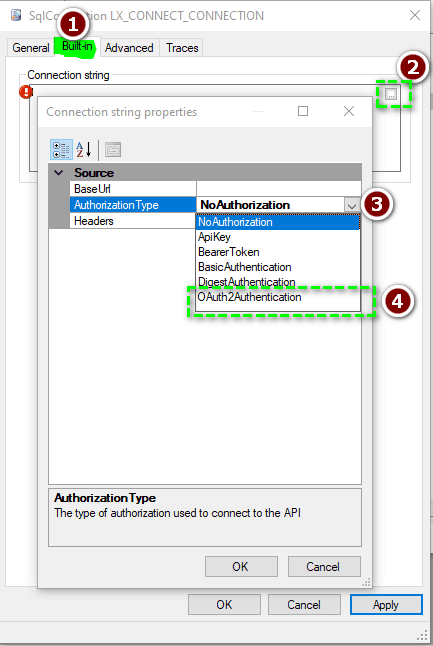
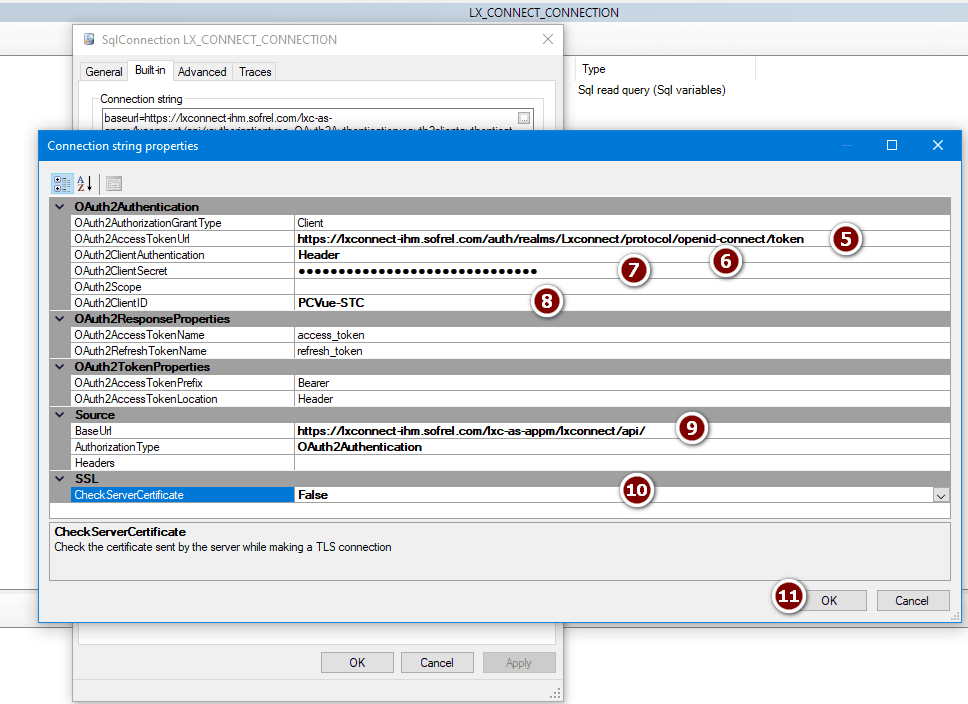
Legend:
5: https://lxconnect-ihm.sofrel.com/auth/realms/Lxconnect/protocol/openid-connect/token
6: your ClientID received from SOFREL: Example in my case PCVue-STC
8: your ClientSecret received from SOFREL
9: https://lxconnect-ihm.sofrel.com/lxc-as-appm/lxconnect/api/
The LX CONNECT platform has two versions of APIs to retrieve data.
The v1 API allows you to:
• Retrieve list of all devices
• Retrieve information from a device
• Retrieve a device configuration
• Retrieve archives with Unix date format
The v2 API allows you to:
• Retrieve archives in ISO8601 date format
Note:
To strengthen the security of the connection to its Lx-Connect platform, SOFREL provides a certificate downloadable from the user account.
- Once the certificate (.pem) has been downloaded, open it with a text editor
- Copy the last section contained in the file into another file. Save it for example under the name “RootSOFREL.pem”
- Copy the two files into PcVue’s certificate directory.
« C:\ARC Informatique\PcVue XX\PKI\trusted\certs » if you kept the default path when installing PcVue. - Download the video from this link for the rest of the configuration
2. Create SQL Read query
• Retrieve equipment list
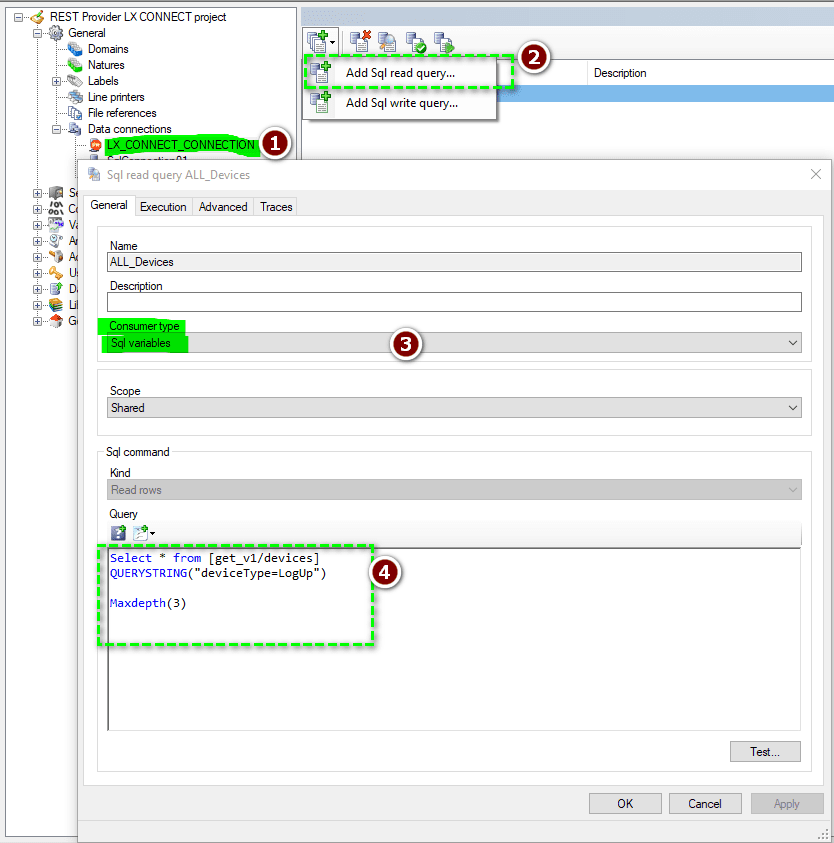
Select * from [get_v1/devices]
QUERYSTRING(“deviceType=LogUp“)
• Retrieve information from an equipment
Select * from [get_v1/devices/9fec58d9-c7a6-4e48-974d-77352f2345c9]
QUERYSTRING(“deviceType=LogUp”)
Note: 9fec58d9-c7a6-4e48-974d-77352f2345c9 = deviceUID retrieved from previous query result
• Retrieve configuration of an equipment
Select * from [get_v1/devices/9fec58d9-c7a6-4e48-974d-77352f2345c9/configuration]
QUERYSTRING(“deviceType=LogUp”)
• Retrieve telemetry archives of equipment in Unix timestamp format
Select * from [get_v1/devices/9fec58d9-c7a6-4e48-974d-77352f2345c9/telemetry/AI_1_SCALING_VALUE]
QUERYSTRING(“deviceType=LogUp&startTimestamp= 1733907061000000&endTimestamp= 1733907961000000“)
Note: AI_1_SCALING_VALUE is a «telemetryName» obtained from the result of the previous query on the configuration. The correct start and end date will be required.
PcVue tolerates a maximum of 5000 cells as a result of a read query with SQL connections. Please play on the time interval to stay in this constraint.
• Retrieve telemetry archives of an equipment in ISO8601 format (Remember this work with V2 of API)
Select * from [get_v2/devices/9fec58d9-c7a6-4e48-974d-77352f2345c9/telemetry/AI_1_SCALING_VALUE]
QUERYSTRING(“deviceType=LogUp&startDateTime=2024-12-23T08:51:00.000Z&endDateTime=2024-12-23T09:06:00.008Z“)
3. Retrieval of all archives from the LX CONNECT platform
The LX CONNECT platform only stores data from the last three months.
To retrieve all archive data from the platform, you can refer to KB1105 : Repeat Query for Sql variables.
| Attached file | Description |
| sv-adonet-provider_Rest_1.0.667.zip | Version 1.0.667 of REST provider |
| Provider Rest – GuideLine – draft | The documentation |
| Configuration video for secure connection using certificate |
Created on: 13 May 2025 Last update: 25 Dec 2025