









Why is migration required in PcVue 17?
PcVue 17 strengthens the cryptographic protection of projects and station hosts. As part of this change, the format of the user.dat file (which stores user accounts and other sensitive configuration) has changed. The previous user.dat formats are no longer supported, and PcVue 17 cannot read a project that still uses the old format.
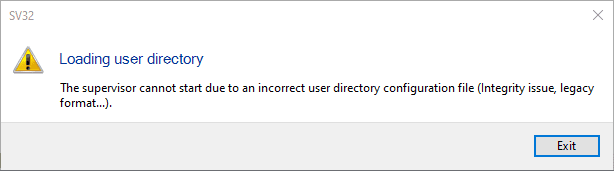
You will have the following message when lauching a non migrated project : Loading User Directory : “The supervisor cannot start due to an incorrect user directory configuration file (Integrity issue, legacy format…).”
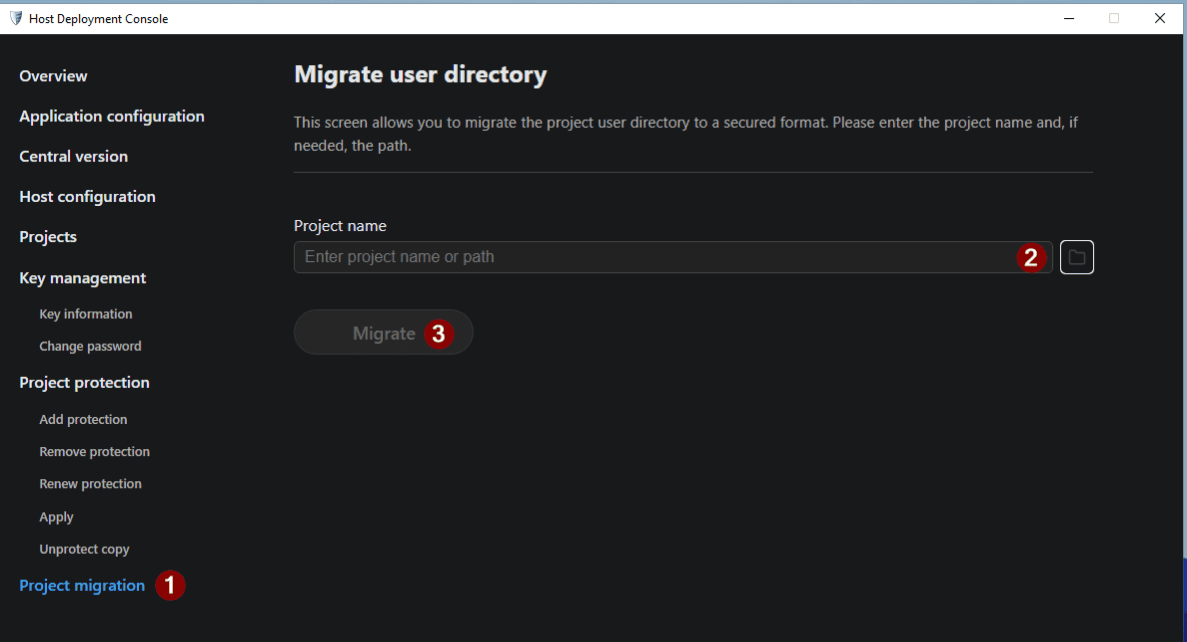
To preserve your users and configuration while applying the new secure encryption, ARC Informatique provides a Project migration tool inside the Host Deployment Console. The same operation is also available through the ProjectUtility command-line tool.
Key point: a project that is not migrated with the procedure below will fail to start on PcVue 17 or later.
Before you begin
- PcVue 17 is installed on an engineering or test host (do not migrate directly on production).
- You have Windows Administrative privileges — both methods require them.
- PcVue is stopped. The migration tool cannot run while PcVue is active.
- You keep a safe copy of your original V16 project outside the working folder.
Method 1 — Host Deployment Console (recommended)
The Host Deployment Console provides a guided, graphical migration and is the recommended method for most users.
- Copy the project into a sub-folder of
C:\ProgramData\ARC Informatique\PcVue 17\usr\. - Open the Host Deployment Console as an administrator (shortcut on the desktop and in the Programs menu).
- Click Project migration and select your project.
- After a few seconds a confirmation message appears. On success, the project can start with PcVue 17.
Reference: Host Deployment Console
Method 2 — ProjectUtility CLI
Prefer the command line, or need to script the migration? Use the ProjectUtility tool.
- Open a terminal as Administrator and go to
C:\Program Files\ARC Informatique\PcVue 17\Bin\. - Copy the project into a sub-folder of
C:\ProgramData\ARC Informatique\PcVue 17\usr\. - Run the following command, replacing
MyProjectwith your own project folder name:
ProjectUtility migrate "MyProject" user-directoryIf the command succeeds, the project is migrated and can be started with PcVue 17.
Reference: ProjectUtility CLI
After migration: protect your project
After migration, review security alterations so they match the project’s needs. In Application Explorer, open the Security node → Settings, and verify which alterations are allowed or locked (networking, protocols, and other features in use). Migration keeps the project runnable with a posture close to the source version; once validation is complete, tighten these options as part of hardening. If a feature that worked before migration is blocked, confirm that the related alteration is still allowed, then retest.
A successful migration leaves the project in an unprotected cryptographic state. Some files are encrypted with a default key, exactly like a newly created project. Before you resume test and validation, protect the project so it uses your own keys.
Reference: Protecting and deploying a project — and the Hardening guide.
Created on: 10 Jul 2026 Last update: 17 Jul 2026