








Topic
[KB1280]Silent PcVue crash related to SCADA Basic when Windows SEHOP is enabled

Symptoms
PcVue (sv32.exe) closes abruptly, without any message, crash report or dump:
– at the end of the project startup, when the SCADA Basic programs are loaded (even a single empty program is enough);
– or when a mimic is opened from a SCADA Basic program with the WINDOW instruction in OPEN mode, while the same opening works from a Macro animation.
The only trace is an application error in the Windows event log:
Faulting application name: sv32.exe, version: x.x.x.x, time stamp: 0x...
Faulting module name: KERNELBASE.dll, version: 10.0.x.x, time stamp: 0x...
Exception code: 0x40010006
Fault offset: 0x...
Faulting process id: 0x...
Faulting application start time: 0x...
Faulting application path: C:\...\Bin\sv32.exe
Faulting module path: C:\Windows\System32\KERNELBASE.dll
Report Id: ...
The cause is the Windows exploit protection mitigation Validate exception chains (SEHOP), which PcVue versions earlier than 17 do not support. It is often enabled by a hardening policy, which explains why the same project can run on one machine and crash on another.
Workaround
Disable SEHOP for sv32.exe only:
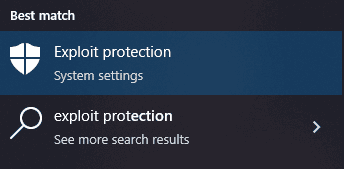
- In the Windows Start menu, search for Exploit protection and open it.
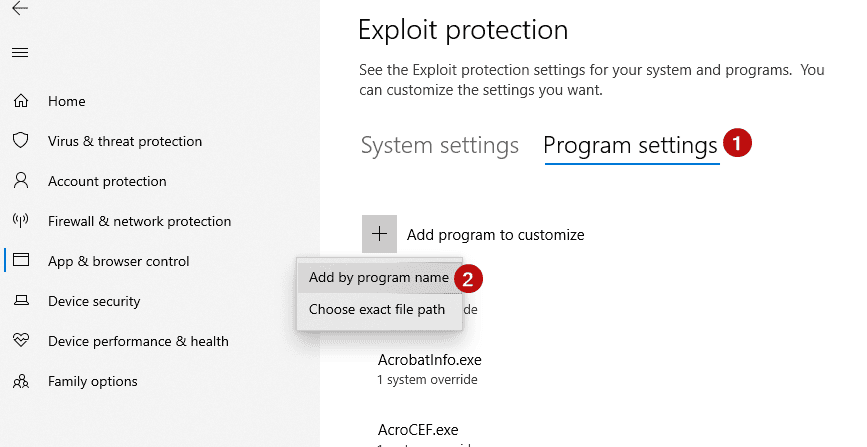
- Select the Program settings tab (1), then Add program to customize > Add by program name (2).
- Enter
sv32.exeand select Add.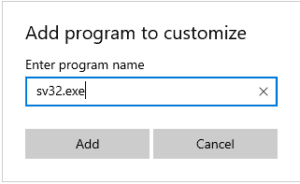
- In Program settings: sv32.exe, under Validate exception chains (SEHOP), check Override system settings and leave the switch on Off (1). Select Apply (2).
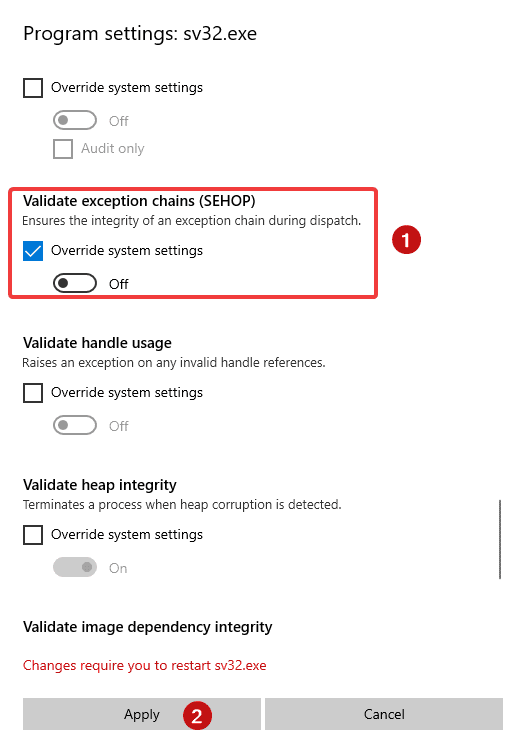
- Restart PcVue, as indicated by the message Changes require you to restart sv32.exe.
SEHOP remains active for all other applications, and the change can be reverted at any time by removing sv32.exe from the Program settings list.
Recommended method: Use PowerShell rather than only the Windows graphical configuration, because it is more direct and avoids unrelated changes made by the Exploit Protection user interface.
PowerShell prompt as Administrator:
Set-ProcessMitigation -Name sv32.exe -Disable SEHOP
Expected result: PcVue no longer crashes when the view is opened from SCADA Basic.
Created on: 15 Oct 2026 Last update: 16 Oct 2026