Guided tour of the WDC
Using the WDC requires administrator privileges.
Overview
The following screen shots show the WDC after it has been first installed and there is no configuration.  Show pictures
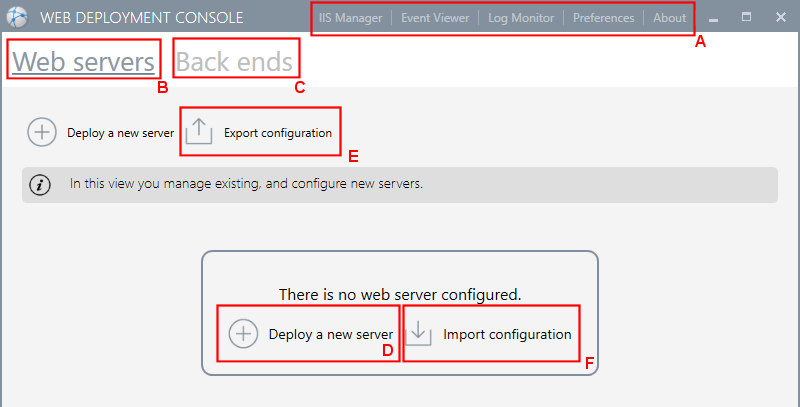
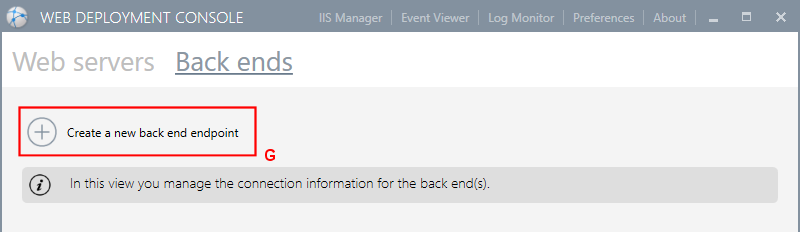
- Tool bar - Quick access to some useful configuration and monitoring tools.
- Web servers - Click to display the Web servers view.
- Back ends - Click to display the Back ends view.
- Click to Deploy a new server.
- Click to export the entire WDC configuration to a zip file.
- Click to import the entire WDC configuration from a previously exported zip file.
- Click to Create new back ends endpoints.
Back ends view
The Back Ends view displays the list of back end endpoints that have been configured in the WDC. A back end endpoint includes the configuration properties required for the web server to connect to each of the PcVue back ends. Show picture
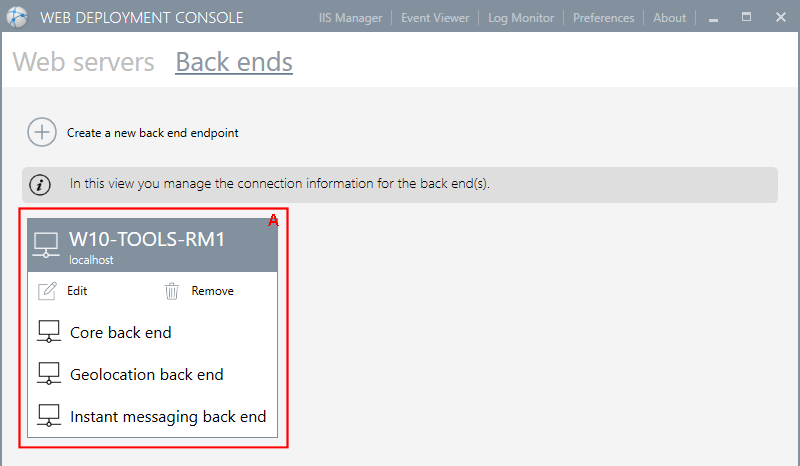
- The configured back ends. The information displayed includes the back ends' alias and the name of the computer on which it resides. The following tools are provided.
- Edit - Edit the configuration of the back end.
- Remove - Remove the back end and its entire configuration.
Web servers view
The Web servers view displays the IIS web servers that have been configured and the sites that have been deployed. The WDC can help configure the local installation of IIS and hence there will only ever be one web server displayed. Show picture
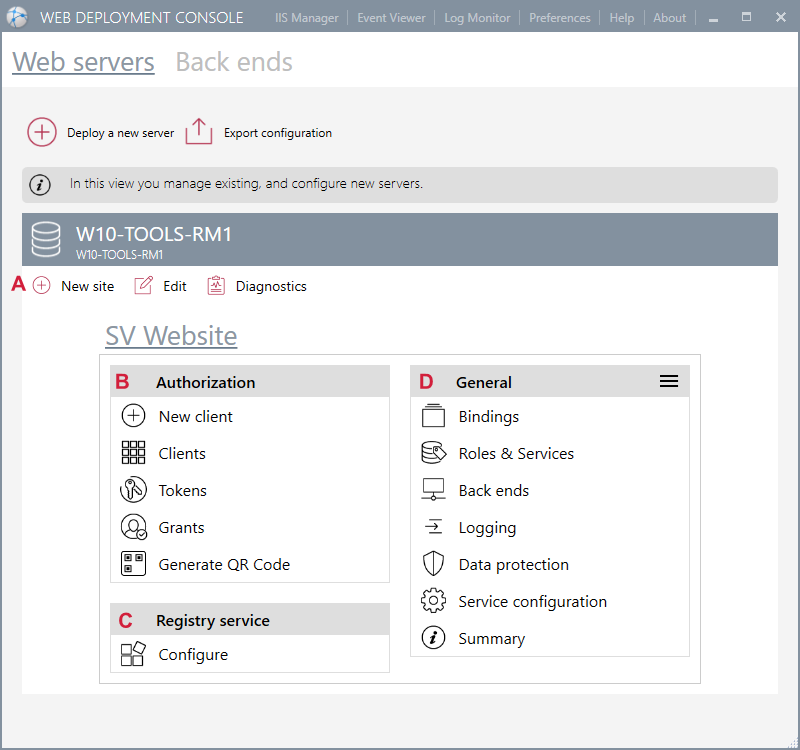
- The configured web server. The information displayed include the server’s alias, the name of the computer on which it resides and an icon indicating its status. The following tools are provided.
- New site - Start the wizard to deploy a new IIS web site and the corresponding roles - WebVue, TouchVue etc.
- Edit - Edit the configuration of the web server.
- Diagnostics - Run the diagnostics and display the results in the Diagnostics pane.
- Authorization tools. The tools in this group are to configure and manage authorized clients. See the topic Authorization.
- New client - Create an authorization for a new 3rd party application.
- Clients - Display the authorized clients. A list of the clients appears in the right pane from where their configuration can be accessed.
- Tokens - Display the authorization tokens that are currently active.
- Grants - Display the authorized grants that are currently active.
- Generate QR code - Generate a QR code to quickly test the connection to a deployed website from a mobile app.
- Registry service.
- Configure - Configure the registry service. See the Registry service configuration topic.
- Deployed sites. The tools in this group are to configure and manage a particular site. In this example, it has the alias SV Website. The following tools are provided. Further information can be found in Custom Setup wizard.
- Bindings - Manage the HTTPS bindings, including certificates.
- Roles and services - Manage the site's roles and services that are deployed.
- Back ends - Manage the back end used by the site.
- Logging - Manage the logging and trace level in use.
- Data protection - Manage the data protection used by the site.
- Service Configuration - Manage the services exposed by the site.
- Summary - Display a configuration summary of the deployed site.